Revving Up STEM Education: Optimizing Mousetrap Cars for the Makerspace STEM Kits

Imagine a classroom of 5th graders buzzing with excitement as their mousetrap-powered cars zoom across the floor, each tweaking their design to outrace the others – all while learning the physics of potential and kinetic energy. That’s the vision behind the Williams College Makerspace’s Sustainable STEM Learning Kits project, and this semester, I had the chance to dive in, redesign a car from scratch, and use statistical methods to optimize its performance. Spoiler: it involved a paintbrush, some copper wire, and a magazine holder: improvisation at its finest!

Dual mousetrap powered car

Dual mousetrap powered car

Background: Building on a Legacy of Learning

This project builds on the groundwork laid by the Makerspace, Williams College CLiA, and the Zilkha Center through the TIDE Grant initiative, which aimed to create sustainable, reusable STEM kits for under-resourced 5th and 6th grade classrooms. As detailed in this Makerspace blog, one of the main ideas for the stem kits is a model car assembled from sustainable, reusable materials with some 3D-printed printed parts to teach energy concepts, aligning with Next Generation Science Standards (NGSS). Previous Makerspace student workers Divine Uwimana ’27 and Alice Sore ’27 created an initial design that used a rubber band to power the car. My work involved building up on and enhancing this initial design and exploring other forms of potential energy that could be used to power the car.

My Journey: From Brainstorming to Rapid Prototyping

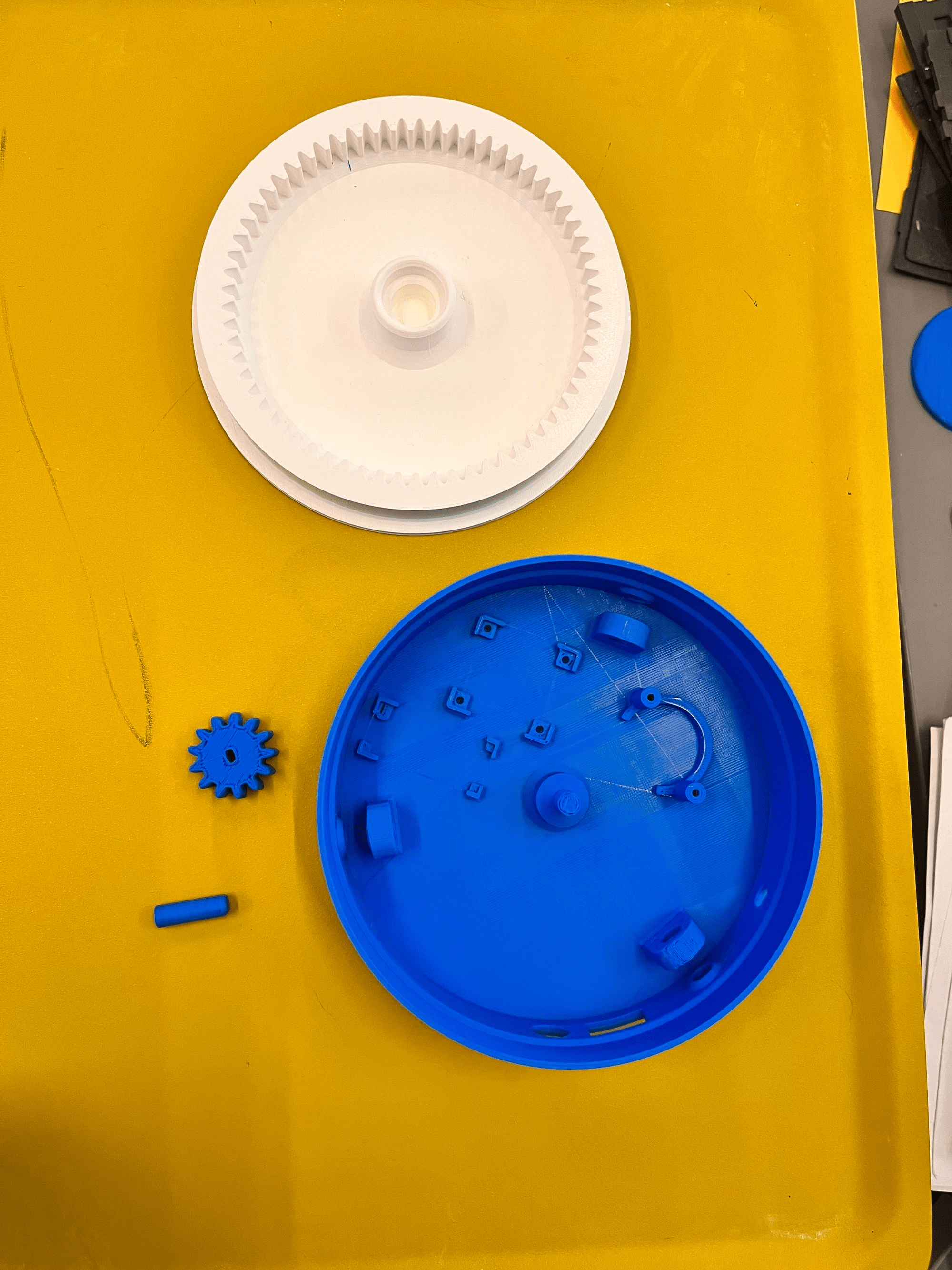
Mousetrap car parts

Mousetrap car parts

Fusion360 flywheel model

Fusion360 flywheel model

I kicked things off by meeting with Divine Uwimana to understand the project’s history and progress. Then, I teamed up with Izzie Tarantino for this joint endeavor, guided by Makerspace Program Manager David Keiser-Clark. We brainstormed energy sources for the car: elastic bands, flywheels, mousetraps, and motors. Izzie focused on elastic energy (expanding on the previous work by Divine and Alice) and modular designs, while I explored flywheels and mousetraps. I initially designed a flywheel with 8 ball bearings but decided to pivot to the mousetrap car for this semester, leveraging the existing car body as a starting point.

Having dabbled in Fusion 360 during a previous photogrammetry project, I saw this as a chance to deepen my skills. I tried modifying the prior design, but missing sketches made it tricky, so I started from scratch. The learning curve was steep; I relearned Fusion 360 mirroring and shape patterns, tackled advanced concepts like threading an axle, and spent hours troubleshooting. After printing the car body, I turned to rapid prototyping to test ideas without wasting resources. For instance, I used a paintbrush as a pole to connect the mousetrap to the axle with a string. I also experimented with connecting two mouse traps in series, designing a scalable system where one trap triggers the next. To test this trigger mechanism, I improvised with cardboard and copper wire, containing the setup in a magazine holder – Makerspace creativity at its best!

Mousetrap car rapid prototyping: testing trigger mechanism in makeshift compartment

Mousetrap car rapid prototyping: testing trigger mechanism in makeshift compartment

Merging Design with Data: A Statistical Experiment

The project took an exciting turn when I realized it aligned perfectly with my Statistical Design of Experiments course (Stats 344). On one hand, I had an extracurricular project that was inherently experimental; on the other, I was learning statistical methods eager for application – a textbook case of supply meeting demand with zero opportunity cost! My Stats 344 team, consisting of Lee Mabhena ’25, Victor Cazabal ’25, and myself (26’), met at the Makerspace to run a 2^(7-4) fractional factorial experiment, testing seven factors: floor type (carpet vs. hard floor), wheel friction (high vs. low), string material (polyester vs. rubber band), number of mousetraps (one vs. two), pole length (short vs. long), car length (short vs. long), and added weight (0 g vs. 100 g). Our goal? Finding the combination that maximizes travel distance while identifying which factors matter most, enabling kids to experiment with configurations and compete.

After multiple experiments, including a central composite design, we pinpointed an optimal setup: 16.37 g weight and an 8.56-inch pole length, predicting a distance of 381.27 inches. Confirmatory runs (389.14, 380.88, and 350.55 inches) validated our model, and we confirmed that floor type, weight, number of mousetraps, and pole length significantly impact performance, while wheel friction, string material, and car length had less effect.

Factors affecting mousetrap car performance: floor type, pole length, and added weight

Factors affecting mousetrap car performance: floor type, pole length, and added weight

Reflections and Next Steps

This project was a game-changer for me. I sharpened my Fusion 360 skills, learned the value of rapid prototyping, and enjoyed my first Makerspace team collaboration with Izzie –our brainstorming sessions were a highlight! Looking ahead, I’d love to revisit the flywheel design as an energy source and eventually create a universal car body that supports multiple energy sources, like a “universal adapter” for elastic, flywheel, or mousetrap power. This would give students even more ways to explore physics while fostering creativity and competition. For now, I’m thrilled to have contributed to a project that empowers young learners and bridges classroom learning with hands-on innovation, helping students see science not as abstract equations, but as something they can build, test, and improve.

Does Optogenetic Inactivation of TRPA1-expressing Neurons Diminish Heat Avoidance in Drosophila Larvae?

Authors: Claire Colvin ’27, Tess Everett ’27, Shiv Patel ’27. 

For our Neuroethology class (NSCI 324/BIOL 314) with Professor Charlotte Barkan, we decided to explore the extent to which TRPA1, an ion channel expressed by heat-sensing neurons, is involved in heat sensation. We wished to use optogenetics to investigate how the inactivation of cells expressing this channel influenced heat avoidance behaviors in Drosophila larvae. In order to inactivate the channel under blue light, we crossed two fly lines (UAS-ACR2 and GAL4-TRPA1) and used their resulting progeny. 

Students in Neuroethology 324 class collaborate with the Makerspace to create a dual-chamber water bath

Students in Neuroethology 324 class collaborate with the Makerspace to create a dual-chamber water bath

To observe heat avoidance in ambient versus blue light, we wanted to create a model that could maintain a heat gradient with a cold and hot side of the arena (a Petri–dish). This led us to partner with the Makerspace to bring this experimental design to life. We helped design and then Makerspace student worker Izzie Tarantino ‘28 modeled and 3D printed a dual-chamber water bath that allowed us to cool and heat each side individually. The arena was partially submerged within the model, allowing for the creation of a temperature gradient to observe larval behavior. Heat avoidance behavior was quantified by recording the number of larvae present on each side of the arena at 30–second intervals over 5 minutes. We hypothesized that the inactivation of TRPA1 (blue light condition) would disrupt heat detection, manifesting as reduced heat avoidance of the hot side of the arena. 

Early data acquisition: small change in temperature

Early data acquisition: small change in temperature

During our data collection, we learned that the temperature of the water did not exactly reflect the temperature of the arena. This was due to the material within the Petri-dish, called agar. While this substance is crucial because it facilitates larval movement, agar is not particularly conductive to heat. The cold side of the arena was warmer than the surrounding cold water beneath it, and the hot side of the arena was cooler than the surrounding hot water. This led us to adjust our methods. First, we opted for more extreme water temperatures within each chamber to achieve a true temperature gradient. We also decided to use an infrared thermometer to ensure we knew the exact temperature experienced by the larvae on the surface of the arena, instead of using the temperatures of the water below as a proxy. With these adjustments, we gathered much better data. 

Later data acquisition: larger change in temperature

Later data acquisition: larger change in temperature

Our preliminary results showed that the inactivation of TRPA1 partially leads to the reduction of heat avoidance behaviors, following our hypothesis that TRPA1 is involved in heat sensation, but demonstrating that TRPA1 is not the only ion channel involved in temperature detection. We would like to note that due to the few trials performed, these results are not statistically significant, and more experiments are required to confirm the viability of our findings. 

Special thanks to Jason Mativi (Senior Science Center Shop Engineer) and David Keiser-Clark (Makerspace Program Manager) for supporting our work.

For more in-depth information about our project and results, our final presentation and lab report are linked below:

Just us being goofy

Just us being goofy


Learn Autodesk Fusion 360

Autodesk Fusion 360 computer aided design (CAD) software

Autodesk Fusion 360 computer aided design (CAD) software

Fusion 360 is a powerful cloud-based 3D modeling platform that blends computer-aided design (CAD), computer-aided manufacturing (CAM), and computer-aided engineering (CAE) in a single environment. It equips users with an all-in-one toolkit to design, simulate, and refine everything from quick prototypes to intricate, functional creations. Fusion 360 has been a cornerstone of the Makerspace’s creative and technical toolkit. We use it to design objects from scratch, develop prototypes, and modify existing models. Once the design is complete, we often 3D print it to bring it into the physical world.

Creative Storytelling

Beyond its technical capabilities, Fusion 360 has also become a tool for creative storytelling—helping us turn abstract ideas into real, usable forms. From phone stands and keychains to prosthetic limbs and mechanical components, the software gives us a platform to solve real-world problems through design.

Just last year, only one person on our entire Makerspace team—Elena—knew how to use Fusion 360. Over the course of the year, more people joined the team and undertook projects that required Fusion 360, and as a result, more people were able to develop skills to use Fusion 360 confidently. Now, that number has grown to over six team members, myself included. During the summer, I worked on a project that focused on developing prototypes for STEM kits, allowing me to learn Fusion 360. At first, the software felt intimidating—but with time, persistence, and plenty of trial and error, I started to get the hang of it. Through consistent practice, I gradually became more comfortable navigating the tools and bringing my designs to life.

Rewarding Moments

One of the most rewarding moments for me was seeing a digital model I created—a small gear-based mechanism—emerge from the 3D printer fully functional. That moment bridged the gap between theory and reality. I realized then that Fusion 360 wasn’t just about modeling—it was about building confidence, persistence, and a mindset of continuous problem-solving

This shared growth in Fusion 360 skills has sparked a transformation in our Makerspace. It has cultivated a culture of experimentation, collaboration, and innovation. Team members are now able to collaborate on a greater number of projects, many of which are more advanced and ambitious than before. We’re no longer limited by unfamiliarity—we’re empowered by our creativity. 

Created: A Guide to Learn Fusion 360

I’ve compiled a guide to the essential steps for starting your first Fusion 360 design. Whether you’re building something simple or diving into a complex idea, I hope you enjoy the process of learning as much as I did. If there’s one thing Fusion 360 has taught me, it’s this: you don’t have to be an expert to start—you just have to be curious.

Here is a link to the presentation:  Fusion_360Guide_Presentation

Benchys on Benches and Sailors on Shelves

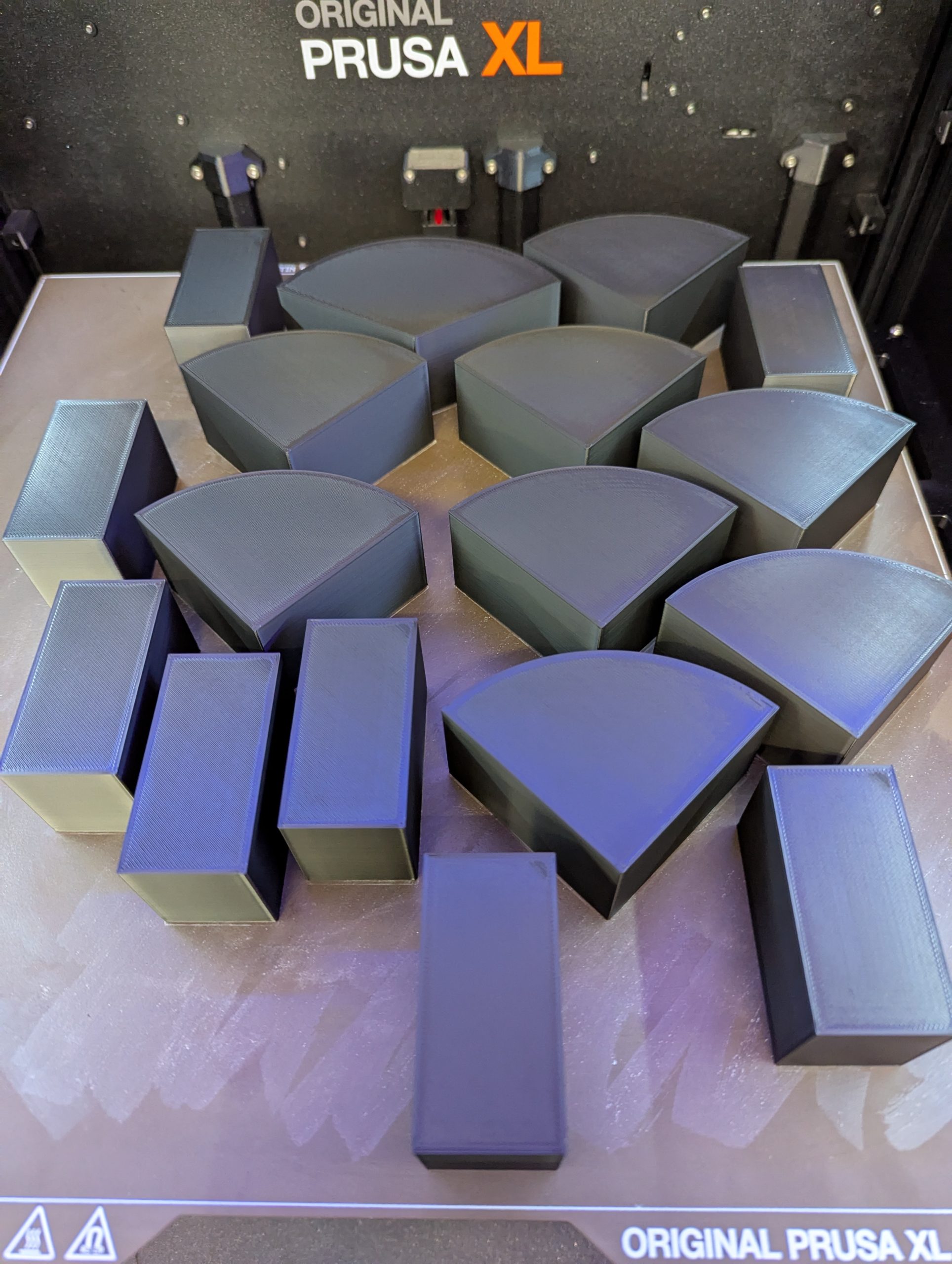
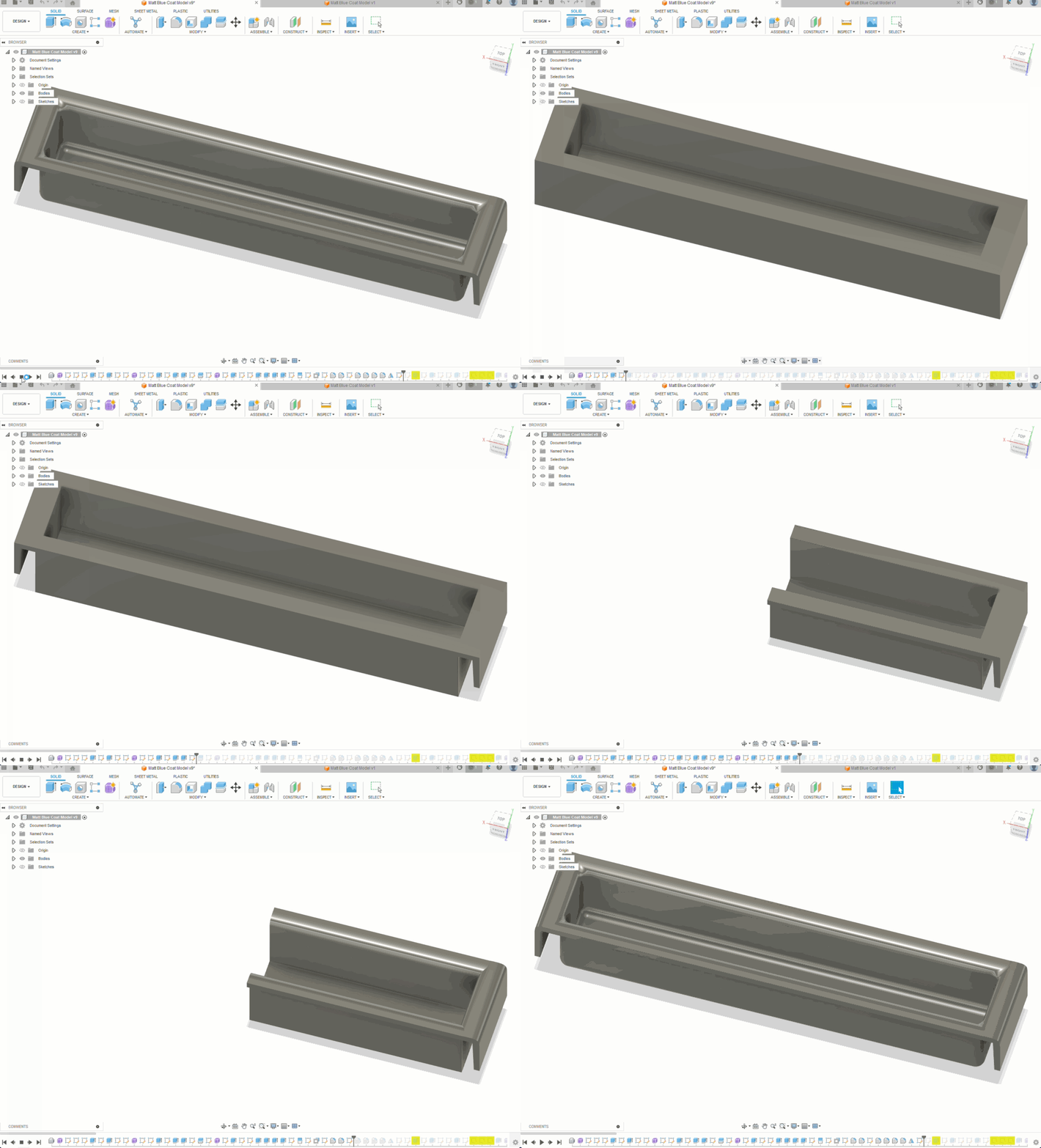
Using CAD allowed me to model and then print this custom holder for future benchy calibration test prints.

Using CAD allowed me to model and then print this custom holder for future benchy calibration test prints.

The objectives of this project were to 1) build a 3D model and print from scratch to accumulate hands-on CAD and prototyping experience for future modeling and printing projects, and 2) build a practical object—in this case, shelves resting on the windowsill in the Makerspace that can contain and display Benchys—3D boat models used for calibrating and benchmarking 3D-printing performance.

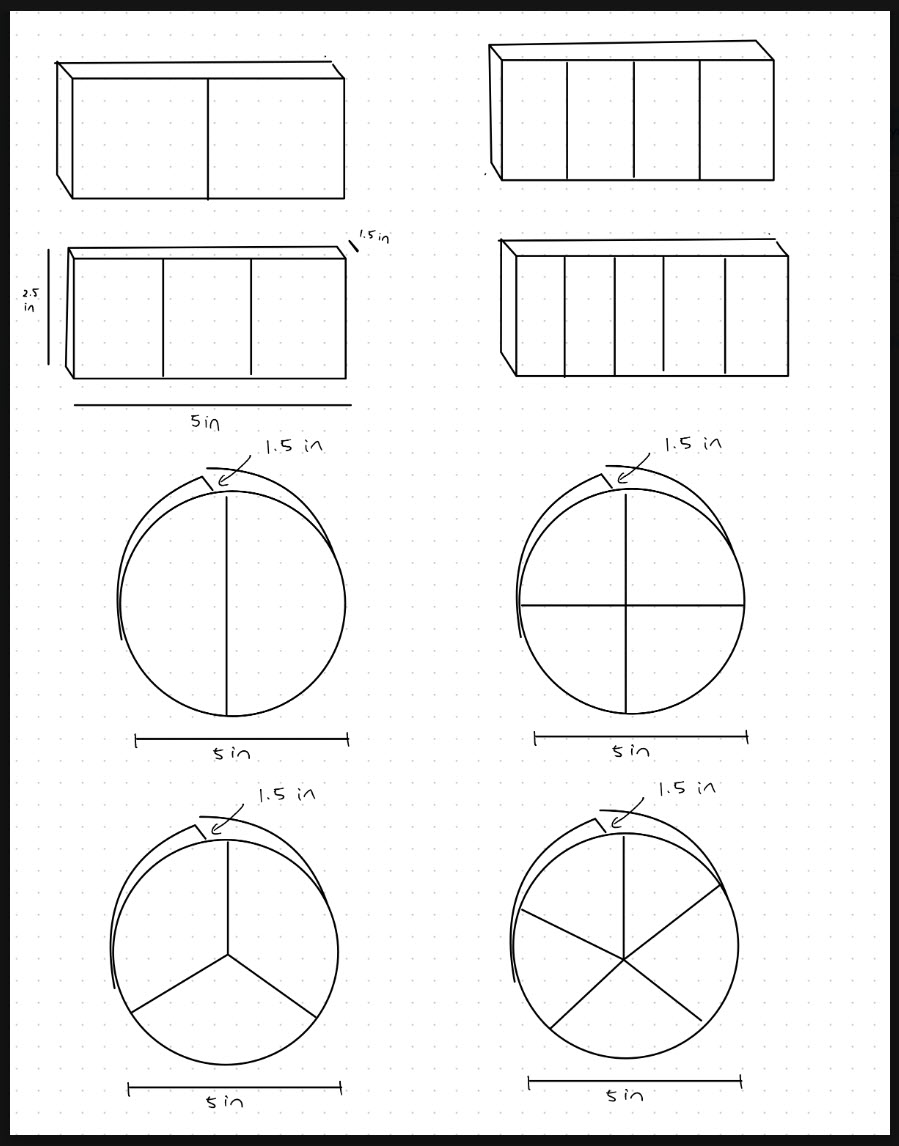
First, I measured the width of the windowsill (1.5”) and dimensions of a typical 3D Benchy (2.5” x 1.25” x 2.0”). Using those measurements, I used the outline and sketch features in the Fusion 360 software to create a shelf exactly 1.5” wide that would sit flush on our windowsill.

The dimensions of the compartment needed to be slightly larger than the dimensions of the Benchy to allow for movement. So, I sketched a rectangle surrounding the perimeters of the Benchy with an additional .25” of room for the width and height to allow for “tolerance” in the geometric dimensioning. I used the “mirror” action in Fusion360 to duplicate the compartments, totaling 4×4 or 16 shelves.

I sketched a blue rectangle with the same length and height as the Benchy: 2.5” x 2.0”. This served as a helpful tolerancing reference.

I sketched a blue rectangle with the same length and height as the Benchy: 2.5” x 2.0”. This served as a helpful tolerancing reference.

I used the “extrude” feature in Fusion 360 to add a width of 1.5” to the original 2-dimensional sketch, thereby transforming it into a 3D model.

I used the “extrude” feature in Fusion 360 to add a width of 1.5” to the original 2-dimensional sketch, thereby transforming it into a 3D model.


Upon completing the 3D model and initializing the 3D printing process, I discovered that the model’s width and height exceeded the dimensions of the standard Prusa 1 MK3S bed. To solve this problem, I could have undergone another remodeling process to fit the dimensions or sliced the prototype and printed it in four iterations. Instead, I printed the original prototype on the larger Prusa XL. Looking forward to future projects, I’ll carefully consider the geometric dimensions of my 3D models relative to the volumetric constraints of the 3D printing devices to ensure successful prints.

Special thanks to Stepher Sabio (’28) and David Keiser-Clark, Makerspace Program Manager, for assisting in the 3D printing process!

Post Script

One year later, my custom storage shelf is happily filled with calibration test prints by our student workers.

One year later, my custom storage shelf is happily filled with calibration test prints by our student workers.

One year later, my custom storage shelf is happily filled with calibration test prints by our student workers.

From Summer Sunshine to STEM Making: Makerspace’s Reflections on a Season of Innovation

Divine Uwimana ’27 and Qi Wang ’26 have an ice cream chat at Spoon Cafe on Spring Street with Makerspace Program Manager David Keiser-Clark.

Divine Uwimana ’27 and Qi Wang ’26 have an ice cream chat at Spoon Cafe on Spring Street with Makerspace Program Manager David Keiser-Clark.

Written by: Qi Wang ’26, Divine Uwimana ’27, Divya Sijwali’ 28.

What happens when you mix a dash of creativity, a sprinkle of STEM magic, and a whole lot of teamwork? Well, welcome to a summer at the Makerspace! Imagine learning how to 3D print parts for a science kit by day and swapping sketches on designs over ice cream by night. 

Divine Uwimana ’27 and Qi Wang ’26 worked in the Makerspace this past summer as student workers. They made significant progress on a Towards Inclusion, Diversity & Equity (TIDE) grant awarded to develop sustainable and reusable STEM learning kits for 5th-grade students in nearby under-resourced elementary schools. 

In the summer, Divine and Qi learned Fusion 360 (computer-aided design software) and advanced 3D printing, including calibrating printers and determining the most appropriate hot-end temperature settings. They identified and associated core curriculum science concepts with their STEM kit models and learned how to use rapid prototyping to test and quickly iterate on conceptual designs. By the end of the summer, they had developed three STEM kit models. Their kits centered on storing variable amounts of potential energy by using 3D printed torsion springs, gravity, and rubber bands. Their goal was for a single set of common parts to support all three models.

What Does Makerspace Mean to Them?

3D printed wind up car with an embedded rubber band power source

3D printed wind up car with an embedded rubber band power source

Divine Uwimana ’27 has worked in the Makerspace since the start of her first year at Williams. Divine believes that the Makerspace has offered her a place to learn and create. She said, “I love seeing the product of my learning, and it’s motivating to know that my summer experience will help elementary students learn.” As a math major, the Makerspace has allowed her to apply her skills in mathematics and be creative with them. She added, “I’ve also learned to pay attention to details and have noticed how you can see a huge difference when you change the smallest detail.” 

While working on this project, Divine felt a deep sense of excitement and responsibility: it was fun to make the kits, but making them for the kids made them more meaningful. Developing these STEM learning kits was a way to blend her skills with younger students’ needs, hoping it would enrich their learning experiences. Every design and every print felt a step closer to making a tangible impact. As she dove deeper into learning Fusion 360 and fine-tuning her 3D printing techniques, she felt a sense of accomplishment in turning ideas into designs and then finally into design models. Seeing the pieces come together was incredibly motivating for Divine; the process showed how small adjustments, like changing the length or thickness of a model or adjusting temperature settings, could make a huge difference in the final print.

The opportunity to work collaboratively in a focused environment manifested several “aha” moments for Divine. She said that the most notable was having first-time opportunities to assemble a mechanical Scotty dog kit (created at Carnegie Mellon University’s TechSpark Makerspace), a 3D printer enclosure kit, a wall-mounted tool rack, and a DeWalt shop vac. These assembly projects helped Divine conceptualize pieces that go together. It also helped her learn how to approach designing her own STEM kit models.

3D printed gravity-powered car

3D printed gravity-powered car

Qi Wang ’26 started working in the Makerspace this summer. She appreciates the existence of the Makerspace at Williams because of its real-world application. She said, “Williams is a liberal arts college but also very prestigious. The courses here often are very theoretical, while internships trend towards being pre-professional. The Makerspace is a rare space in between these extremes.” As a comparative literature major, she recognizes that Williams’ courses focus on literature critiques rather than creative writing. The Makerspace offers a space for applied hands-on academic work that requires learning how to research and implement STEM concepts while utilizing her creative writing and thinking skills. Qi found this summer work filled a gap that had been missing in her education at Williams.

Qi also points out the invaluable opportunity of full-time summer work in the Makerspace. She said, “During a typical semester, you see progress only after many weeks because you can only work for at most 20 hours a week as a student worker, compared to the summer, where we have been working 40 hours a week. I feel really good about our summer project in the Makerspace because we’re seeing so much success in just over nine weeks of work.”

Qi believes that the connection between Comparative Literature and the Makerspace is a blend of storytelling and science, like finding the plot twist hidden in a machine or crafting a narrative around STEM. In Comparative Literature, she’s used to dissecting stories, examining themes, and understanding every word’s purpose. At the Makerspace, Qi found herself bringing that same attention to detail and creativity to projects, as if each STEM kit was its own story waiting to unfold.

Creating STEM kits is like crafting a hands-on narrative for the elementary students who will one day use them. Just as she analyzes texts to bring out underlying meanings, Qi digs into her projects with a literary eye—considering how each part fits, how each mechanism flows, and how a simple change in design can rewrite the entire “storyline” of a STEM model. The Makerspace offered her a refreshing new way to put her analytical mind to work, letting her blend the theoretical with the practical and transform her love for literature into a hands-on learning journey.

How Was Their Experience Working Together?

Qi believes that working with Divine has been one of the best teamwork experiences she has had at Williams. She said, “We each have our strengths and have learned how to contribute our ideas to each other’s established work. People often love to give advice, but we’ve figured out how to have our advice add value to our ongoing work.” 

“I’ve also enjoyed working on these kits with Qi and learned a lot from her,” Divine said. “She was always willing to help and provide me with honest feedback. She always had a positive attitude and always made the working atmosphere fun and motivating.”  

In the fall semester, they will hand off their work to two first-year students to develop it further. Divine said, “I am looking forward to seeing the impact of our work and to hearing feedback from both students and teachers at the Pownal Elementary School.” 

Spinning Tales : Arduino Turntable Step-by-Step Tutorial (Part 2)

Welcome back to my deep dive into the creation of a low-cost DIY Arduino turntable designed for photogrammetry enthusiasts. In this continuation, I will share a detailed, step-by-step breakdown of the build process, highlighting the technical challenges and solutions, while providing comprehensive resources to empower you to replicate this project.

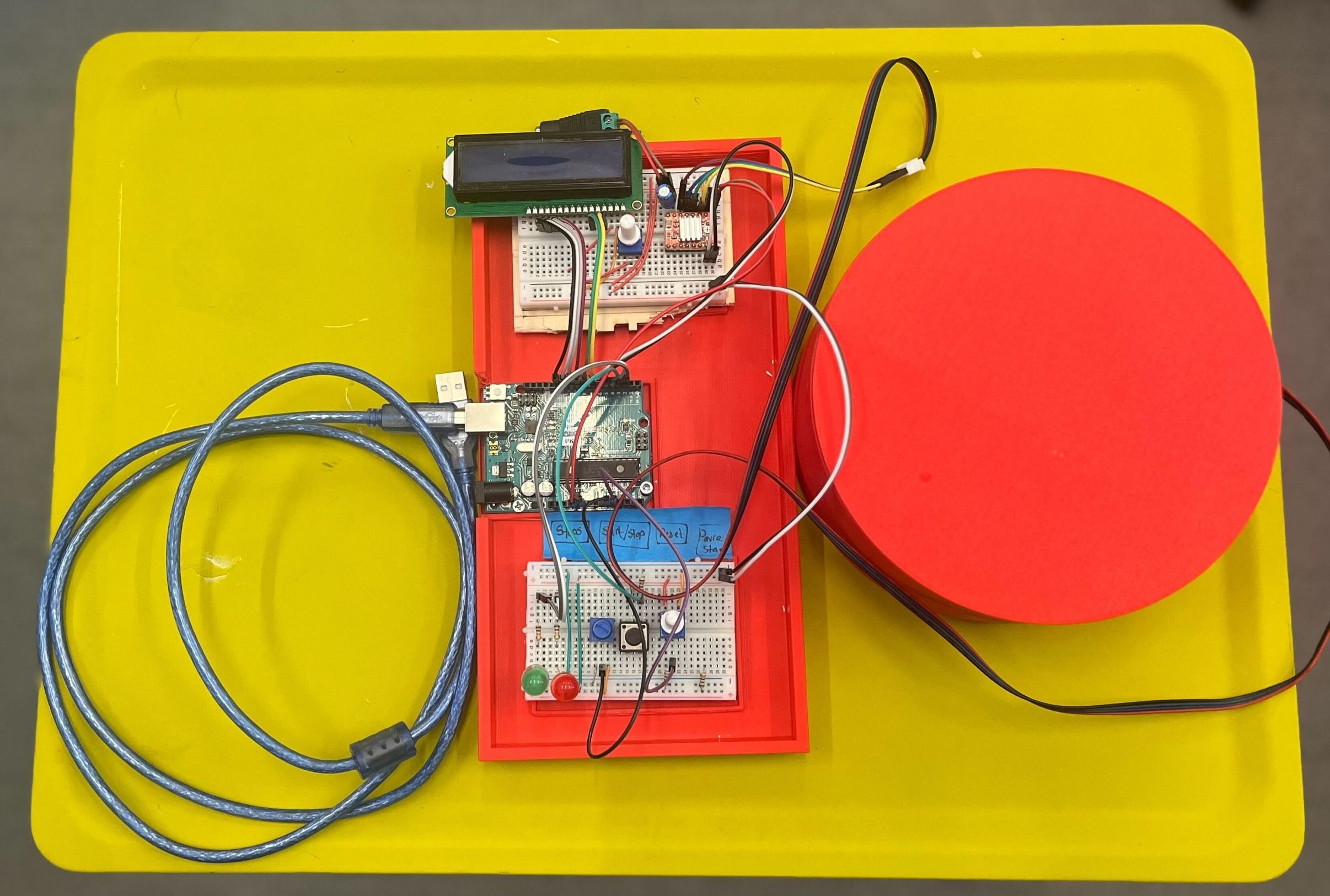
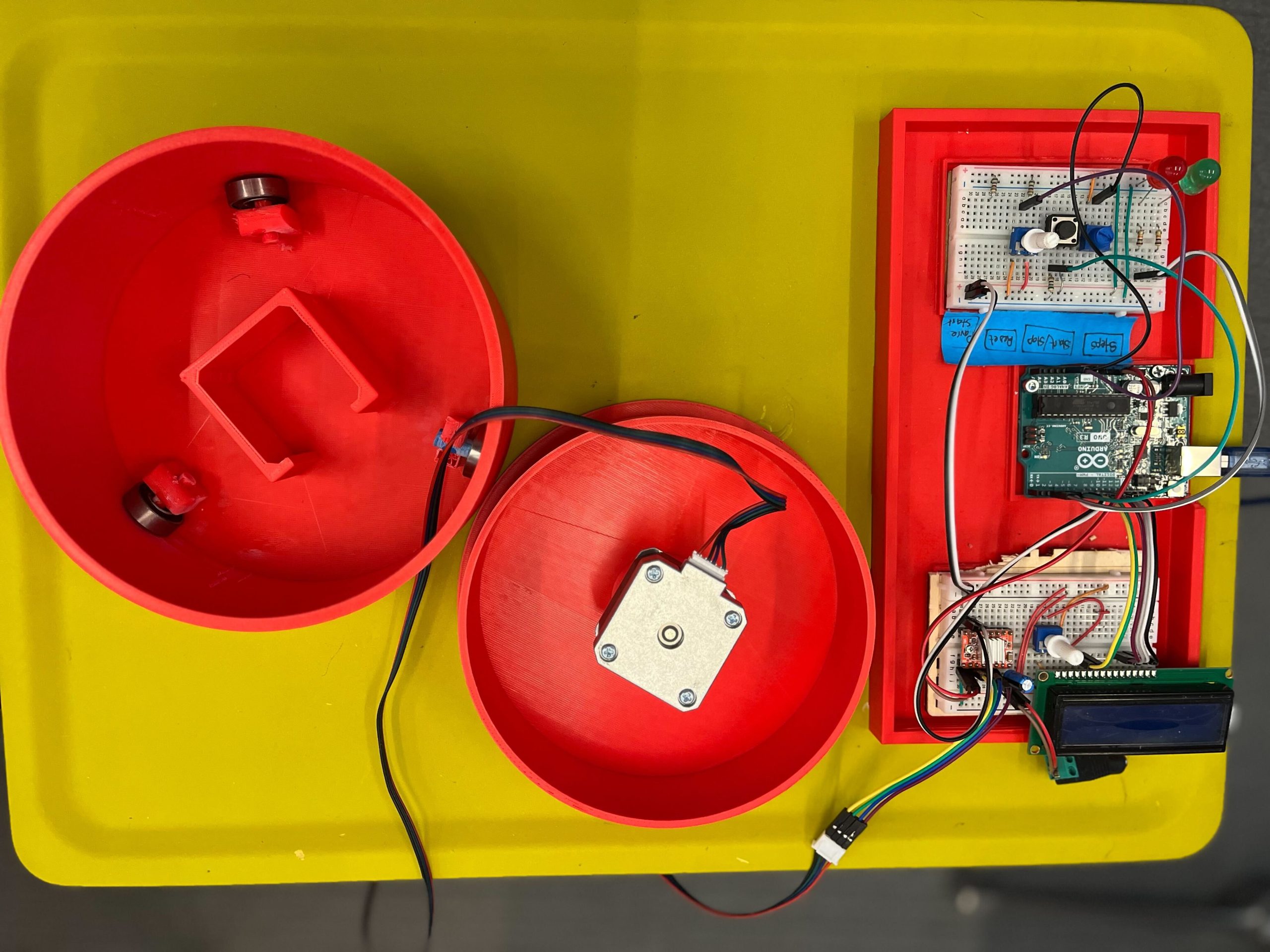
Completed Turntable with the control board

Components

The primary goal was to design a reliable and cost-effective turntable that can be easily assembled by hobbyists. The focus was on using readily available parts and open-source software to keep the project accessible. Below is a detailed component breakdown, including links, for each part needed, for the project:

1. NEMA 17 Stepper Motor
Quantity: 2-3
Why? Chosen for its balance between cost and performance. NEMA 17 offers sufficient torque for precise rotations necessary in photogrammetry without being overly robust for lightweight platform applications. Compared to larger steppers like the NEMA 23, which offers more power but at a higher cost and size, the NEMA 17 is more suited for desktop projects where space and budget are limited.

2. A4988 Stepper Motor Driver
Quantity: 2-3
Why? The A4988 is a reliable and widely used motor driver that offers easy interfacing with Arduino, making it ideal for beginners and intermediate users alike. It supports micro-stepping which is essential for smooth and accurate rotation. Other drivers like the DRV8825 could also be used but typically cost more and require additional adjustments, making the A4988 a more straightforward choice for this project.

3. 608 Bearing 8x22x7
Quantity: 4-6
Why? These standard skateboard bearings are cost-effective and easily available. They are durable and provide smooth rotation with minimal friction, which is crucial for the accuracy of the turntable. Alternative options like specialized robotics bearings offer higher precision but at a significantly higher cost, making them overkill for this application.

4. 12V Adapter with Female Adapter
Quantity: 1
Why? This adapter provides a reliable and stable power source for the project. 12V is typically needed for the stepper motors, and using a dedicated adapter ensures consistent performance. Alternatives like USB power sources do not generally offer sufficient current for larger motors and can lead to performance issues.

5. Male – Male Jumper Wires
Quantity: 1 pack
Why? Essential for making connections between the Arduino, motor driver, and other components. Chosen for their flexibility and ease of use, they can be quickly reconfigured as needed without soldering, making prototyping faster and simpler. Compared to other connectors, these are very cost-effective and work well in a breadboard setup.

6. Breadboard
Quantity: 1
Why? A breadboard is ideal for this type of project because it allows for easy adjustments and experimentation without permanent changes. This medium-sized breadboard was selected for its sufficient size to fit all components while remaining compact, offering a balance between workspace and portability. I do have plans for using a PCB board in future iterations. More details on it later.

7. Arduino Uno R3
Quantity: 1
Why? The Arduino Uno R3 is the standard for many DIY electronics projects due to its robust community support, extensive libraries, and compatibility with a wide range of shields and accessories. It strikes an ideal balance between functionality, price, and user-friendliness, making it preferable over more powerful boards like the Arduino Mega when simplicity and cost are considered.

8. Push Buttons
Quantity: 3

9. 330 Ohm Resistors
Quantity: 4

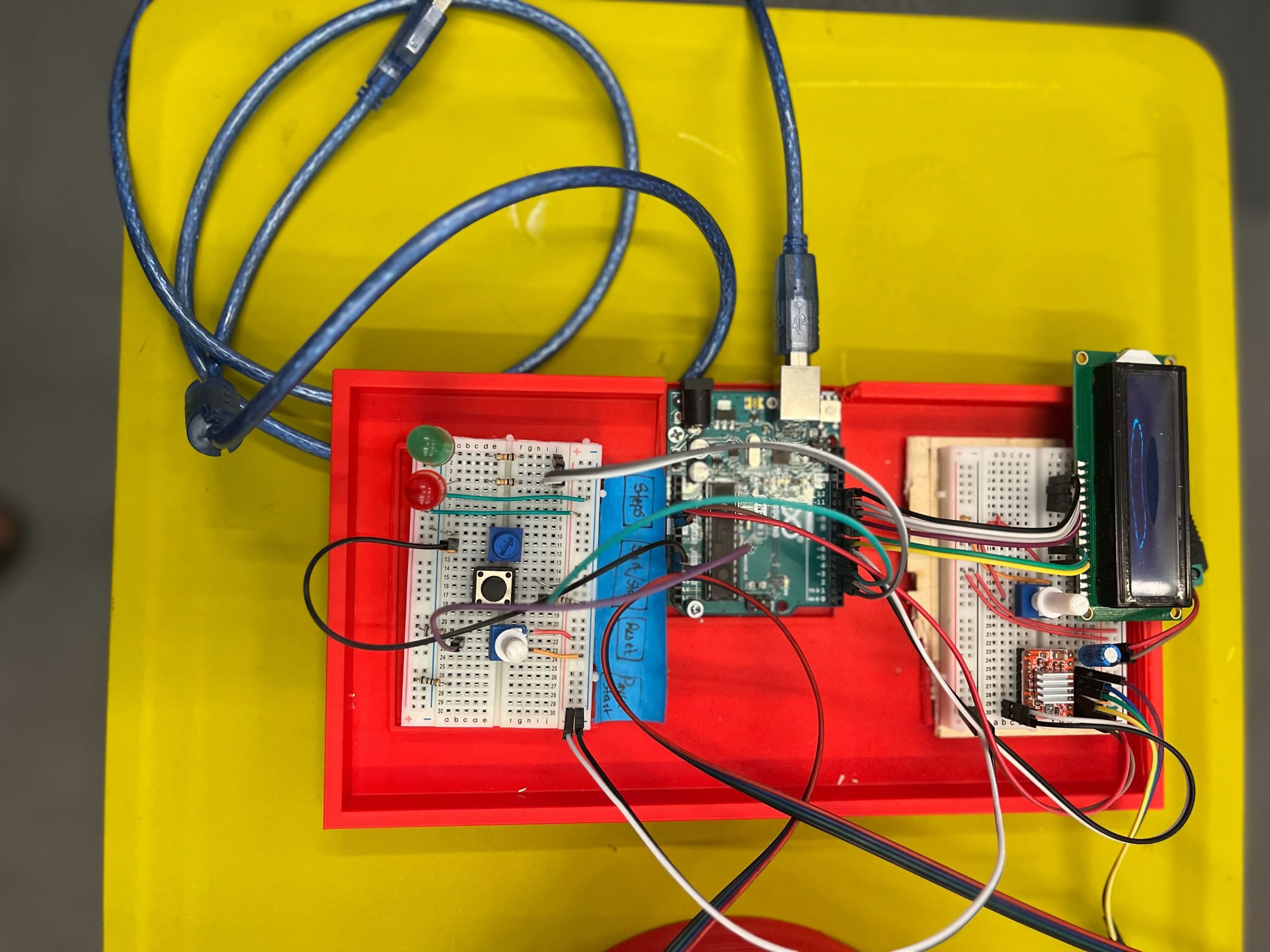
The control board

STL Files

For each part, I’ve created STL files that you can download and print. The files are designed to be printed with common filament materials like PLA or ABS, which offer a good balance between strength and ease of printing. You can download the .stl files from: https://github.com/tashrique/DIY-Turntable-Makerspace-Resources.

  • Base V2: This is the foundation of the turntable. It holds the stepper motor and the bearings.
  • Rotating Platform V2: This part is mounted on top of the bearings and is directly driven by the stepper motor. It is where the object to be scanned is placed.
  • Bearing Holders: These components are used to hold the 608 bearings in place. Print 3 pieces of these.

3D Printing Instructions

  • Material: PLA, PETG, ABS, or ASA
  • Layer Height: 0.2 mm for a good balance of speed and detail.
  • Infill: 15% is sufficient for structural integrity but can be increased for parts under more stress, like the motor mount and gear set.
  • Supports: All parts should print well without supports.
  • Bed Adhesion: Use a raft or brim if you experience issues with bed adhesion during printing.

Assembly Tips

Once the parts are printed, follow these tips for assembly:

  • Before the final assembly, test fit all parts together. This helps identify any print errors or adjustments needed.
  • If some parts don’t fit perfectly, you may need to sand or trim them slightly.
  • Use appropriate screws and adhesive to secure the parts firmly. This ensures the turntable remains stable during operation.

Completed assembly of the turntable

Assembly Process

Assembly Process for the Non-Electronic Components

Tools and Materials Needed

  • Super Glue (optional, for additional stability)
  • Sand Paper (optional, to make edges smooth)

Step 1: Preparing the Base Plate

  • Start by preparing the base plate, clear the base plate of any excess material from printing.

Step 2: Installing the Motor

  • Align the motor mount with the designated area on the base plate.
  • Slide the motor into the slot
  • Ensure the motor shaft protrudes through the mount to align with the gear system.

Step 3: Setting Up Bearings

Objective: Install the bearings that will support the rotating platform.

  • Position the bearing holders on the base plate as per the design.
  • Insert the 608 bearings into the holders. If the fit is tight, you may gently tap them into place using a rubber mallet. You might also want to use superglue to secure the holders in place.
  • Ensure the bearings spin freely without obstruction.

Step 4: Installing the Rotating Platform and Connecting the motor

  • Carefully align the rotating platform with the top of the bearings.
  • Slide and apply moderate pressure to put the motor shaft in the connector until it is stable and level.
  • Check that it rotates smoothly without catching or excessive play.

Step 5: Final Adjustments and Testing

  • Manually rotate the platform to check for smooth motion and correct gear alignment.
  • Make any necessary adjustments to the tightness of screws or alignment of gears.
  • Optionally, apply a small amount of lubricant to the gears and bearings for smoother operation.

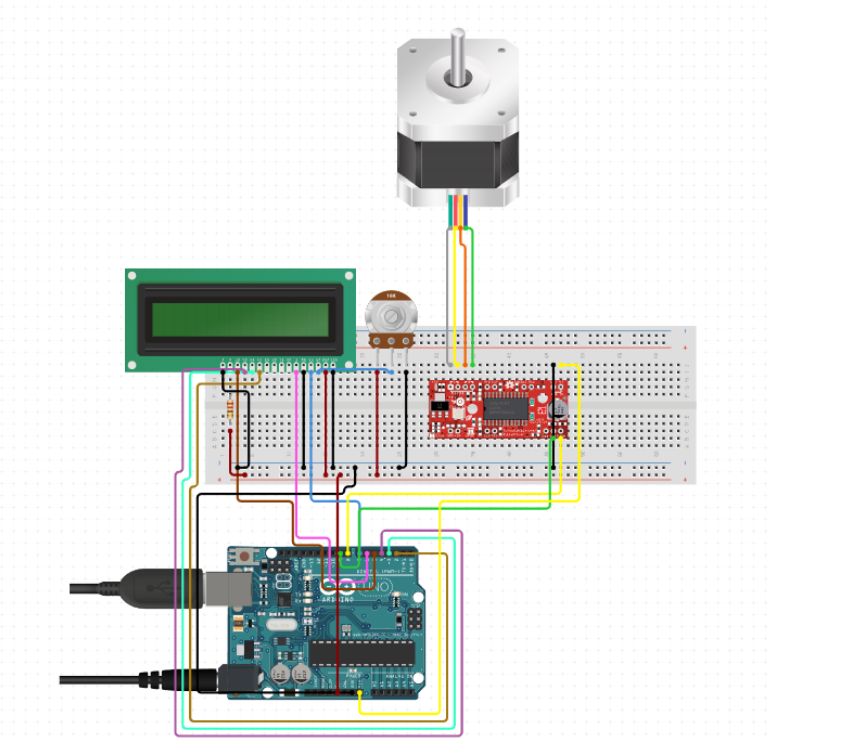
Schematic diagram of the electronic components and pin connections

Electronic Assembly Guide

Tools and Materials Needed

  • Wire Cutters
  • Wire Strippers
  • Soldering Iron (optional, for a more permanent setup)
  • Multimeter (for checking connections)

Step 1: Setting Up the Arduino
Objective: Prepare the Arduino board for connection.

  • Place the Arduino on your workbench or mount it on the base plate.
  • Ensure that it is accessible for connections to both power and other components like the LCD and stepper motor driver.

Step 2: Connecting the Stepper Motor Driver
Objective: Install the A4988 stepper motor driver (Tip: stepper driver documentation).

  • Connect the motor driver to the Arduino using male-to-female jumper wires. Here’s a basic pin connection guide:
  • Connect the DIR (Direction) pin on the driver to a chosen digital pin on the Arduino (e.g., D2).
  • Connect the STEP pin on the driver to another digital pin on the Arduino (e.g., D3).
  • Ensure ENABLE pin is connected if your driver requires it, otherwise it can be left unconnected or tied to ground.
  • Connect the VDD on the A4988 to the Arduino’s 5V output, and GND to one of the Arduino’s ground pins.

Step 3: Wiring the Stepper Motor
Objective: Connect the NEMA 17 stepper motor to the A4988 driver (Tip: NEMA17 documentation).

  • Identify the wire pairs of the stepper motor using a multimeter or by referring to the motor’s datasheet.
  • Connect these wires to the respective A and B terminals on the motor driver. Ensure that the polarity matches the driver’s requirements.
  • Double-check the connections to prevent any potential damage due to incorrect wiring.

Step 4: Adding the LCD Display
Objective: Connect the 16×2 LCD to the Arduino to display status and control messages.

  • Use a breadboard or direct jumper wires to connect the LCD. Typical connections are:
  • RS (register select) to a digital pin (e.g., D4).
  • E (enable) to another digital pin (e.g., D5).
  • D4 to D7 data pins of the LCD to digital pins D6, D7, D8, D9 on the Arduino.
  • Connect the VSS pin of the LCD to the ground and VDD to 5V on the Arduino.
  • Connect a potentiometer to the VO (contrast adjust) pin for contrast control.

Step 5: Power Supply Connection
Objective: Ensure proper power supply connections.

  • Connect the 12V adapter to the VMOT and GND on the stepper motor driver to power the stepper motor.
  • Ensure the Arduino is powered either via USB or an external 9V adapter connected to the VIN pin.

Step 6: Testing and Debugging
Objective: Test the setup to ensure everything is working as expected.

  • Upload a simple test sketch to the Arduino to check motor movements and LCD functionality.
  • Adjust the potentiometer to get a clear display on the LCD.
  • Use the multimeter to troubleshoot any connectivity issues.

Step 7: Final Setup
Objective: Secure all electronic components and clean up the wiring.

  • Use zip ties or cable management clips to organize and secure wires.
  • Ensure all connections are stable and that there’s no risk of loose wires interfering with the moving parts.

Wiring Diagram

LCD Pin Mapping
Reset = 7;
Enable = 8;
D4 = 9;
D5 = 10;
D6 = 11;
D7 = 12;

Stepper Motor Pin Mapping
Step = 6
Direction = 5
(Type of driver: with 2 pins, STEP, DIR)

Programming the Turntable

#include <LiquidCrystal.h>
#include <AccelStepper.h>

void(* resetFunc) (void) = 0;

/*
LCD Pin Map
Reset = 7;
Enable = 8;
D4 = 9;
D5 = 10;
D6 = 11;
D7 = 12;

Stepper PIN Map
Step = 6
Direction = 5
(Type of driver: with 2 pins, STEP, DIR)

*/


AccelStepper stepper(1, 6, 5);

const int rs = 7, en = 8, d4 = 9, d5 = 10, d6 = 11, d7 = 12;
LiquidCrystal lcd(rs, en, d4, d5, d6, d7);

int green = 2;
int red = 3;
int button = 4;
int controls = A1;
int speeds = A0;


String currentStat = "Reset";
String prevStat = "Reset";
int stepsTaken = 0;
bool buttonPressed = false;
bool actionTaken = false;
int buttonClicked = 0;
int currentSpeed = 0;


void setup() {
lcd.begin(16, 2);
pinMode(green, OUTPUT);
pinMode(red, OUTPUT);
pinMode(button, INPUT);

resetControls();
}


void loop() {
runProgram();
}

void runProgram() {
currentSpeed = readSpeed();
currentStat = getStatus();
buttonClicked = buttonClick();

digitalWrite(red, HIGH);

lcd.setCursor(0, 0);
lcd.print(": " + currentStat);

lcd.setCursor(8, 0);
lcd.print("-> " + String(currentSpeed) + "ms");


if (buttonClicked == 1) {
lcd.clear();

//Reset
if (currentStat == "Reset") {
lcd.setCursor(0, 0);
lcd.print("RESETTING...");
stepsTaken = 0;
prevStat = currentStat;
digitalWrite(green, LOW);
digitalWrite(red, HIGH);
resetFunc();
}

//Resume
else if (currentStat == "Start" && prevStat == "Pause") {
lcd.setCursor(0, 1);
lcd.print("RESUMED @" + String(currentSpeed));
prevStat = currentStat;
stepsTaken = commandStart(currentSpeed, stepsTaken);
}


//Start
else if (currentStat == "Start") {
lcd.setCursor(0, 1);
lcd.print("STARTED @" + String(currentSpeed));
prevStat = currentStat;
stepsTaken = commandStart(currentSpeed, 0);
}

else if (currentStat == "Pause" && prevStat == "Pause") {
lcd.setCursor(0, 1);
lcd.print("Already Paused");
}

//Undefined
else {
lcd.setCursor(0, 1);
lcd.print("Invalid Command");
}
}
}


/*--------------------------------------*/

int commandStart(int currentSpeed, int initial) {

lcd.clear();
int steps = 0;

digitalWrite(red, LOW);
digitalWrite(green, HIGH);

for (int i = initial; i <= 200; i++) {
stepper.moveTo(i);
stepper.runToPosition();
lcd.setCursor(0, 1);
lcd.print(i);

lcd.setCursor(4, 1);
lcd.print("/ 200 steps");
steps = i;
delay(currentSpeed);


//Check if any other button is pressed while started
String check = getStatus();
lcd.setCursor(0, 0);
lcd.print(check);

int clicked = buttonClick();
String clickedIndicator = clicked ? "*" : "";
lcd.setCursor(6, 0);
lcd.print(clickedIndicator);

if (clicked) {
if (check == "Reset") {
lcd.clear();
lcd.setCursor(0, 0);
lcd.print("RESETTING...");
delay(200);
stepsTaken = 0;
prevStat = "Reset";

digitalWrite(green, LOW);
digitalWrite(red, HIGH);

resetFunc();
}

else if (check == "Pause") {
lcd.clear();
lcd.setCursor(0, 0);
lcd.print("Paused");
delay(200);
prevStat = "Pause";

digitalWrite(green, HIGH);
digitalWrite(red, HIGH);
return steps;
}
}
}

return steps;
}

/*--------------------------------------*/

int buttonClick()
{
int reading = digitalRead(button);
return reading;
}


void resetControls() {
lcd.clear();
lcd.setCursor(0, 0);
lcd.print("Turntable - Tash!");
digitalWrite(red, HIGH);
digitalWrite(green, HIGH);
delay(500);
digitalWrite(red, LOW);
digitalWrite(green, LOW);
delay(500);
digitalWrite(red, HIGH);
digitalWrite(green, HIGH);
delay(500);
digitalWrite(red, LOW);
digitalWrite(green, LOW);
lcd.clear();
}


String getStatus() {
int controlStatus = analogRead(controls);
int controlRange = map(controlStatus, 0, 1023, 1, 4);
String stat = "";

if (controlRange == 1)
stat = "Reset";

else if (controlRange == 2)
stat = "Pause";

else if (controlRange == 3 || controlRange == 4)
stat = "Start";

else
stat = "-----" ;
delay(100);

return stat;
}


int readSpeed() {
int sensorVal = analogRead(speeds);
int stepSpeed = map(sensorVal, 0, 1023, 250, 5000);
return stepSpeed;
}

The code for the turntable is structured to handle various functionalities: controlling the motor, updating the LCD display, and reading inputs from the rotary encoder. Access the full commented code my GitHub repository: https://github.com/tashrique/DIY-Turntable-Makerspace-Resources

Troubleshooting Common Issues

Motor Noise or Vibration

  • Check alignment of gears and ensure the stepper driver is correctly calibrated.

LCD Display Issues

  • Verify wiring connections and contrast settings; adjust the potentiometer if used or calibrate the voltage divider correctly for clear visibility.

Code Bugs

  • Use serial debugging to monitor outputs and verify that the logic in your sketches matches the intended functions.

Future Enhancements

Integration of IR Sensors

  • Automate the camera shutter operation in sync with the turntable’s rotation to facilitate overnight operations.

PCB Board

  • Integrate all the circuit in a PCB Board

Conclusion

If you have read this far, thank you and good luck! This guide aims to equip you with all the knowledge needed to create and customize your own turntable, fostering further exploration into the fascinating world of DIY electronics. Feel free to share your project progress and reach out with questions or suggestions. Your feedback helps improve and inspire future projects!


Lions at the Spruces

2024 Big Art Show Exhibition

2024 Big Art Show Exhibition

What do Vienna, a long-lost trailer park in Williamstown, and two fifth graders have in common? They all came together via architecture, storytelling, and a whole lot of glue in a Makerspace project that began as a college classroom assignment and grew into something far more textured (literally and metaphorically).

Welcome to ARTS 222 / ENVI 202: Critical Architecture Practice, where theory meets practice, and memory is not only something you hold onto, but something you build.

The Backstory: Lions, Memory, and the Spruces

The Spruces was a trailer park in Williamstown, Massachusetts that was flooded by Hurricane Irene, and then closed in 2016. While it’s no longer standing, its memory continues to ripple through the town’s environmental and architectural narratives. For this class project, led by Giuseppina Forte, Assistant Professor of Architecture and Environmental Studies, (with TAs Elijah Washington ‘24 and Grace Espinosa ’26), students set out to reimagine the site and its emotional geography through architectural modeling.

David Keiser-Clark took measurements of the lion statues (on site) at the former Spruces in Williamstown, MA

David Keiser-Clark took measurements of the lion statues (on site) at the former Spruces in Williamstown, MA

The mission

Recreate a tabletop model of the Spruces site and anchor it with two majestic lions, inspired by those that once guarded the entrance. But these weren’t just any lions.

How to (Re)Build a Lion

Let’s rewind to Vienna, Austria. A statue stands outside the METAstadt in Donaustadt of a proud, regal lion. David Keiser-Clark, Makerspace Program Manager, searched Google and found what appeared to be an exact match of “our” lions at the METAstadt. He found a digital version of the statue that had been uploaded by a tourist who scanned it with Polycam in LiDAR mode with their iPhone 14 Pro Max (credit to @Stefan_80888). David drove to the Williamstown lion statues, and used a 30’ measuring tape to mark down the dimensions.

Left: Autodesk Fusion 360 CAD renderings created by Alice Sore '27, from measurements, to 3D print the pillars and base. Right: digitized lion scan placed, to scale, on top of pillars structure.

Left: Autodesk Fusion 360 CAD renderings created by Alice Sore ’27, from measurements, to 3D print the pillars and base. Right: digitized lion scan placed, to scale, on top of pillars structure.

Alice Sore ’27, a Makerspace student worker, used AutoDesk’s Fusion 360 software to model the statue’s pedestals and columns from scratch, creating not just pieces of the project but a learning moment. She used this experience to then lead the Makerspace’s first “Teach-In: Learning Fusion 360”, and walked fellow students through the software and showed them how to model architectural structures with precision and confidence.

Intelligent CAD modeling includes auto-centering devices that also add strength and rigidity.

Intelligent CAD modeling includes auto-centering devices that also add strength and rigidity.

Once the lion, pedestal, and columns were ready, we printed them in white PLA in four separate sections, kind of like Legos for architects, and bonded them with cyanoacrylate glue.

Left: first completed statue. Right: The second one is always easier and quicker.

Left: first completed statue. Right: The second one is always easier and quicker.

But they weren’t finished. Not yet.

Enter: Two Fifth Graders and a Can of Paint

What do you do when you want your lion statues to look like they’ve stood in the elements for decades, rather than hours?

You recruit two fifth graders, naturally.

Elizabeth Heeringa and Anderson Keiser-Clark, fifth graders, provided the vision for aging and the labor to complete the entire post-processing effect. (Clockwise from top left: Anderson on left, and Elizabeth on right; Elizabeth dry brushing with greens to create moss effect; Bottom left: more dry bushing; Bottom right: Getting out the ladder as these lions are tall!

Elizabeth Heeringa and Anderson Keiser-Clark, fifth graders, provided the vision for aging and the labor to complete the entire post-processing effect. (Clockwise from top left: Anderson on left, and Elizabeth on right; Elizabeth dry brushing with greens to create moss effect; Bottom left: more dry bushing; Bottom right: Getting out the ladder as these lions are tall!

Elizabeth Heeringa and Anderson Keiser-Clark, armed with brushes, DryLok Masonry Waterproofer, acrylic paint, a misting bottle, and a creative eye, transformed glossy 3D prints into textured, time-worn sentinels. They painted the lions with two coats of DryLok, which added grit (sand is in the paint) and also obscured the 3D printed lines. They then used an “acrylic wash”, a mixture of 85% water and 15% black acrylic paint, and spritzed the lions multiple times, allowing them to dry between each coating. Finally, they used a technique called dry-brushing, using tiny brushes and miniscule amounts of pure acrylic color to create highlights. They used greys to emphasize age, and greens to simulate moss or lichen, until the lions no longer looked like something made yesterday but like artifacts pulled from a lost world. (Elizabeth shared that an optional final step would be to dip a paint brush in white acrylic paint and then flick it at the object to create little stippled drops of paint.)

Elizabeth initially warned that the black acrylic wash solution goes on strong and creates deep and dark puddles, but eventually dries much lighter. Effectively, she said: "Don't worry, David." Left: You can see the difference of the acrylic wash on cardboard (dried dark), and how 3 successive additive layers dried on the scrap base with slightly darker tones and increase variation of patterning. Right: Massive puddling and dripping of black paint that will dry in significantly lighter tones.

Elizabeth initially warned that the black acrylic wash solution goes on strong and creates deep and dark puddles, but eventually dries much lighter. Effectively, she said: “Don’t worry, David.” Left: You can see the difference of the acrylic wash on cardboard (dried dark), and how 3 successive additive layers dried on the scrap base with slightly darker tones and increase variation of patterning. Right: Massive puddling and dripping of black paint that will dry in significantly lighter tones.

Elizabeth created this original 3D post processing recipe from scratch. You saw it here first.

Anderson also helped calibrate the Makerspaces 3D printers, because of course he did.

Left: Lion dripping from the acrylic wash spray; Right: Completed lion after multiple acrylic wash sprayings.

Left: Lion dripping from the acrylic wash spray; Right: Completed lion after multiple acrylic wash sprayings.

A Model of Memory

Meanwhile, Professor Forte and her team worked on designing the 30” x 30” tabletop model of the Spruces site built to a scale of 800:1, which means it represents a 2,000’ x 2,000’ section of land. Four interlocking 15” x 15” environmentally friendly MDF panels called Eucaboard (made from eucalyptus fibers), two layers thick, formed the base. An etched river flows through the landscape, marked by laser-etched topography and filled with translucent blue acrylic.

Every detail of mobile homes represented by tiny markers, zones carved into MDF, and even the idea of including a scale model trailer with furnishings was designed to be both informative and deeply effective. This wasn’t just about land use. It was about memory, displacement, community, and presence.

Why It Matters

Architecture isn’t just about buildings. It’s about what we build to remember. What we build to mean something.

This project took a long-forgotten corner of Williamstown, wrapped it in theory, scaled it to human imagination, and rebuilt it with resin, MDF, paint, and story.

It involved artists, scientists, young makers, international scans, and kids with paintbrushes.

And as the lions stood silent, strong, slightly green at the mane you could almost hear them guarding the gates not just of a trailer park, but of a memory that refuses to fade.

Left: Lion and Elizabeth; Right Anderson and Lion.

Left: Lion and Elizabeth; Right Anderson and Lion.

2024 Spring Big Art Show Exhibition. Lions standing as sentinels.

2024 Spring Big Art Show Exhibition. Lions standing as sentinels.

Elizabeth’s Post Processing Recipe

Elizabeth mentions it’s important to use the normal version of DryLok Masonry Waterproofer, as the “extreme” version lacks the sandy texture.

Elizabeth's supplies.

Elizabeth’s supplies.

More Information

Postscript (February 14, 2025)

Brenda Aubin of Dining Services reached out to the Makerspace to include the lions in their Winter Carnival celebrations, complete with AV and slideshows for ambience. Dining Services rock!

Brenda Aubin of Dining Services reached out to the Makerspace to include the lions in their Winter Carnival celebrations, complete with AV and slideshows for ambience. Dining Services rock!

Reefs Reimagined: 3D Printing the Effects of Tsunamis on Coral

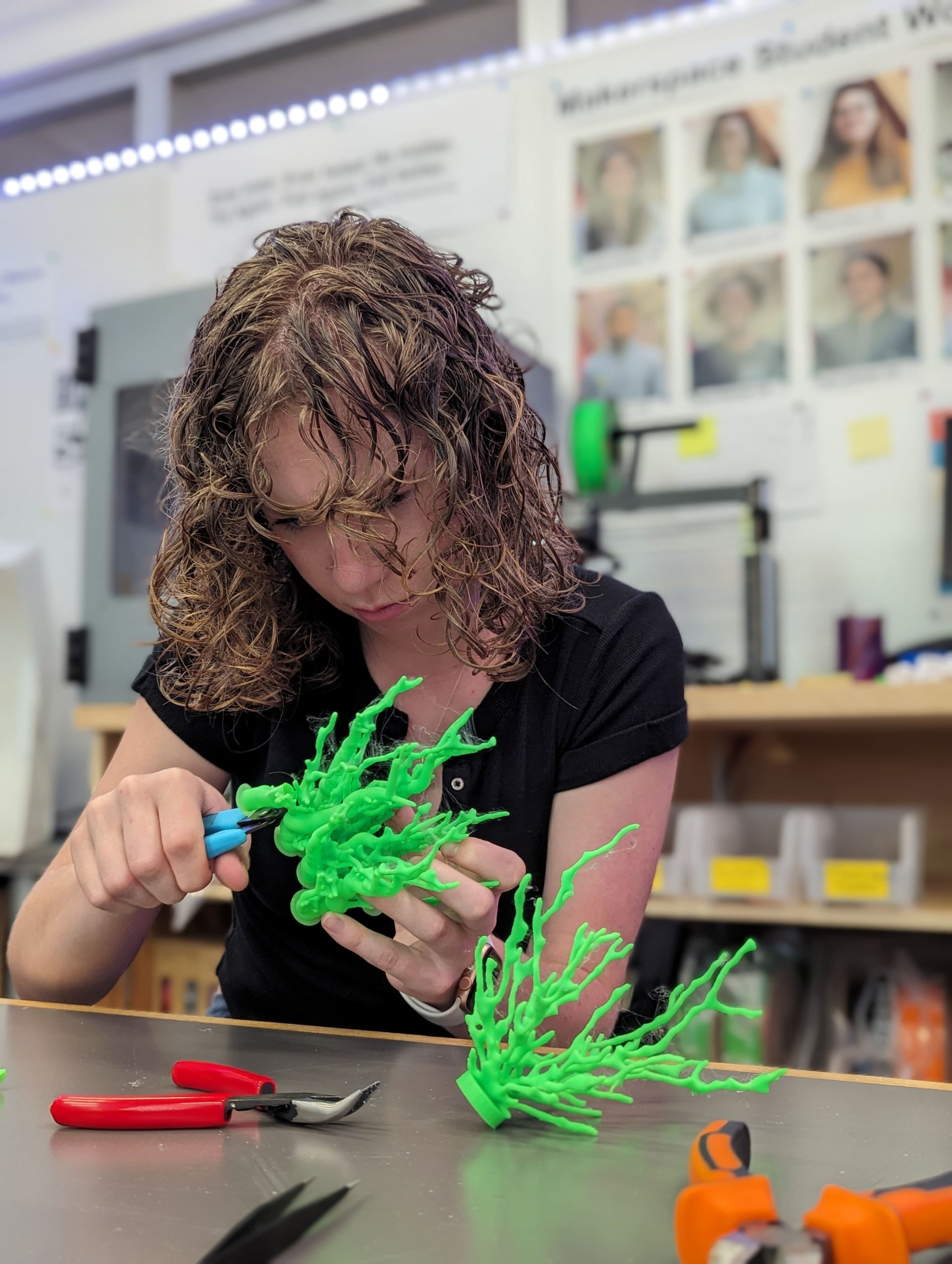
Lauren Mukavitz ‘27: In the Makerspace taking the supports off my finished models

Lauren Mukavitz ‘27: In the Makerspace taking the supports off my finished models

When most people think about coral reef degradation, they often think about bleaching and the effects of climate change. However, coral faces another danger that is hardly talked about—tsunamis. Coral reefs have a unique structure that increases the friction a tsunami encounters on its way to the shore, slowing down the wave and mitigating damage. However, the intense forces during a tsunami can be extremely damaging and can destroy entire reefs. To better understand this impact, I embarked on a project for my class Geologic Hazards with Mike Hudak, Assistant Professor of Geosciences, to model coral before and after a tsunami.


Replicating Tsunami Damaged Coral

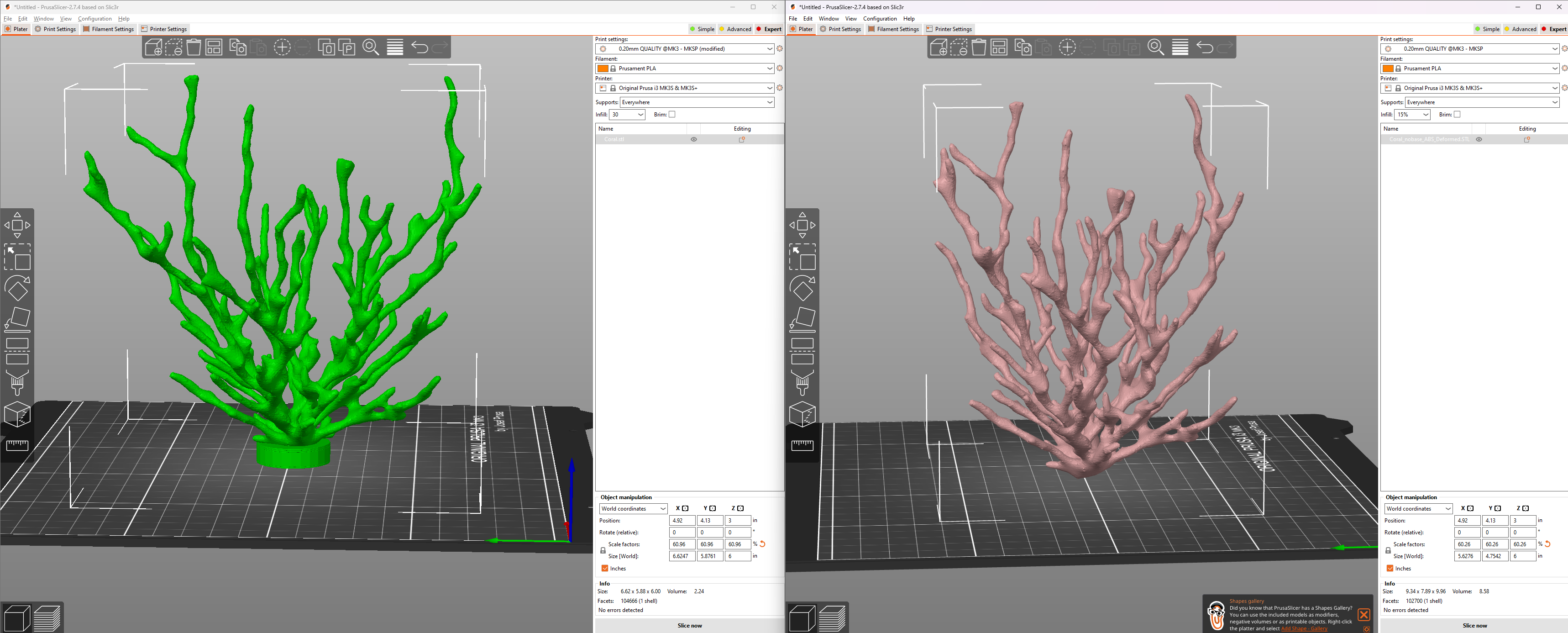
First, I created an undamaged model that represented a small colony of coral polyps before a tsunami event. I used Ultimaker Cura to design a 3D model of the coral. Next, I wanted to simulate the damage caused by a tsunami. After struggling to find existing methods for modeling tsunami forces on coral, I teamed up with the David Keiser-Clark, Makerspace Program Manager, Elena Sore, Makerspace Student Worker, and Jason Mativi, Science Shop Instrumentation Engineer, to use SolidWorks, a 3D CAD program. We applied a nonlinear analysis with 0.3 bar (or 3E3 N/m^2) of pressure, the estimated force an average piece of coral experiences during a tsunami, to the undamaged model and let SolidWorks create a “deformed” model for us. It took the software approximately four hours to render these forces to the 3D model.

Left: Original coral model; Right: Same model but deformed using SolidWorks to simulate tsunami forces

Left: Original coral 3D model; Right: Same model but deformed using SolidWorks to simulate tsunami forces

The successful PLA print -- Stonefil was not a fan of my design

The successful PLA print — Stonefil was not a fan of my design

Then I had both models printed at the Makerspace. Initially, we tried using Stonefil PLA, a filament that would approximately mimic coral’s composition with its half PLA (a polyester typically derived from fermented plant starch, such as corn, cassava, sugarcane, or sugar beet pulp) and half ceramic powder. However, the model was too intricate for the material, resulting in a messy and unusable print. We ended up using standard PLA for the final models, which, while less accurate in texture, allowed us to proceed with the physical representation. To simulate sediment damage, I took the “deformed” model to the science shop and used a sandblaster. Unfortunately, the PLA was too strong, and the glass beads in the sandblaster didn’t deform as expected. So, we resorted to breaking the model by hand to represent the kind of physical damage coral might endure during a tsunami.

My models are only approximations of the damage coral sustains during tsunamis. The exact forces on coral polyps during these events are unique and complex, making accurate modeling challenging.

Next Steps

The first step to creating a more accurate model would be refining the methods to determine the necessary forces and coefficients. Then, we could use a 3D CAD program like SolidWorks for a more precise analysis. Additionally, applying post-processing techniques to the 3D printed models, such as using adhesives and texturing materials, could make the PLA models physically look-and-feel more like real coral, enhancing their realism.

Creating more accurate models provides a deeper understanding of the interactions between coral reefs and tsunamis, helping us plan better for these events. This knowledge can guide conservation efforts, inform disaster preparedness strategies, and contribute to the broader field of marine biology. As better models are developed, we move closer to mitigating the devastating impacts of natural disasters on vital ecosystems like coral reefs.

Postscript (August 16, 2024)

See related CNN article: Why this scientist is leaning on surfers, skaters and artists to protect the ocean – “Cliff Kapono is a Native Hawaiian pro surfer and chemist in a race to save the ocean he loves. He co-founded The Mega Lab, a science research group that welcomes anyone (no degree required!) who can help them develop technology and raise awareness about dying coral reefs.”

Postscript (September 9, 2024)

See related CNN article: See the technique that could help save the Great Barrier Reef – “Researchers in Australia are testing a technique called ‘coral seeding’ [that utilizes 3S printers] to help the Great Barrier Reef recover from the effects of climate change.”


Lost but Found in the Photogrammetry World

The Quandary

Have you ever broken or lost a small part of an important object you value? Perhaps the strap of that beautiful watch you got from your grandma or the battery cover for the back of your remote control? You looked for it everywhere, but the part was too “insignificant” to be sold on its own. Or it just wasn’t the sort of thing that anyone would expect to need a replacement.

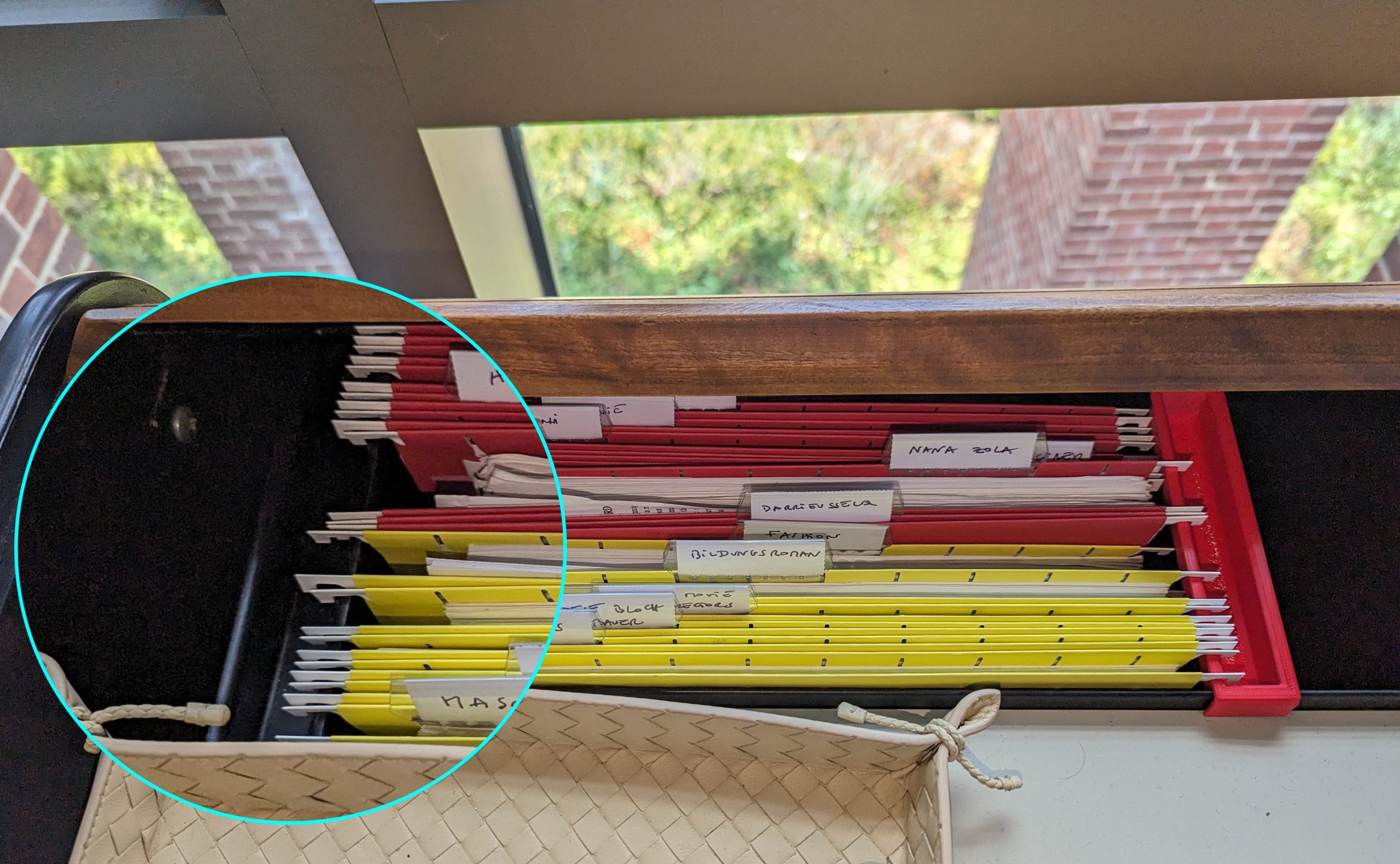
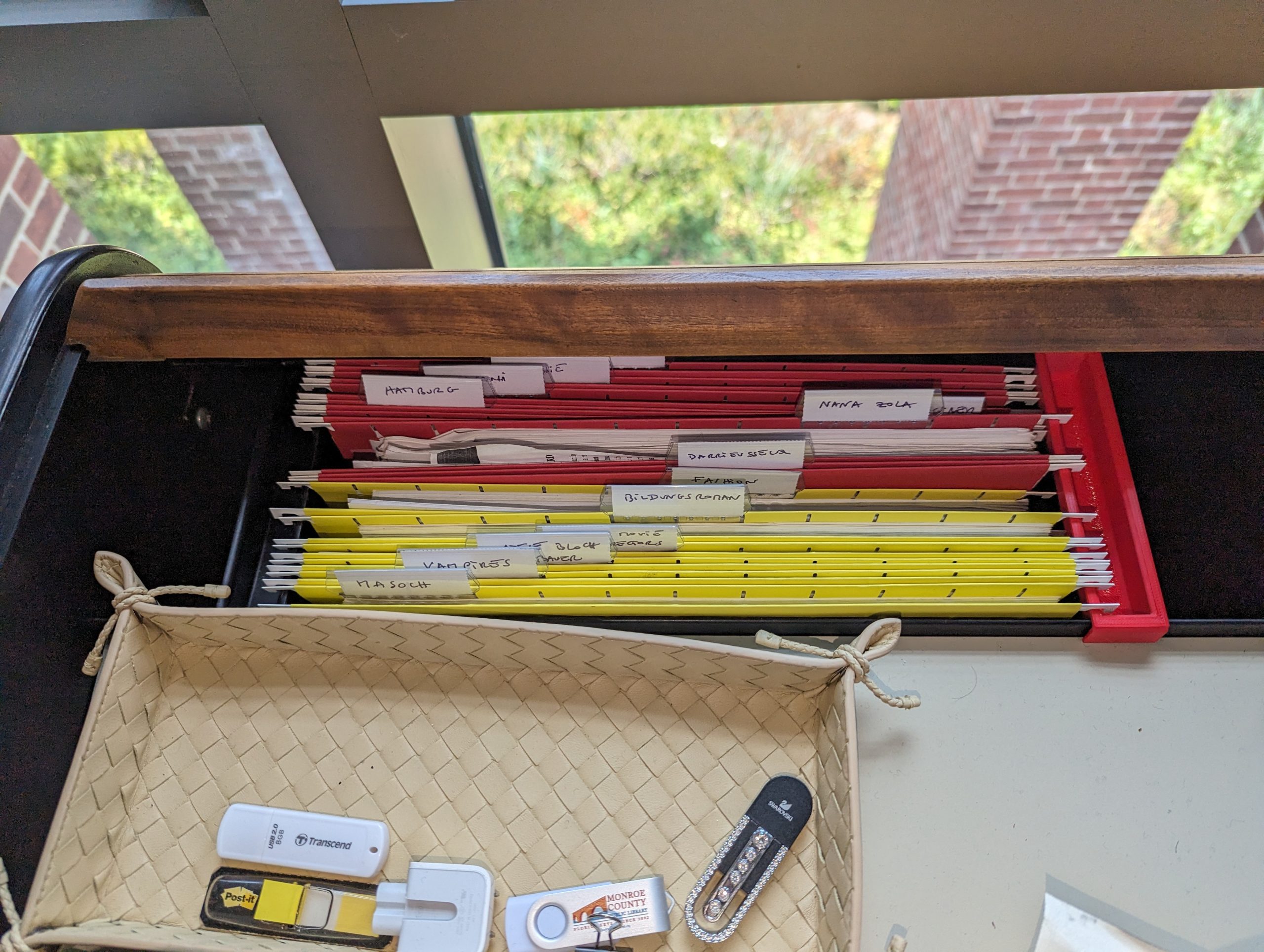
The original black “obsolete plastic object” (on left) keeping files safely stored, alongside the newly cloned red part (on (right)

The original black “obsolete plastic object” (on left) keeping files safely stored, alongside the newly cloned red part (on (right)

Last semester at Williams College, Chris Koné, Associate Professor of German and Director of Oakley Center for Humanities & Social Sciences, had a similar experience. He lost an integral part of his desk that allows him to keep his files neatly stored and organized (shown on picture). Desperate to have a place for the files and papers scattered miserably on the floor, Prof. Koné looked in a brick and mortar NYC office parts store, as well as on Amazon, eBay, and other e-commerce websites, but alas, the object was nowhere to be found. It had become obsolete!

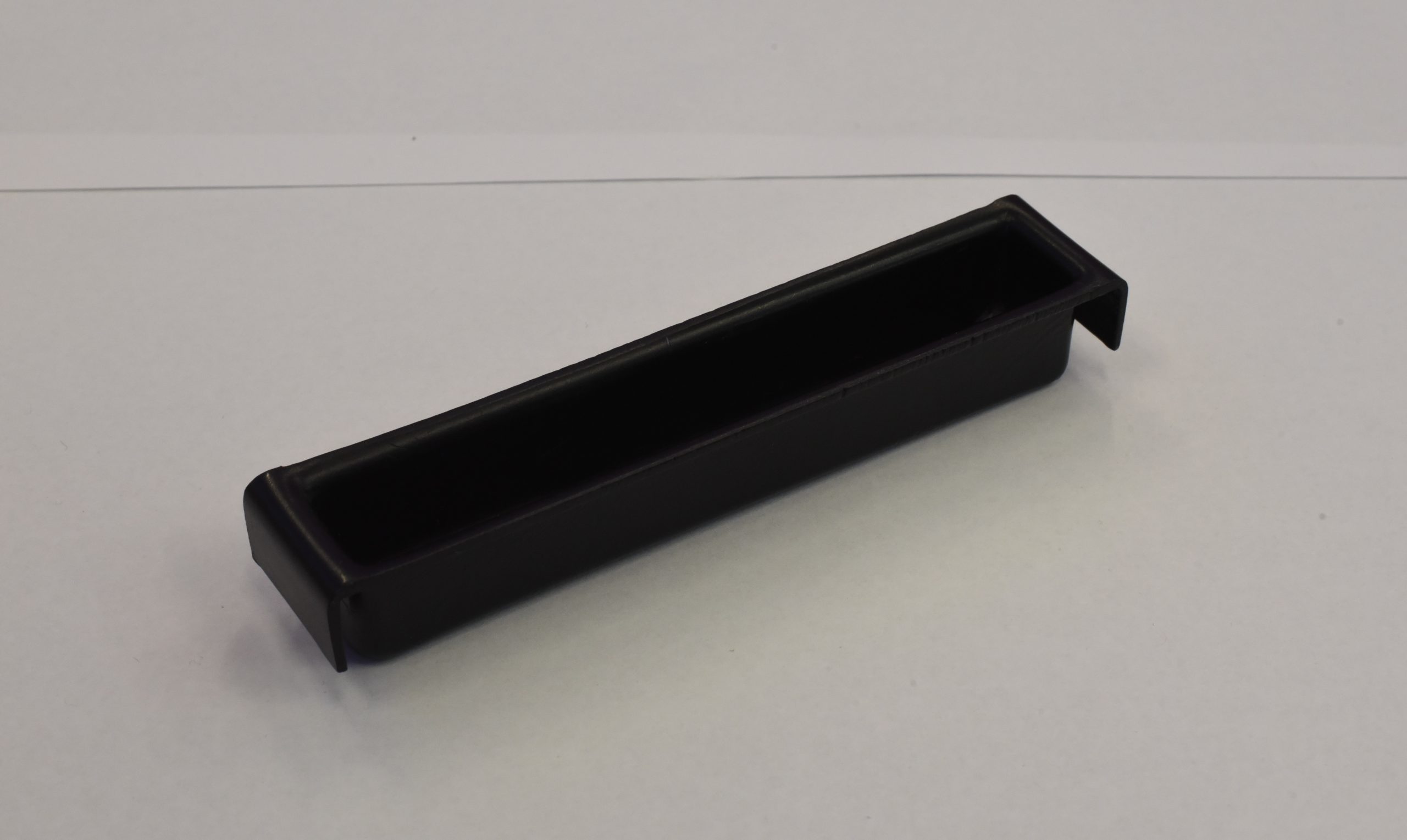
The “obsolete plastic object”

The “obsolete plastic object”

Determined to leave no stone unturned in finding a replacement for the obsolete plastic object, Prof. Koné did what any sensible person with access to the Makerspace would do – he asked for a 3D-printed model of the object! And it is here that he met me, an intern working at the Makerspace over the summer. In the process of helping him, I learned about multiple methods of photogrammetry and created a significantly more efficient and streamlined workflow for the Makerspace. 

Some Background

As a new student worker with zero knowledge about photogrammetry and 3D printing, David Keiser-Clark, the Makerspace Program Manager, thought this project would be just the right amount of challenge for me. Photogrammetry is the process of creating a 3-dimensional digital model of an object by taking dozens or hundreds of photos of the object from different angles and processing them with software to create a digital spatial representation of the object. Doing this project would be a good introduction to the 3D digital world while allowing me to get acquainted with the Makerspace.

If you have tried photogrammetry, you know that some of the most difficult objects to work with are those that are dark or shiny. This object was dark and shiny! When an object is dark, it becomes difficult for the software to distinguish one feature on the object from another, resulting in an inaccurate digital representation. Likewise, light is reflected when an object is shiny, resulting in images that lack details in the shiny areas. Thus, you can imagine how challenging it is when your object is both shiny and dark!

Step 1

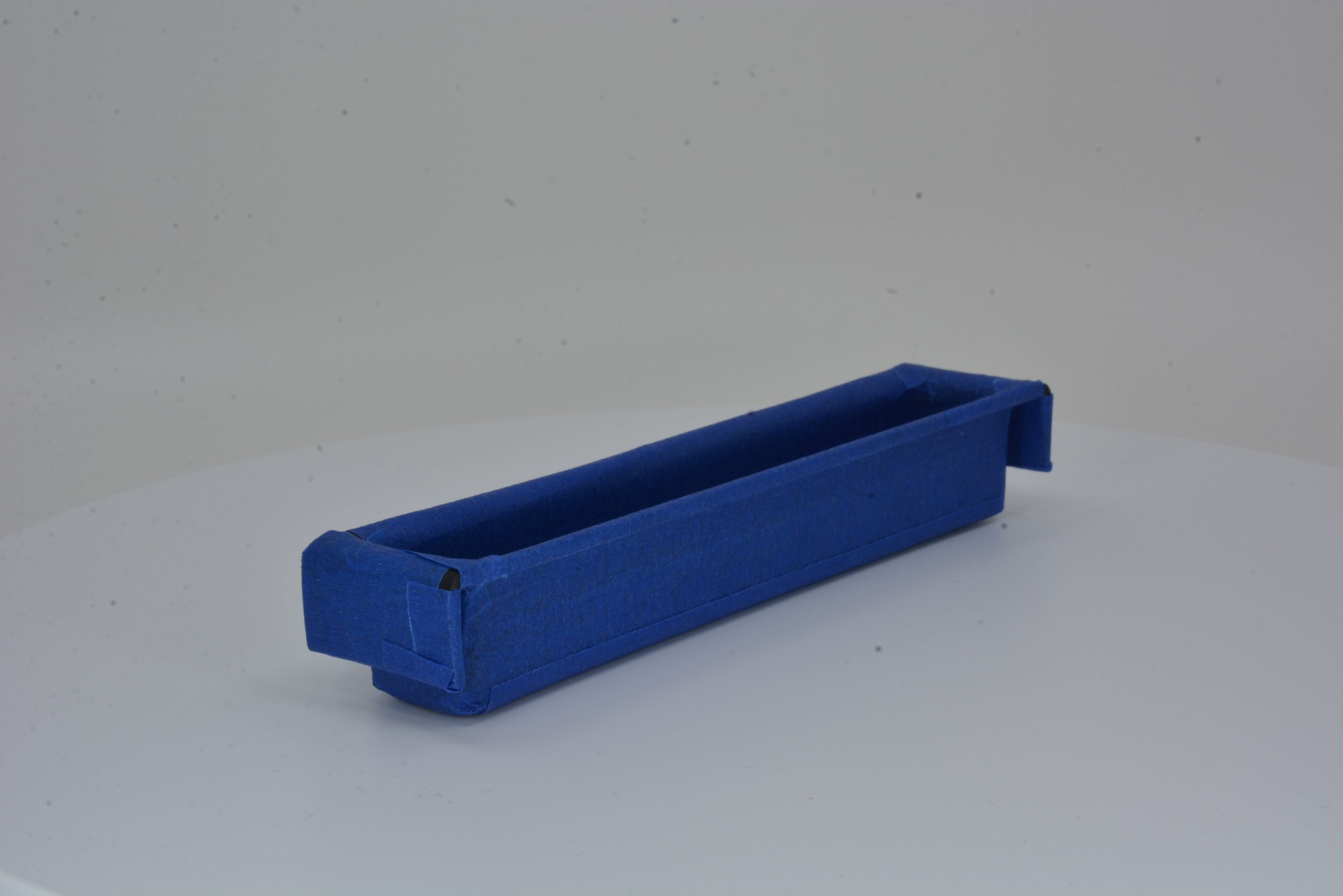
The first step was to figure out how to reduce the darkness and shininess of the object. To kill both birds with one stone, I covered the object with white baby powder, a cheaper alternative to expensive photogrammetry sprays used in industry. The powder’s white color would help eliminate the object’s darkness and offer it some helpful texture, while its anti-reflective nature would reduce shininess. After several attempts to completely cover the object, this method proved ineffective as the powder would not stick to the object’s smooth surface. A little out-of-the-box thinking led me to cover the object with matte blue paper tape, which proved very effective as the tape’s rough texture allowed minimum light reflection. 

obsolete plastic object coated with blue tape

obsolete plastic object coated with blue tape

A Bit of Photography

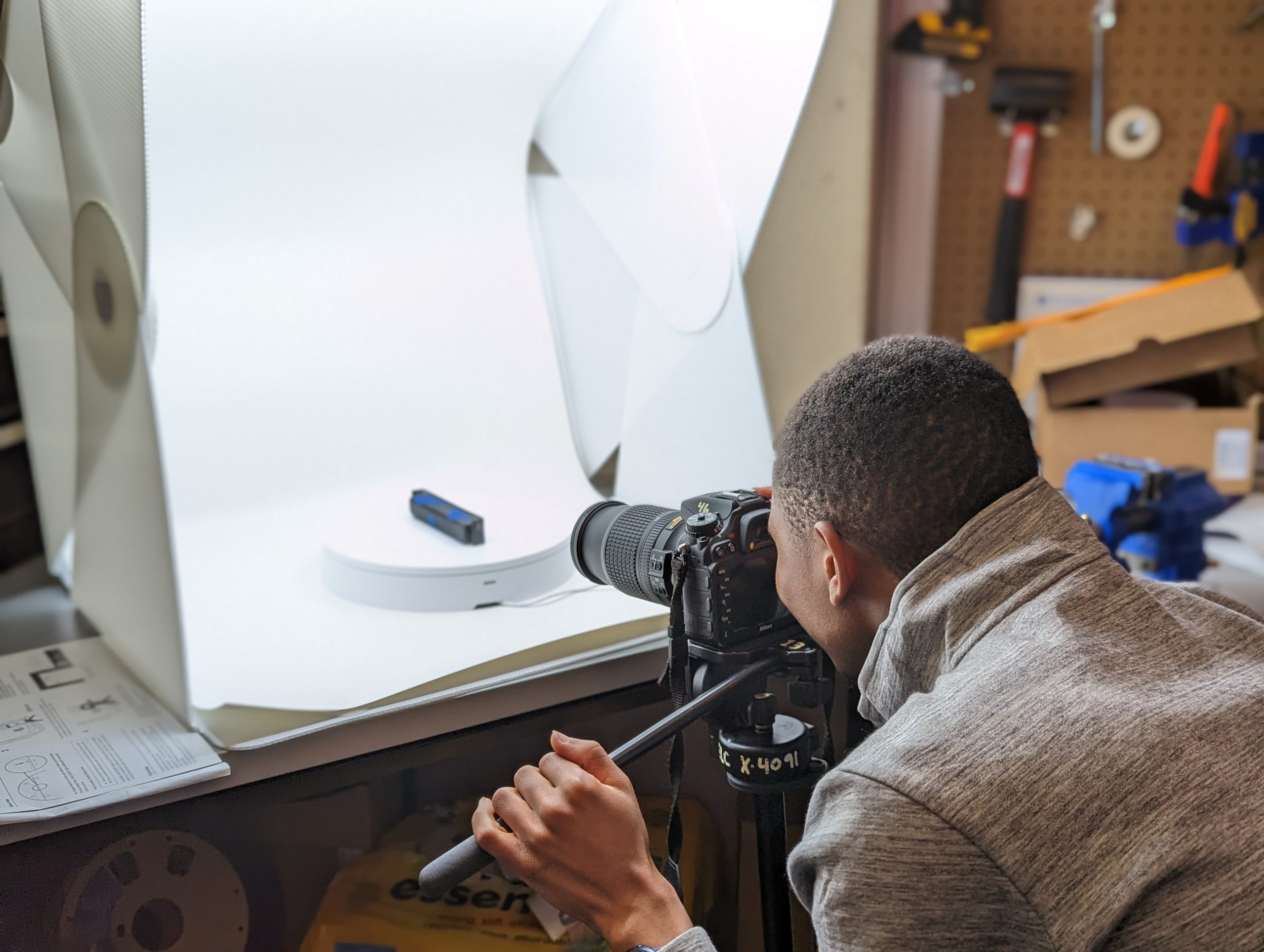
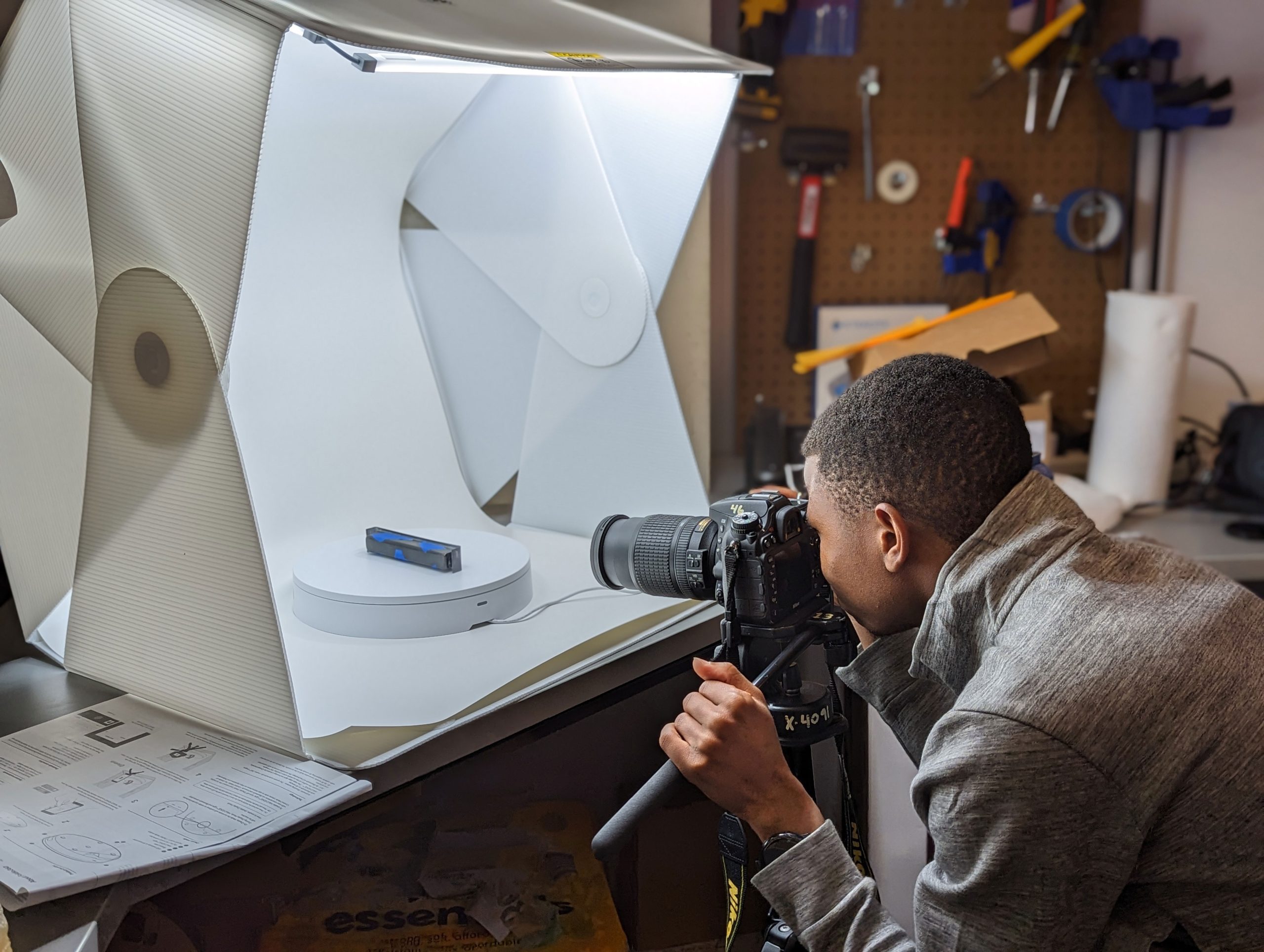
Milton taking pictures for photogrammetry

Milton taking pictures for photogrammetry

Now that the two biggest giants had been slayed, it was time to move on to the next step: taking pictures of the object. Taking shots for photogrammetry is very similar to doing stop-motion animation. You take a picture of the object, move it at a small angle (between 5-15 degrees) by hand or with a turntable (a rotating disc), and take another picture. Then you repeat this process until the object has rotated completely, change the camera angle (e.g., by taking shots from the top of the object), and redo the whole process again. This can be quite tedious, especially if you have to do it by hand, but luckily for me, the Makerspace had recently bought a new automated turntable, so I didn’t have to rotate the object manually. I also got to be the first to create a documentation guide for other Makerspace student workers to more easily be able to utilize the turntable in the future!

Alignment Process

Once the photos were ready, the next step was to analyze them using photogrammetry software. I turned to Agisoft Metashape, a powerful program that receives pictures of an object from different angles and analyzes them to create a 3D depiction of the object. The software first finds common points between the various images, called anchor points, and calculates their relative distances, allowing the software to place them in a 3D place. This process is called alignment.

Unfortunately, despite my efforts to aid the software by covering the object with matte blue tape to reduce its shininess and darkness, the obsolete plastic object did not align properly in Metashape. While I could not pinpoint the exact reason, I suspect it was due to its hollow shape, which made it challenging for the software to capture points on the inner surfaces, especially the corners. It was quite disappointing to get these results, especially after having had to wade through Metashape’s jungle of commands, but that was certainly not the end of it all. I decided to try a different approach – raise an older desktop 3D scanner from the grave!

Misalignment in Metashape

Misalignment in Metashape

The Hewlett Packard (HP) 3D Structured Light Scanner

The 3D David Scanner (now called the HP 3D Structured Light Scanner) works by projecting light onto a subject and capturing the reflection. It measures the time taken for the light to return, determining the distance of each point. These points, represented as XYZ coordinates, are collectively used to digitally reconstruct the object in a 3D space. I intended to use the structured light scanner as an alternative to Metashape software because it allows more control over the alignment process. For example, you can select two specific images you want to align and tell the software how you want them to get aligned. In addition, the scanner features a projector that sheds light on the project you’re scanning, as well as a calibrated background panel, allowing for greater detail to be picked up. 

HP 3D Structured Light Scanner

HP 3D Structured Light Scanner

A Bit of Scanner Surgery

Using the HP 3D Structured Light Scanner

Using the HP 3D Structured Light Scanner

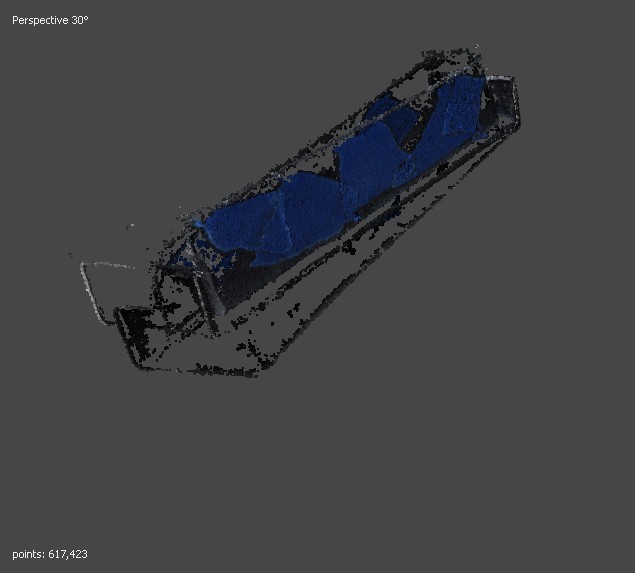
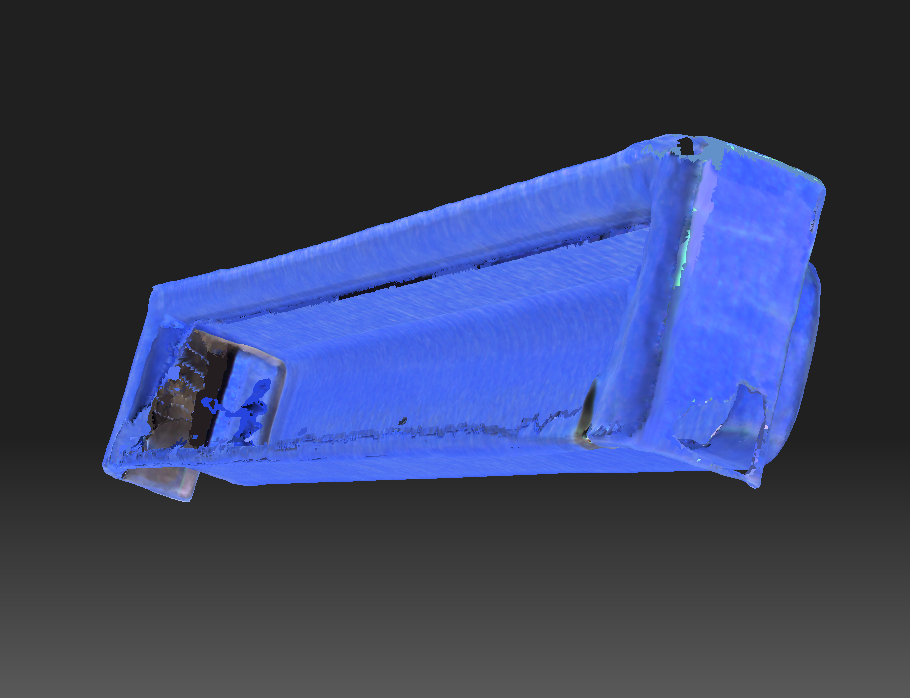
The Makerspace’s HP scanner unfortunately hadn’t been functional in over three years. The camera was not working, and the scanner’s software could not make exports due to licensing issues. I updated the device’s software and installed new camera drivers, and in no time, the scanner was fully functional again. I then scanned the obsolete plastic object with the structured scanner. Unfortunately, the results were unsatisfactory. It resolved the prior alignment issue with Metashape, but the digital model had thin walls and holes on some of its surfaces, making it impossible to print. 

Thin walls and holes in the structured light scanner model

Thin walls and holes in the structured light scanner model

Building from the Ground Up with Fusion 360

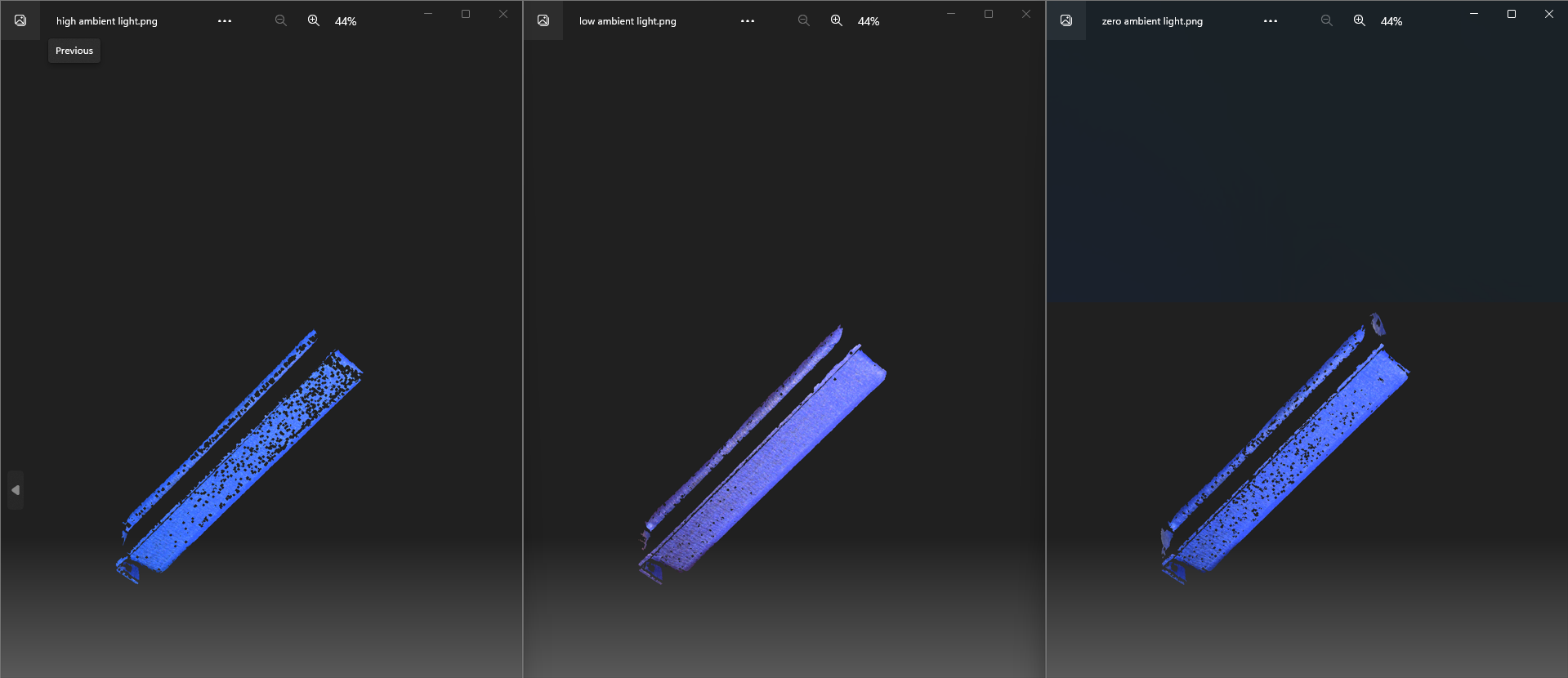
Results of different lighting setting in HP 3D Structured Light Scanner

Results of different lighting setting in HP 3D Structured Light Scanner

After trying out different strategies with the HP 3D Structured Light Scanner, such as different light settings, but still not getting good results, David suggested a different method – building the model from scratch! Excited to try out new software (and get a break from the structured scanner!), I began exploring Fusion 360 tutorials and documentation. Autodesk Fusion 360 is a Computer-Aided Design (CAD) software with applications across various sectors, including manufacturing, engineering, and electronics. It allows one to create a simple sketch of a model and build it into a solid model with precise dimensions. You can even add simulations of real-world features such as material sources and lighting. 

Of course, this new, complicated, piece of software came with its challenges. For example, I had to know the dimensions of the fillets (the arcs) inside and outside my object. A little creativity combined with a pair of vernier calipers and a piece of paper did the job. Another challenge was understanding the timeline feature of Fusion 360, one of the most important features of the program, which allows you to record your progress and go back to a certain point. Researching online and getting help from a friend (shoutout to Oscar!) with more experience in Fusion 360 proved helpful in better understanding the software. 

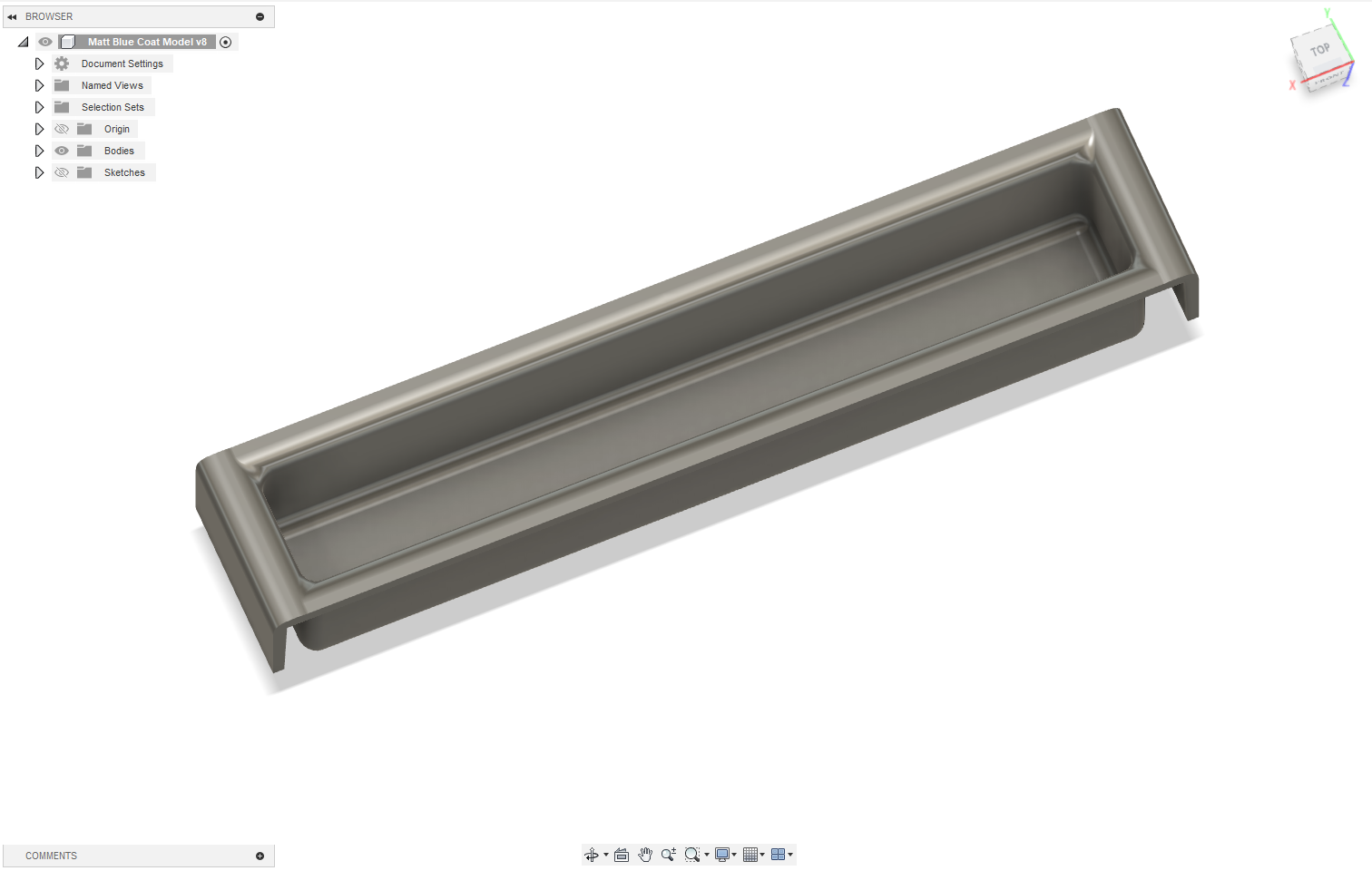
Successful Fusion 360 model of the obsolete plastic object

Successful Fusion 360 model of the obsolete plastic object

Fusion 360 timeline for modeling the obsolete plastic object

Fusion 360 timeline for modeling the obsolete plastic object

The Obsolete Plastic Object Was No Longer Obsolete

Finally, after several days of learning Fusion 360 and incrementally building a model, the obsolete plastic object was no longer obsolete. I produced an accurate model of the object and printed several copies, which Professor Koné was more than happy to receive. His files had regained their home, and time spent scouring eBay and Amazon for a nameless object had come to an end!

The red part (right), is the new clone of the original black “obsolete plastic object” (on left). Files are once again safely organized.

The red part (right), is the new clone of the original black “obsolete plastic object” (on left). Files are once again safely organized.

Conclusion

My experience working on photogrammetry and 3D modeling at the Makerspace was certainly full of twists and turns but definitely worth it. I learned how to use more than three very complicated software applications, significantly improved the Makerspace photogrammetry procedure (reduced a 3-month process to 1-2 days), and approached new challenges with an open mind.

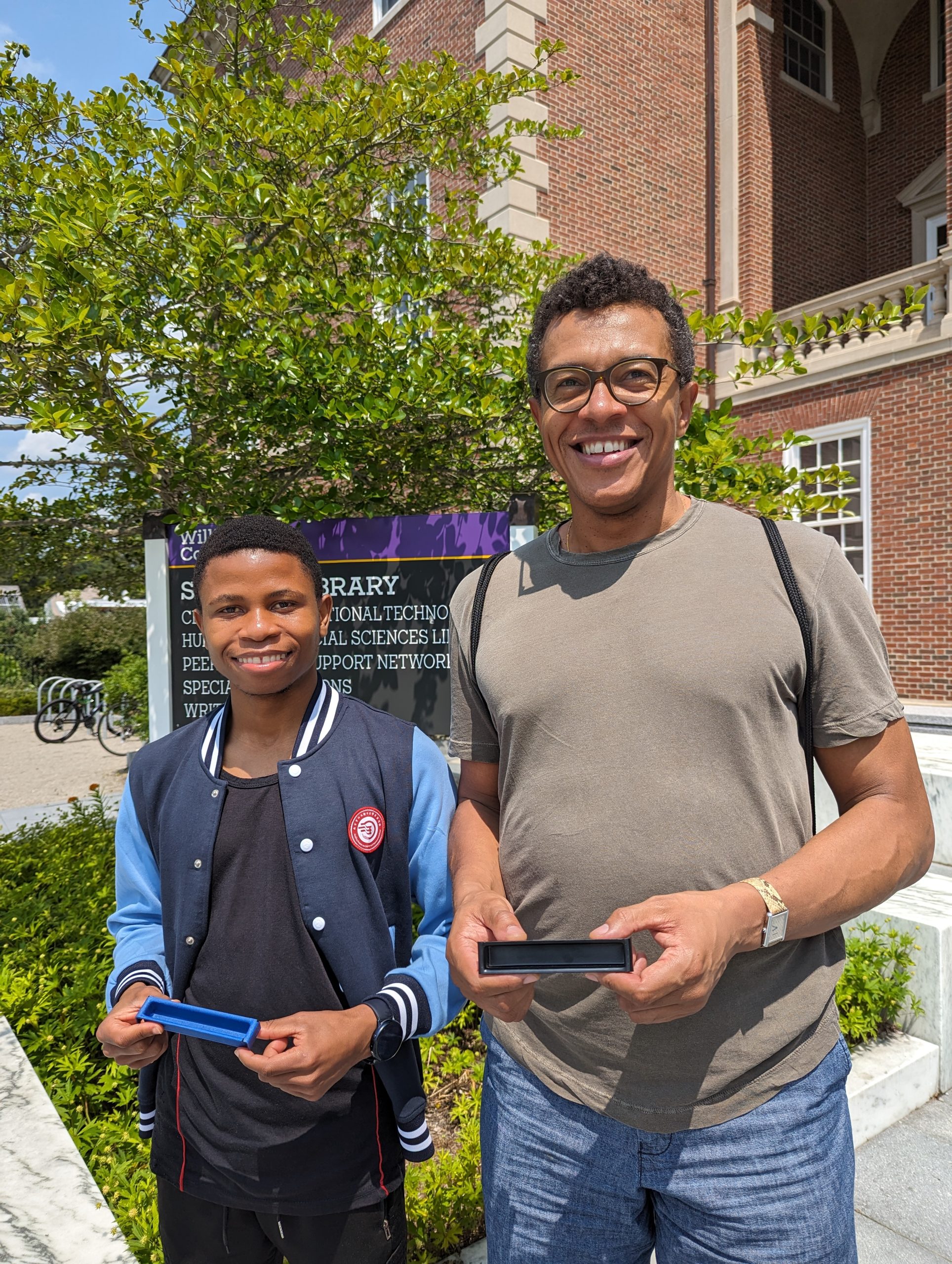
Prof. Koné and myself holding the original (covered in blue tape) and a newly printed black 3D “obsolete” plastic object

Prof. Koné and myself holding the original (covered in blue tape) and a newly printed black 3D “obsolete” plastic object

Next Steps

I look forward to exploring other methods of photogrammetry, particularly ones that require less equipment, such as those that use only a smartphone. Reality scan is one promising alternative that can create lower-resolution scans and models in less than 15 minutes. With new technologies coming out every day, there are many avenues to explore, and I’m excited to discover better methods. 

Screenshot: Experimenting with the Reality Scan smartphone app

Screenshot: Experimenting with the Reality Scan smartphone app

Makerspace Collaborating on Multiple Sustainability Projects

Last spring semester, the Makerspace @ Williams College pivoted to focus on academic projects that support teaching and learning goals; previously, this focus had been an aspirational goal. The Makerspace Program Manager, David Keiser-Clark, and his team of amazing student workers, now support a dozen interdisciplinary academic and campus projects at a time. A quarter of these projects support sustainability, or specifically the Zero Waste Action Plan, including: (1) a three-college collaboration to create an eco-friendly deterrent for Japanese Beetles in our community garden; (2) a prototype to upcycle plastic bottles into 3D printer filament; and (3) a set of laser engraved wood signs, sustainably harvested from Hopkins Forest, for a Stockbridge-Munsee led garden video and audio tour at the Mission House in Stockbridge, MA. Below, you’ll find a brief spotlight on each project, and possible ways we might build on these initial efforts.

E4 Bug Off Team Project : Mitigating Japanese Beetle Damage
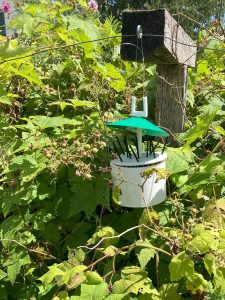
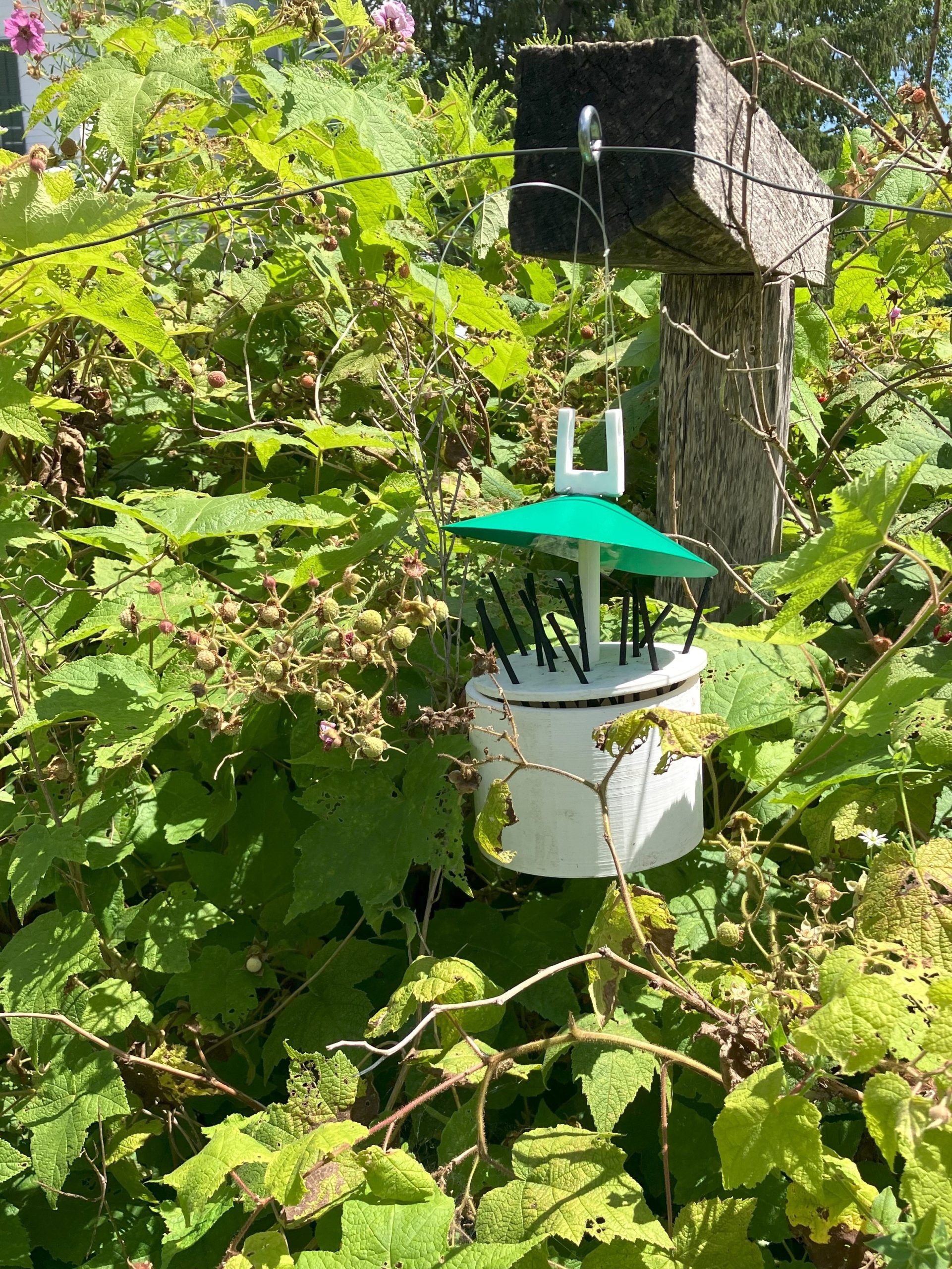
E4 Bug Off Team Project, installed in the Williams College Community Garden : Mitigating Japanese Beetle Damage

E4 Bug Off Team Project, installed in the Williams College Community Garden

The E4 Bug Off Team is a collaborative environmental project between engineering students from Harvey Mudd and Pomona Colleges, and students working with the Williams College Makerspace and Zilkha Center. The engineering students researched and developed a prototype that would safely repel Japanese beetles to hopefully stop them from defoliating raspberry bushes in the Williams College Community Garden. The Makerspace used 3D printers to create the parts and subsequently assembled the model. Zilkha Center interns then deployed the model in the gardens. The device is designed to be low-maintenance and only needs the reservoir filled weekly with 100% peppermint essential oil. Japanese beetles, in addition to other bugs and mammals, dislike the smell of the mint family, and the concentrated peppermint essential oil diffuses into the air via permeable wicks that extend from the reservoir tank.
One of five engineering diagrams from the 30-page E4 Bug Off Team Project.

One of five engineering diagrams from the 30-page E4 Bug Off Team Project.

The initial model was installed in the garden in July 2022, at the tail end of the raspberry season, and immediately leaked. This spring (2023), the Makerspace re-printed the reservoir tank with a higher density (50% solid as compared to 15%), tested the model and, after 24 hours, found it to be 100% water-tight. This second model was introduced into the garden with mixed results: the functional model performs as intended, but the impact is difficult to measure without a control plot or method of measuring beetle activity this year. 

In addition to recording measurements of a control plot, additional steps to increase effectiveness could include fabricating additional models to better saturate the air within the berry patch or returning the project to the engineering team for design modifications. The final version would be printed with ASA filament, which is physically stronger and UV/moisture resistant, as compared to PLA or ABS filaments.

To learn more about this project, read this blog post by Makerspace student worker Leah Williams.

Contributors: Harvey Mudd College (Students: Javier Perez, Linna Cubbage, Eli Schwarz, Stephanie Huang; Professors Steven Santana and TJ Tsai), Pomona College (Student: Betsy Ding), Zilkha Center (Students: Martha Carlson, Evan Chester, Sabrina Antrosio; Staff: Tanja Srebotnjak, Mike Evans, Christine Seibert) and Makerspace (Student: Leah Williams; Staff: David Keiser-Clark)

Polyformer: Sustainable 3D Printing at Williams College

While completing a month-long Zero Waste Internship at the Zilkha Center (through the ’68 Career Center’s career exploration Winter Study course), Camily Hidalgo pitched building a machine to convert waste plastic into usable 3D printer filament. The project aligns with the Williams College Zero Waste Action Plan, which is based on the sustainability strategy in the Williams College Strategic Plan. She envisioned this as being a collaborative effort between the Williams College Zilkha Center and the Makerspace. 

After researching several options, she selected the Polyformer because it is an open-source (publicly accessible) project that seeks to create a DIY kit, composed of standard and commonly found parts, able to convert and upcycle plastic bottles (waste) into usable 3D printer filament. This project was launched in May 2022 and has quickly amassed more than 4,000 people who follow and/or contribute to the project (on Discord), while a core group of dedicated volunteers develop the project.
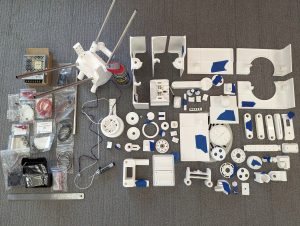
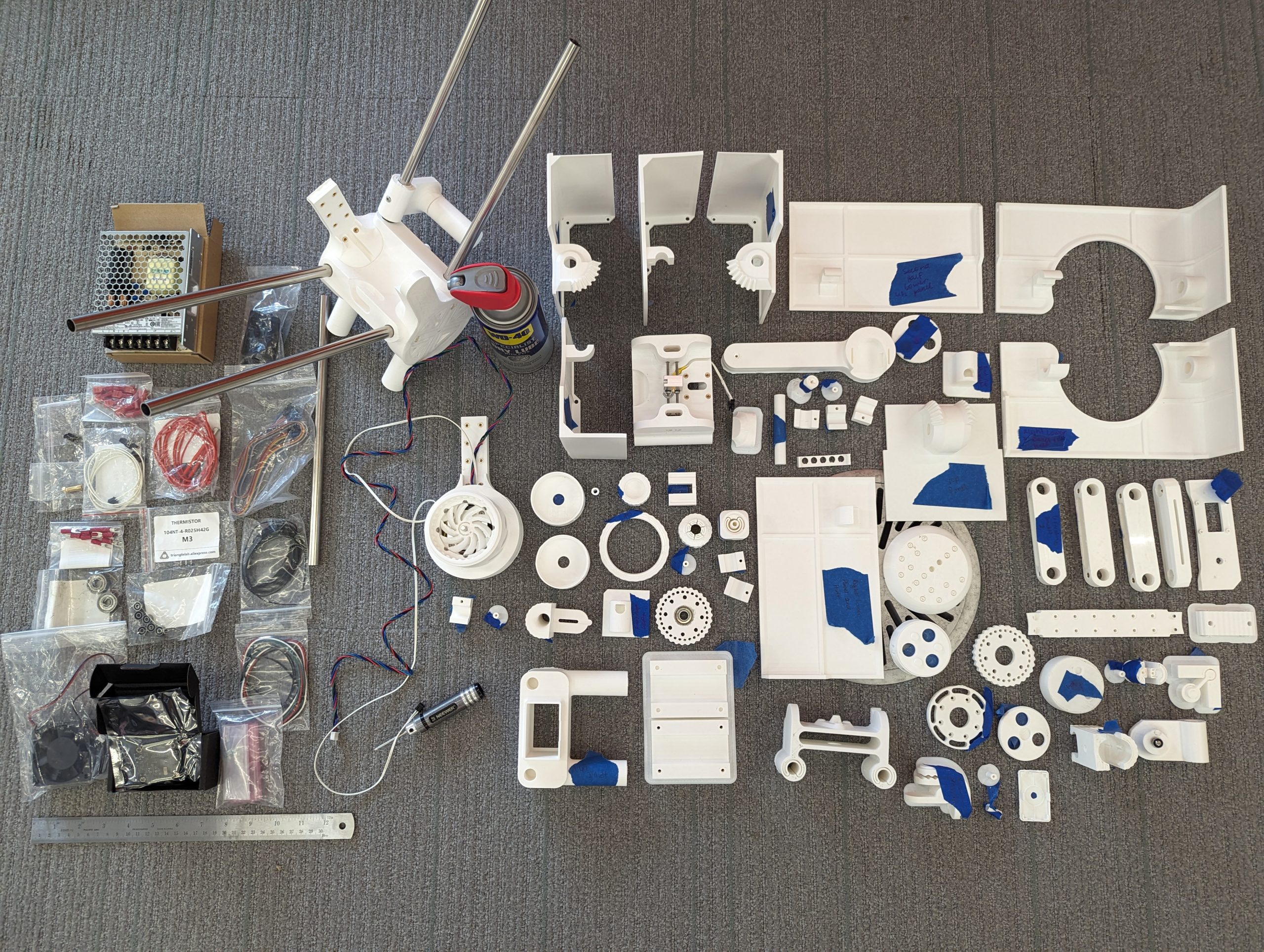
Many of the 78 printed parts that will be assembled into the Polyformer.

Many of the 78 printed parts that will be assembled into the Polyformer.

The intended outcome is to build a machine, based on standardized specifications, that effectively slices a water bottle into a half-inch wide ribbon, and then feeds that ribbon through a heated funnel, called a hot-end, to extrude it as 1.75mm PET filament. Camily seeks to create a working prototype to demonstrate our ability to disrupt our plastic waste stream and upcycle that into usable 3D printer filament. Approximately 40 bottles are required to create a standard 1 kg roll of filament, (enough to print 6 of the aforementioned beetle devices!). This project seeks to raise awareness that we can both reduce the quantity of waste that the college ships offsite while using that waste to create new filament and thereby purchase less of that virgin material from China. Upcycling waste can reduce the environmental impacts associated with the extraction of raw materials and product manufacturing as well as the significant carbon footprint associated with shipping those products to us from the other side of the globe.
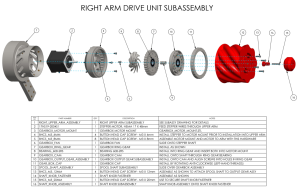
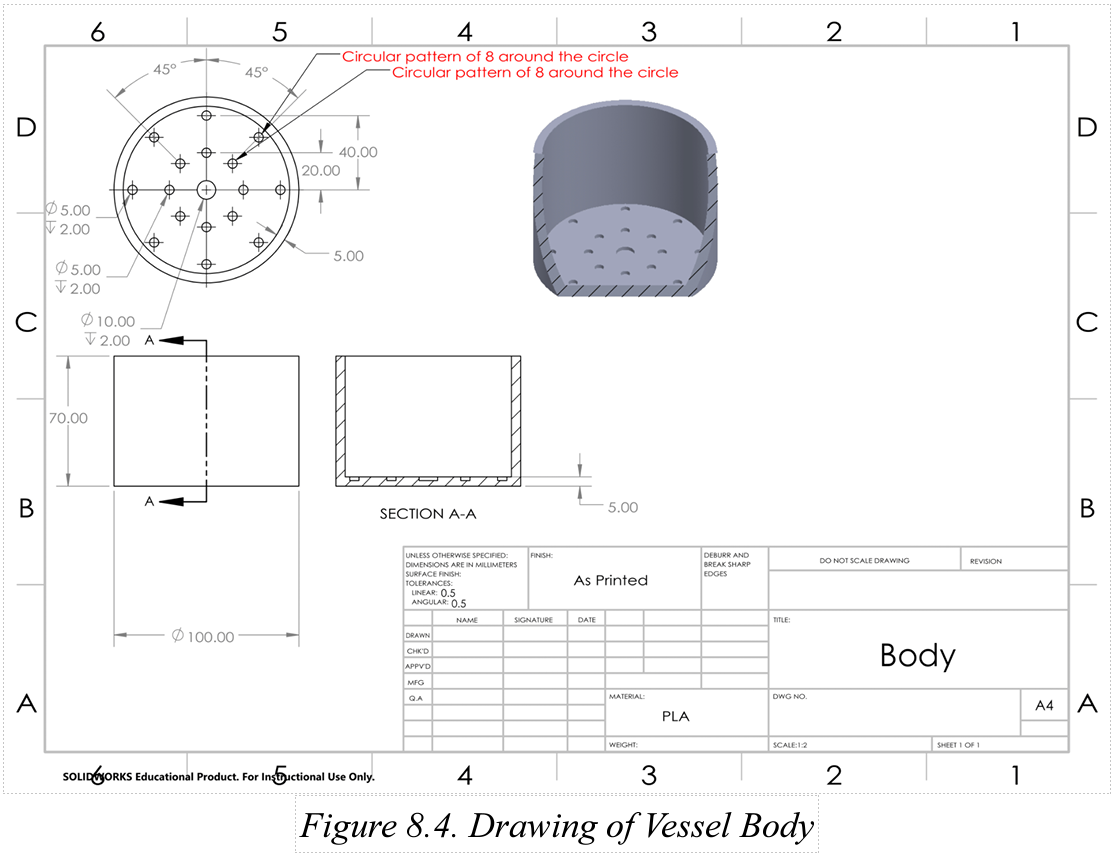
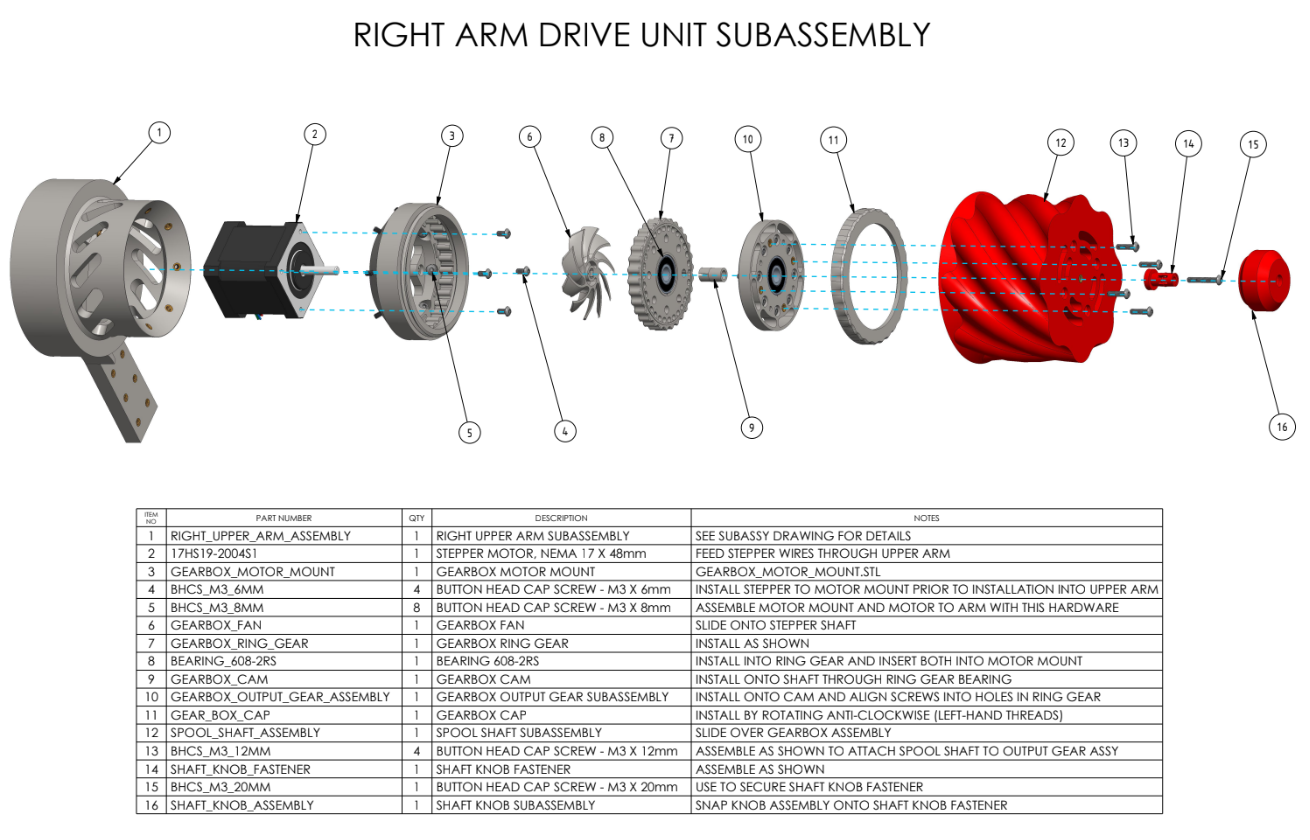
Polyformer diagram for building the "Right Arm Drive Unit Subassembly."

Polyformer diagram for building the “Right Arm Drive Unit Subassembly.”

Camily Hidalgo notes that this project is complicated because the design is constantly being improved. Additionally, it requires 3D printing 78 individual parts and then assembling those with a kit of sourced materials that includes a circuit board, LCD screen, a volcano heater block and 0.4 mm hot end, a stepper motor, stainless steel tubing, bearings, neodymium magnets, lots of wires, and lots of metal fasteners.

This project began last spring semester and, as of this summer, all 78 parts have been locally printed. Assembly has begun, and will be completed during the fall semester, followed by actual testing under a science lab exhaust hood to safely capture antimony, a VOC released when PET reaches its melting point. 

To learn more about this project, read this blog post by Makerspace student worker Camily Hidalgo.

Contributors: Zilkha Center (Student: Camily Hidalgo; Staff: Tanja Srebotnjak, Mike Evans, Christine Seibert), Makerspace (Students: Camily Hidalgo, Milton Vento; Staff: David Keiser-Clark), Chemistry (Professors: Chris and Sarah Goh; Staff: Gisela Demant, Jay Racela)

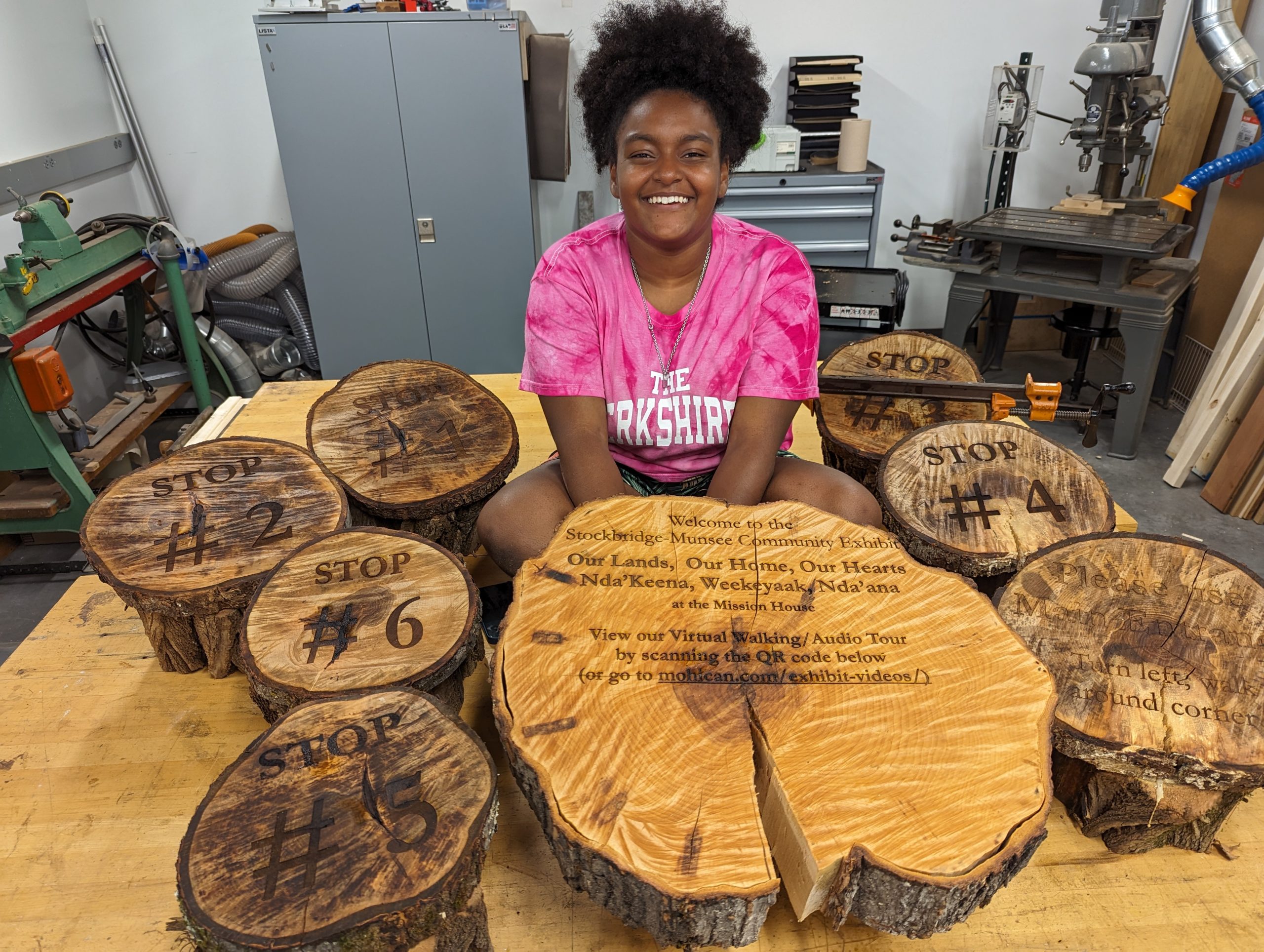
Laser Engraving: Stockbridge-Munsee Garden Video and Audio Tour
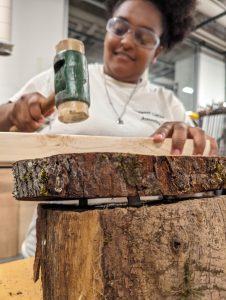
Yoheidy Feliz connecting a red maple slab to a slanted locust base, with dowels and wood glue.

Yoheidy Feliz connecting a red maple slab to a slanted locust base, with dowels and wood glue.

The Stockbridge-Munsee Community Historic Preservation Office summer intern, Yoheidy Feliz, reached out to the Zilkha Center for help with creating locally sourced wooden signs for a permanent video and audio tour at the Stockbridge-Munsee Garden in Stockbridge, MA. She received a dozen sugar maple and red maple discs, plus locust wedges, all sustainably harvested from already fallen trees in the Williams College Hopkins Forest. 

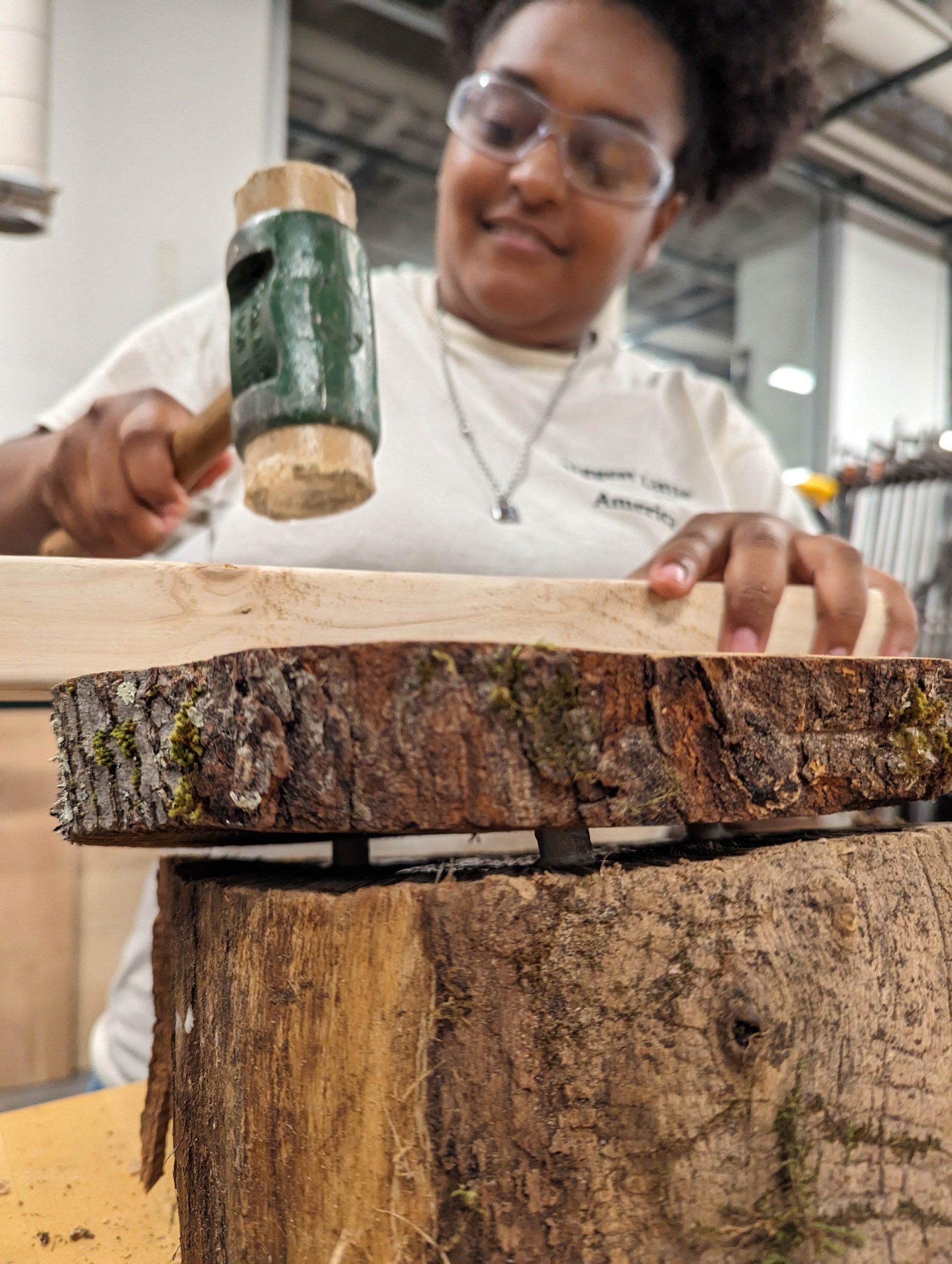
Yoheidy approached the Makerspace and, in collaboration with expertise and tools from the Science Shop, learned how to use an industrial laser engraving machine to etch a welcome sign with QR code, as well as multiple audio guide messages, onto sanded wooden discs. She attached these discs to sloped wooden bases (“wedges”) using woodworking dowel joinery, wood glue and a mallet, and then applied a natural, non-toxic preservative coating of Walrus-brand tung oil. 
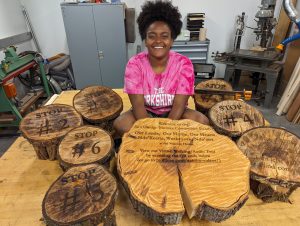
Yoheidy sits with her series of laser engraved wood slabs. She later added a laser engraved metal QR code label that directs users to the hosted video tour.

Yoheidy sits with her series of laser engraved wood slabs. She later added a laser engraved metal QR code label that directs users to the hosted video tour.

The day after completing all of this work, she installed these at the Mission House garden, and then created these stunning video and audio tours to guide local and remote viewers through the gardens.  

To learn more about this project, please be on the lookout for an upcoming Makerspace guest blog post by Yoheidy Feliz.
Contributors: Stockbridge-Munsee Community Historic Preservation Office (Staff: Bonney Hartley, Historic Preservation Manager; Student: Yoheidy Feliz), Science Shop (Staff: Jason Mativi, Michael Taylor), CES & Zilkha Center (Staff: Drew Jones, Christine Seibert), Makerspace (Staff: David Keiser-Clark)

Cloning the Last of its Kind
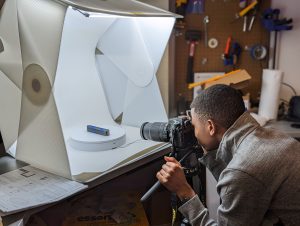
Milton Vento ‘26 using photogrammetry to create a 3D object

Milton Vento ‘26 using photogrammetry to create a 3D object

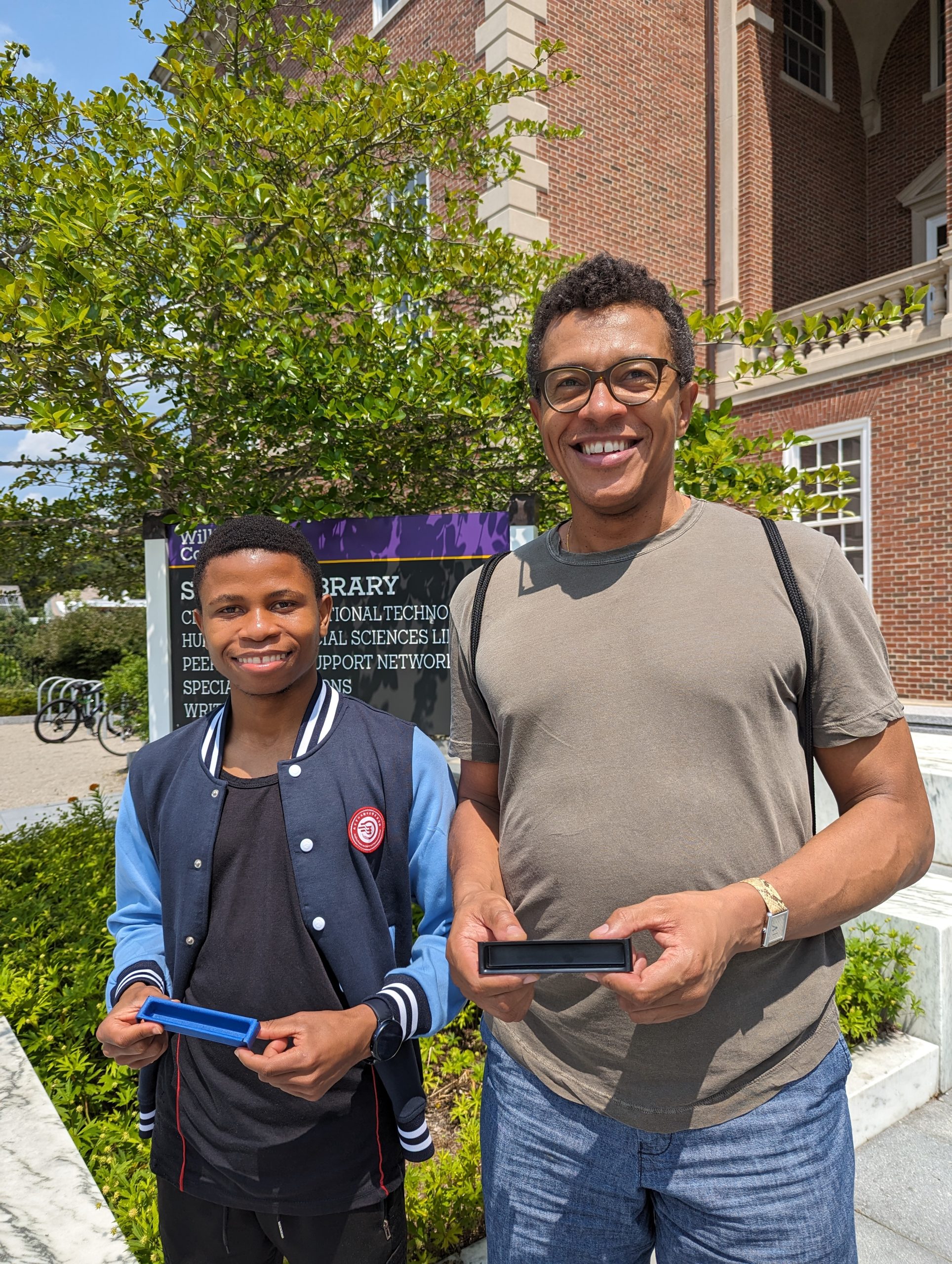
Most recently, Associate Professor of German, Chris Koné, approached the Makerspace with a problem: all but one of the file hanging clips to his beloved office desk had broken. The result: piles of overflowing manila folders surrounding his desk, cramping his office and style. He searched Ebay, Etsy, and Amazon, but was unable to find replacement parts. He even visited a store in NYC that specializes in providing office parts. Alas, the parts were obsolete. So he approached the Makerspace and asked if we might be able to replicate his last remaining viable part.
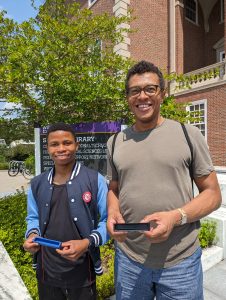
 

Milton Vento and Chris Koné hold the original and cloned objects.

Milton Vento and Chris Koné hold the original and cloned objects.

Milton Vento, the Makerspace’s summer student worker, took on the task as his first project, using it as an opportunity to learn photogrammetry, an accessible and low-cost method of taking many photographs of an object from varying angles and then using software to stitch them together into a 3D digital object. He expanded the project by testing four different methods of creating 3D objects using: standard manual DSLR photogrammetry with Metashape software; photogrammetry using a smart turntable that rotates and sends an infrared signal to the DSLR camera, causing it to iteratively release the shutter and then advance the turntable several degrees and then repeat that process; an older DAVID5 object scanner; and the RealityScan app that requires only a smartphone. This exploration resulted in two distinctly more efficient workflows that will become standard use this fall in the Makerspace. 

He also successfully re-created a 3D object of the final remaining desk part, and printed and delivered a half dozen of these parts to Chris. Should any of these ever break, the file can easily be retrieved and re-printed. 

Contributors: German Department (Professor: Chris Koné), Makerspace (Staff: David Keiser-Clark, Student: Milton Vento)

Future Project Ideas

One upcoming and likely collaboration between the Makerspace and the Zilkha Center would be to laser etch additional sustainably-harvested Hopkins Forest wood slices to create signs for the Williams College Community Garden. Additionally, the Zilkha Center, Makerspace and MCLA Physics and Environmental Center may brainstorm the possibility of creating a larger prototype for upcycling plastic into pellets. The pellets could then be used for injection molding, given to local artists for artwork, or sold regionally; this idea was sparked by Smith College’s collaboration with Precious Plastics


You can find this blogpost and other sustainability projects at sustainability.williams.edu.

Spinning Tales: My Whimsical Adventure in Arduino Turntable Wonderland

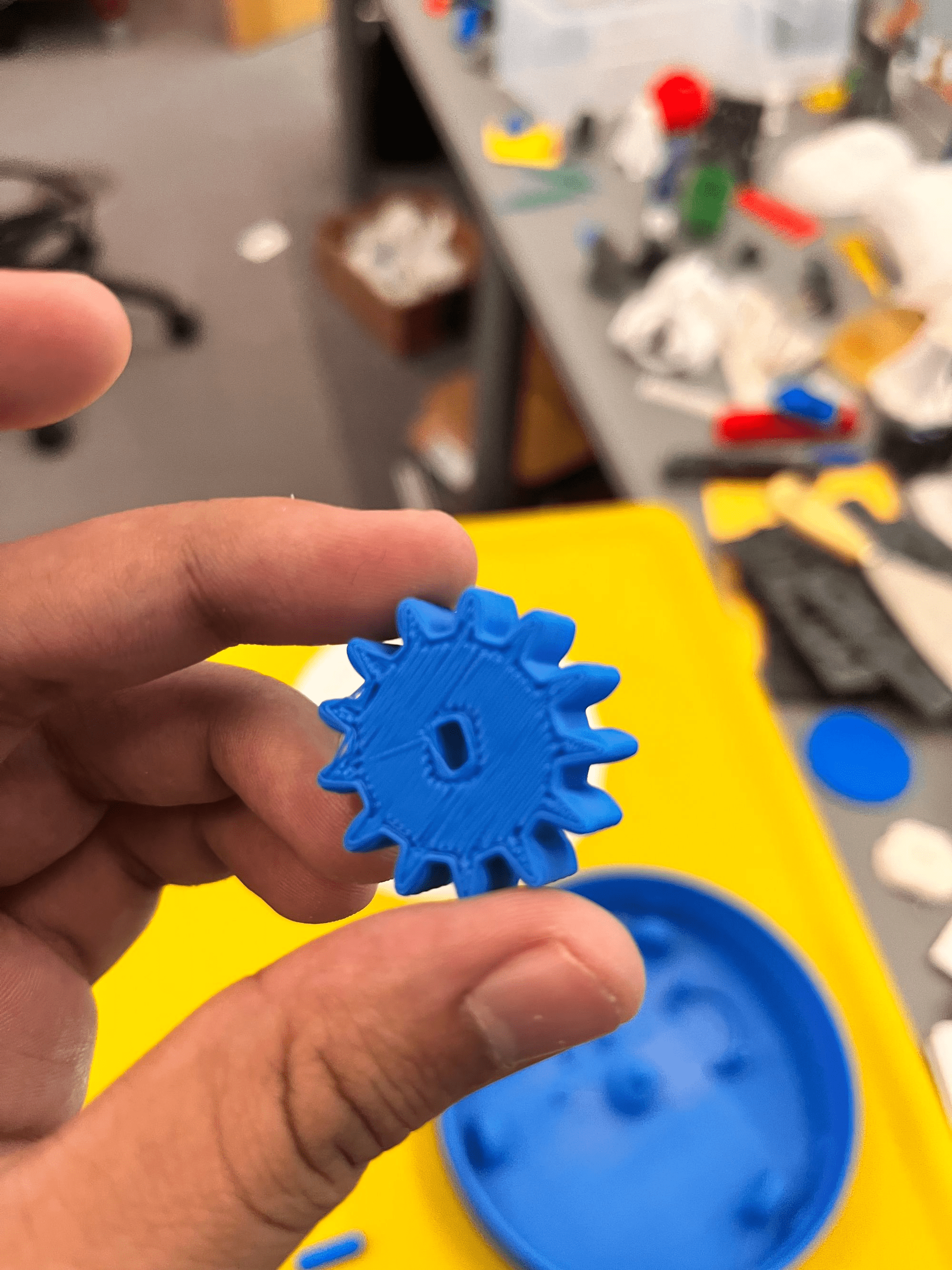
Arduino turntable prototype (close up of gear)

Arduino turntable prototype (close up of gear)

I remember the day I first laid eyes on that clunky, awkward, yet fascinating automated burrito-making machine in the local toy store. It was love at first sight! I knew I had to make it mine, but alas, my piggy bank held only a handful of nickels and a couple of lint balls. Little did I know that my passion for robotics would lead me to a journey full of laughter, tears, and making the lives of hundreds of passionate photogrammetry hobbyists like me easier by creating an affordable DIY Arduino turntable.
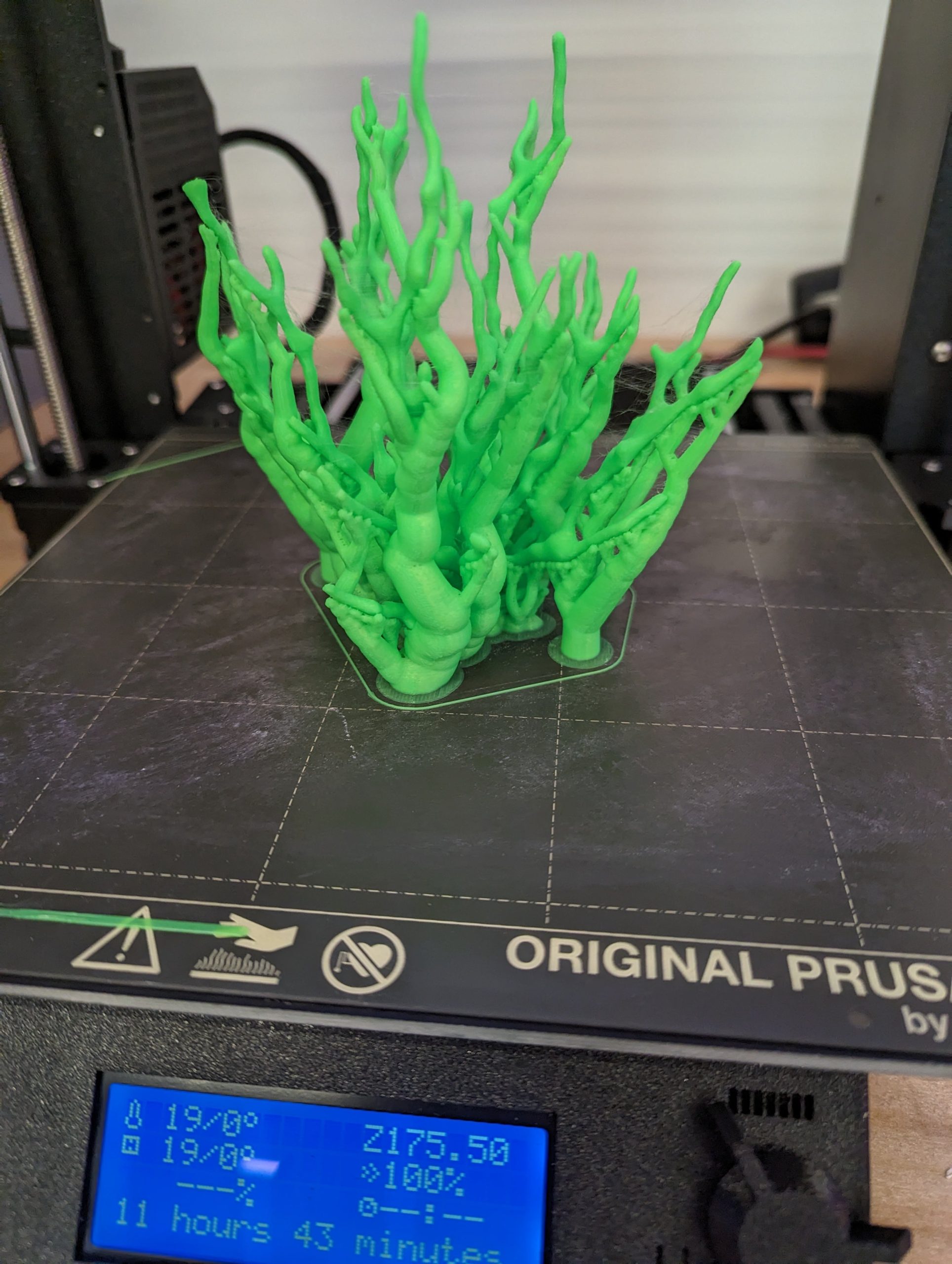
Fast forward to 2023, where I found myself rotating an 80 thousand-year-old cave bear tooth by one degree increments and taking 600 pictures, all with just 2 hands (which took me 4 hours and gave me 2 days of back pain) in our college Makerspace. I found myself daydreaming about the kind of robot I would create if only I had the skills of Tony Stark. And then, soon afterward, while I was surfing the internet on how to make photogrammetry pictures better optimized for 3D scanning, I stumbled upon a YouTube photogrammetry tutorial and found out that there was a ”thing” called “turntables.” To my sadness, it cost $150. And that was my light-bulb moment. I thought, “Why not give it a try?” As I saw my Makerspace friends clumsily rotate a plastic hangman for 3D scanning, I had an epiphany – what if I built an AFFORDABLE automatic turntable to do the job for us?

With the enthusiasm of a mad scientist…

Arduino turntable prototype (base, rotator, gear, spindle)

Arduino turntable prototype (base, rotator, gear, spindle)

With the enthusiasm of a mad scientist, I proposed the idea to David, our Makerspace Program Manager and he immediately approved the idea and sent me a couple of resources to start with (thanks, David, for being so supportive). I dove headfirst into the world of turntables that people had previously made. I found Adrian Glasser–a professional computer scientist and a consultant–who had already made an almost similar prototype I was planning to make. Although Adrian’s project was pretty cool, it needed fancy components which were relatively expensive. I also found Brian Brocken, a passionate maker and 3D printer, whose turntable project stood out and inspired me a lot in the design of my prototype. While these works were a great sense of inspiration, my mind was lingering around the question of “how to make the design and features more efficient while keeping the device affordable and easy to build.”

The journey was fraught with challenges and unexpected twists, but I was determined to build the most magnificent, borderline-overengineered turntable the world had ever seen (just kidding!). I worked iteratively, and my first draft was a very basic model so that I could feel it with my hands and think about the build process I 3D printed a PLA (a type of 3D printing filament) base, a rotating platform , and some gears and bearings. After researching different approaches, I ordered my first set of electronic components and kept the total cost below $60 for this first version.

Arduino circuit board and LCD screen

Arduino circuit board and LCD screen

I decided to go with Arduino Uno, a very easy-to-program and flexible microcontroller that will be  the brains of my device. “Easy to build for everyone” was lingering in my mind when I chose the components. I got a stepper motor – which provides incremental motion, compared to a DC motor that provides a continuous motion – coupled with a physical motor driver to enable precise and sequential one-degree rotations with a super-low margin of error. To make the turntable more user-friendly, I added a simple LCD display and a rotary encoder for adjusting the rotation speed. After two weeks of assembly and testing, I had a fully functional circuit. 

Now it’s time to code! The hardest part while coding was finding the library file on the internet that corresponded to my particular stepper motor. It took me 4 hours just to find the library and start coding! Phew…

I kept writing code for a week and then moved on to testing my code. Overcoming the challenges of building my robotic turntable was like conquering Mount Everest. I spent hours troubleshooting the Arduino code, sifting through lines of syntax until my eyes crossed. But, much like a robot phoenix, I rose from the ashes, armed with patience, persistence, and an endless supply of coffee. After a few weeks of tinkering and testing, I finally had a circuit and a working code that I marked as a BIG CHECKPOINT for the project.

The spring semester gradually came to an end, and the turntable project will take a summer vacation. But next semester, the first prototype of the turntable is going to see the bright light of the earth. 

Next steps

  1. Using Fusion360 to design an easy-to-print downloadable 3D model (stl file) 
  2. Using Infra-Red (IR) sensors to automate the camera shutter click with each one-degree rotation of the turntable, so that our Makerspace friends can leave the automated turntable working (extra hours!) overnight **insert cruel laugh**
  3. Sharing the technical details and building process online to make it accessible to other Makerspace groups and hobbyists around the world. This can be done through posting a follow-up blog with all the technical details. For example, I hope to publish step-by-step instructions, along with the final list of parts (with URLs), my custom Arduino code, link to the software library that corresponds to my stepper motor, and post downloadable .stl files for printing my custom 3D models to complete this project.

Affordability

I hope to keep the project affordable and my goal is for all costs to be under $70.

Conclusion

During this journey, I learned the importance of patience, collaboration, and perseverance. Building a robotic turntable from scratch is not a one-person job, and I found myself relying on the support and expertise of my fellow Makerspace friends. Together, we shared our knowledge and skills, which not only allowed me to build a better turntable but also contributed to the overall growth and development of our Makerspace community. I enlisted the help of my fellow Makerspace comrades, who offered their own unique brand of wisdom, ranging from programming tips to advice on how to make the turntable levitate. (Note: do not try to make your turntable levitate. It’s a bad idea.)

The Arduino turntable project wasn’t just about creating a cool gadget – it was about embracing my love for robotics and the creative process. In the end, I learned that a healthy dose of humor, imagination, and the willingness to make things up as you go can lead to some truly spectacular results.

Today, my beloved half-constructed Arduino turntable takes pride of place on the little yellow Makerspace table, a constant reminder of progress, the power of imagination, and the beautiful chaos that comes with it. So, dear reader, I encourage you to explore your own interests, whether that’s robotics or any other field that sparks your curiosity. Be open to surprises, maintain a sense of humor when facing challenges, and always remember that amazing innovations often start with bold ideas.

The “Press The Button” Project

Pictured Above: Sam Samuel (left) and Nancy Macauley (right)

Pictured Above: Sam Samuel (left) and Nancy Macauley (right)

Route 2, a highway that cuts through campus, holds a degree of danger as students frequently cross to get to classes, dorms, extracurriculars, etc. Due to this, the campus provides three Rectangular Rapid Flashing Beacons (RRFB), yielding the right of way to pedestrians. Despite their ability to increase the awareness of drivers, it is common for students to neglect pushing crosswalk buttons with the assumption that drivers will stop regardless. However, as implied in the signs posted by Campus Security Services (CSS), the vision of drivers may be impaired due to solar glare or lack of lighting. This may present a danger to students who fail to push the button before crossing. Due to these concerns, Nancy Macauley, a Campus Safety Services Officer with CSS, reached out to the Makerspace with a project idea that she hoped might encourage more students to “press the button”. 

The Project

When I was first introduced to this project, I struggled with the direction CSS wanted to take, so I quickly set up a meeting to get a better understanding. I had my first meeting on September 29th where we discussed purpose, goals, and I shared a fair amount of criticism on the project from my perspective as a student. From there I concluded that:

Example of a RRFB on Campus

Example of a RRFB on Campus

  1. This project began in July with a previously 3D printed prototype button that CSS mentioned contained two holes and was purple; I took that information into consideration when designing a new button. Nancy had mentioned liking the previous design but, since several months had passed, she was  unable to  locate or show me the original prototype. 
  2. An engraving that read either “push the button” or “press the button” was requested on the design and if possible painted yellow or gold once completed.
  3. A total of 50 buttons were requested as a starting point once design was settled.
  4. Students would receive free ice cream from the local ice cream shop after receiving 3 buttons and a pizza voucher after 5 buttons. Because of that, we concluded that we would need a design that could be easily collected on a keychain.
  5. Given that this project is just starting to get its footing it still needs to be approved within CSS. 
Figure 1. First Button Prototype

Figure 1. First Button Prototype

From there began the start of my journey. I first inquired with the Makerspace manager about the original prototype button from when this project was first pitched. Unable to locate it, I began researching appropriate sizes and other button designs for inspiration. After sketching in my notebook, I made four variations of my first design on Fusion360. I created multiple versions on Fusion360 because I wanted to test varying heights in extruding. I also attempted to approximate appropriate hole sizings that would accommodate a standard-sized keychain. I then attempted to add the text engraving and that was more challenging than I had expected. I was unable to include the engraving because of the relatively small size of the buttons. My first designs ranged in size from 23 mm to 34 mm, and were inspired by clothing buttons.

I decided to keep the small sized button because it would print quickly, requiring only 13 to 15 minutes each, and would reduce environmental waste as I anticipated students might throw away buttons or lose them. However, given some communication issues on my part, and due to me being sick for a period of time, there was an overall lack of in-person meetings. After a quick email interaction, I left multiple printed versions of my first prototype at the CSS office and later received Nancy’s overall feel on the design. Since she expressed reservations, I decided to build another design in Fusion360. This prototype attempted to replicate the look of the actual RRFB buttons students press at campus crosswalks. 

Figure 2. Fusion360 Design

Figure 2. Fusion360 Design

My attempts at implementing the engraving on the design included manipulating different methods of extrusion. According to the application ArcGIS, “extrusion is the process of  stretching a flat, 2D shape vertically to create a 3D object in a scene.” I first tried the inset and extrude combination method for the text which entails creating an inset on one of the object’s planar faces and extruding using that sketch to create a hole. When I extrude, I stretch it vertically inwards which cuts into the object. This would allow for the text to show as a hole. In the end, the surface area was too small for the Dremel DigiLab 3D45 printer to extrude, resulting in the text collapsing when I printed it. This also occurs when I stretch vertically outwards. This can be seen in figure 2 where the sketch of the text on the object’s planar face is raised by a height of about 1 mm. Extrusion actually occurs throughout the entirety of creation of the object! For example, to create the keychain portion of the object, a 2D sketch of an arc is needed to extrude the sketch outwards. Then the hole for the keychain is made by extruding inwards after making an inset on our previous sketch’s plane. Once printed on the Dremel, you are then able to insert physical objects (like a metal keyring) in and out of the hole, which was successfully done in each prototype.

Conclusion

Figure 3. Fusion360 Design

Figure 3. Printed Prototype

In my most recent meeting with Nancy, I learned that she had envisioned a larger button — one more similar to the silver-dollar sized prototype she had first received from the Makerspace last July. Hearing this from her helped me explain how the loss of the original prototype, combined with having scheduled only two in-person meetings, resulted in my providing her with prototypes that were both smaller and different in appearance from what she had been expecting. We ultimately decided to put a temporary pause on the project and meet in-person again at the start of the spring semester. During Winter Term, Nancy will share the current project and seek feedback from the rest of the CSS Staff. And I have many more ideas and experiments to try to prepare for CSS’s first launch of this initiative!


Experiences that Boost Learning

Figure 1. Me unclogging a Dremel Digilab 3D45 printer

Figure 1. Me unclogging a Dremel Digilab 3D45 printer

As a first-year student worker at the Makerspace in Williams College, I have encountered my time here to be highly enriching. In these two months, I have learned core abilities that have helped develop my problem-solving and analytical skills as a woman in the STEM field. Prior to coming to Williams, I had taken part in two projects related to 3D printing technology in Paraguay (my home country), where I assisted with a 3D store and assembled 3D printed prosthetics, thus I was delighted to have the opportunity to contribute to the Williams College Makerspace.

During the course of my first weeks, I familiarized myself even more with the use of 3D printers, practicing how to properly slice models for printing and changing filaments. I also learned how different modifications in parameters of 3D printers’ slicing software, such as layer height, print speed, supports, infill patterns and temperature are crucial for a 3D print to go smoothly. 

Nonetheless, after several successful prints for students’ requests, I have also encountered some obstacles such as clogging and bed adhesion issues. When printing a Minecraft lamp, I found that it had been detached from the printer’s bed, resulting in a waste of filament. To solve this, I used glue or tape — depending on the printer bed material, to help the filament stick better to the platform. In another instance, one of the printers got its filament stuck and clogged the extruder completely, making it unable to properly function. Therefore, I had to unclog it manually, disassembling the extruder to reach the clogged section near the nozzle and cleaning the obstructing filament piece away from the extruder channel tube. A valuable lesson I learned from these experiences is that it is essential to always be alert while the 3D printer is working, and look for strategies to solve the problems that may occur.

As for 3D modeling, I have started experimenting with Fusion360, a specialized software to create and edit pre-existing 3D models. This has been extremely useful to repair corrupted open-source models to efficiently print them. I have used this tool to edit designs students would request. For instance, a student once requested a keyholder that had an open section in the center but wanted the object to have a solid surface without the hole. Thus, I filled the gap using the tools of this specialized software.

Aside from that, I started to become familiar with operating Virtual Reality (VR) equipment, which is an essential and cutting-edge technology that not only allows for fun recreational time but also has academic applications. From playing VR games, like the popular Beat Blaster, to exploring a variety of countries using Google Earth; there is a world of possibilities when it comes to Virtual Reality.

Lastly, I am working on the promotion of the makerspace with peers and faculty to make more members of our campus aware of the wonderful opportunities at the Makerspace. Looking forward, I aim to continue increasing my knowledge on these topics to be able to make an impactful contribution to our community at Williams College.