How We Added Webcams to our 3D Printers

The Importance of Remote Monitoring

A screenshot showcasing the Prusa Connect web portal for a Prusa XL printer.

A screenshot showcasing the Prusa Connect web portal for a Prusa XL printer.

This past academic year, I enabled remote monitoring for our Prusa XL and Prusa MK3S printers. I did this because it makes life a bit easier for us student workers. 3D printers are a fickle technology, and failed prints are common due to an object failing to adhere to the print bed, the filament becoming tangled, or a variety of other common issues. Because of this, many Makerspace workers have resorted to stopping by the Makerspace multiple times during long prints, making sure everything is going according to plan. For this reason, Prusa has designed a piece of software called PrusaLink that can connect both their older and newer printers to the Prusa Connect web portal. Upon learning of this, I began to work towards connecting our printers to the Internet so we could check on the status of prints in real-time and even cancel failing prints, all from our phones.

Bringing the Printers Online

A close-up view of the Raspberry Pi Zero 2W Single-Board Computer with a 3D-Printed Bracket attached to it and 4 pins soldered to the board.

A close-up view of the Raspberry Pi Zero 2W Single-Board Computer with a 3D-Printed Bracket attached to it and 4 pins soldered to the board.

For our Prusa XL, this task was easy. The Prusa XL, being a newer printer, has native support for Wi-Fi and simply requires connecting it to the Williams College network. However, some modifications were necessary for our older Prusa MK3S printers. For each of those, I connected a Raspberry Pi Zero 2W single-board computer. This small board, the one pictured above, is an entire computer that can connect to the back of our 3D printers using four pins I soldered to it. These pins transfer power from the 3D printer to the tiny computer, as well as data about the printer which is then sent over the Internet. This is achieved through a software called PrusaLink, a custom Linux-based operating system developed by Prusa that runs on the board.

I soldered these pins, installed the operating system onto a micro-sd card, and mounted a 3D printed bracket designed to prevent electrical shorts with double-sided tape.  I then plugged the boards into the back of the 3D printer and powered them back on. Once powered on, we connected to the IP address listed on the printer’s screen, configured them for remote monitoring, and were able to start monitoring! We could now view the current status of the printers, control them, and upload files to them remotely! However, there was still one problem – we could not yet visually monitor the prints.

Installing Cameras

A 3D-printed camera mount attached to a Prusa MK3S.

A 3D-printed camera mount attached to a Prusa MK3S.

For all of our printers, we ended up designing custom mounts for the camera module we purchased, the Arducam OV5647. This module was chosen because of its cheap price, good-enough visual quality, and direct connection to the Raspberry Pi’s camera connector via a ribbon cable. Our main design principles were that we wanted a mount that followed the nozzle so the current layer was always in the center of the camera, while still showing the print below. I attached this mount to the X motor carriage on the Prusa MK3S, as this allows the camera to stay focused on the printhead. The hexagon pattern matches Prusa’s design language with their printers while preserving airflow, as the fan on the printhead can move very close to the camera mount. I have released this design to the public, and you can find both the STL and Fusion 360 files on the Printables website

A case designed to hold a raspberry pi zero and a camera module monitors a print on the Prusa XL.

A case designed to hold a raspberry pi zero and a camera module monitors a print on the Prusa XL.

For the Prusa XL, a different design was used. The XL has all the functionality of PrusaLink built in, but without a way to directly connect a camera. Therefore, we used the same single-board computer, a Raspberry Pi Zero 2W, running the 64-bit release of Raspberry Pi OS Lite. This gives us a very lightweight operating system that is accessible through the command line for running software. On this computer we set up this code by a github user, which uses the API provided by Prusa to send snapshots from the camera every 10 seconds to the Prusa Connect web portal. I found this mount for a standard webcam on the Printables website, and built my design based on this, adding a box where the webcam would normally mount onto it that holds the Pi Zero and the camera module. This design ended up working perfectly, and is what we are using today.

Real-Time Slack Notifications

Prusa XL Printer Notifications. Text Reads: Prusa XL: Printer requires your attention. Check it personally to make sure everything is in order. Prusa XL: Print job Body1_PETG_2h11m.gcode was stopped. Remove the printout from the printer and prepare the printer for the next print job.

A photograph of a slack notification for our Prusa XL printer.

The remote monitoring system shares temperature data, the percentage of the project remaining, visual photographs, and also notifies us if the printer encounters an issue or if the print fails. If, for example, the spool runs out of filament in the middle of printing, the print pauses and we get a Slack notification letting us know details about the issue. The notification contains a link to the Prusa app (on our phones) for more information. This lets us solve these problems when they come up, instead of finding out the next day.

Conclusion

Connecting our printers to the Internet has been a major help at the Makerspace. It makes monitoring easier, allows us to upload files directly from our laptops to the 3D printers (via our network), and lets us confirm that prints are going smoothly or catch issues before they become a major problem — without having to step foot in the office. Remote monitoring for our 3D printers has been a massive help in allowing us to continue providing high-quality 3D prints for our community.

Next Steps

This summer the Makerspace will be upgrading our MK3S Printers, and building two new high-speed Prusa MK4S 3D printers. I plan to connect all of our 3D printers to our remote monitoring system. If you are interested in connecting your own Prusa 3D Printers to the Internet with Prusa Connect, you can find official guides on how to do so here for all compatible models.
 

Truly-Local Internet: The PiBrary Project

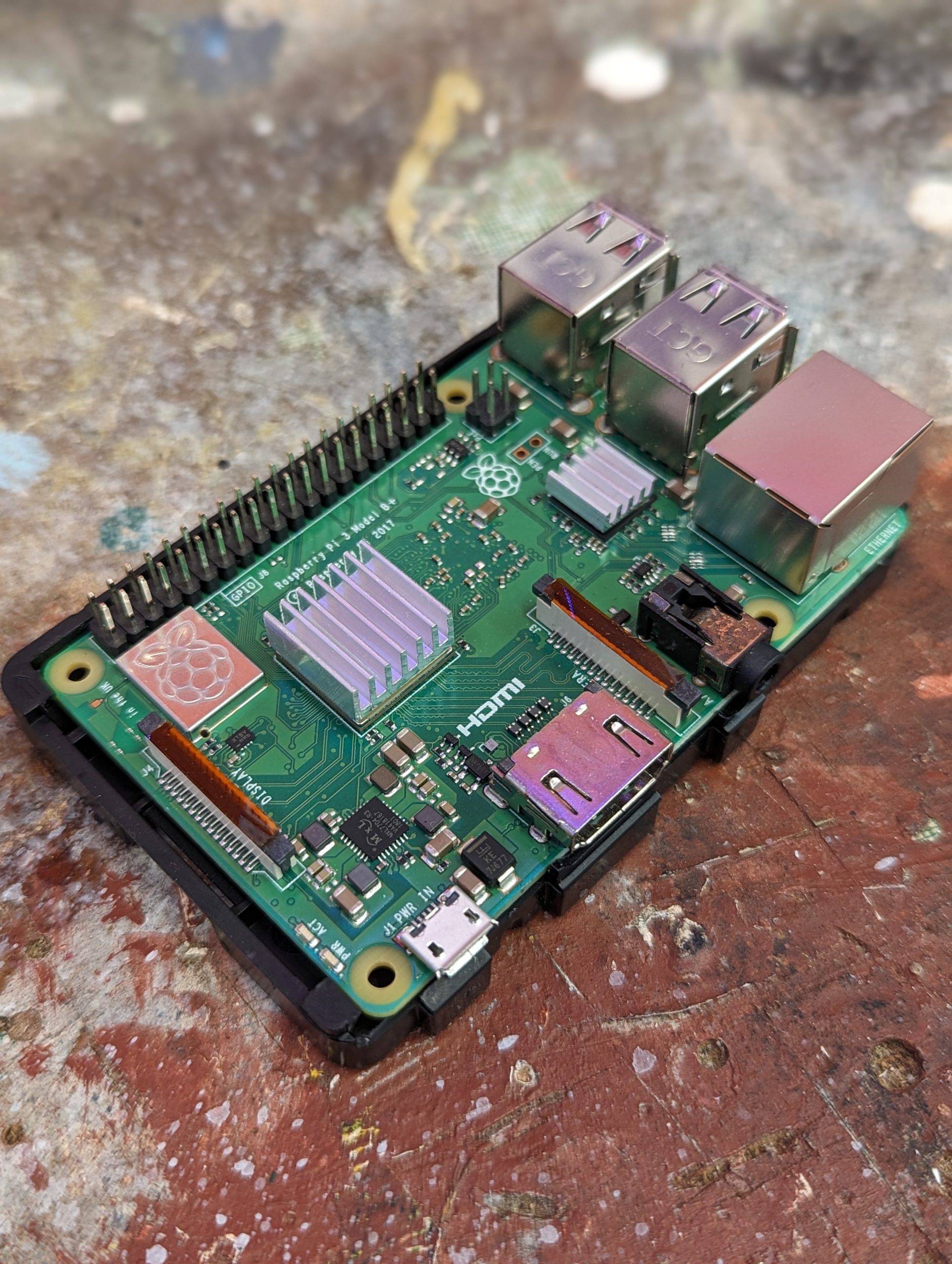
Figure 1: A Raspberry Pi 4 Model B

Figure 1: A Raspberry Pi 4 Model B

If a local organization has important information for its neighbors, is there a way it can broadcast directly to them without bouncing the data to Toronto and back? I grew up here in the Berkshires, and have recently joined the Office of Information Technology (OIT) at Williams. Thinking about Williams College’s commitment to community service and support, my project goal was to demo a low-cost, low-maintenance device which a local organization could use to easily broadcast information and resources over WiFi directly to nearby cell phone users through familiar, standard methods — (1) connecting to a WiFi network, and (2) navigating to a website address in a browser — without needing national or global infrastructure, or specialized equipment or technical skills on either side of the connection. Such an “internet-in-a-box” model could have useful applications in emergency scenarios, but also could provide curated information or resources digitally to multiple people in other specific, time-limited places and moments — for example, at a festival, workshop, teach-in, or other community event.

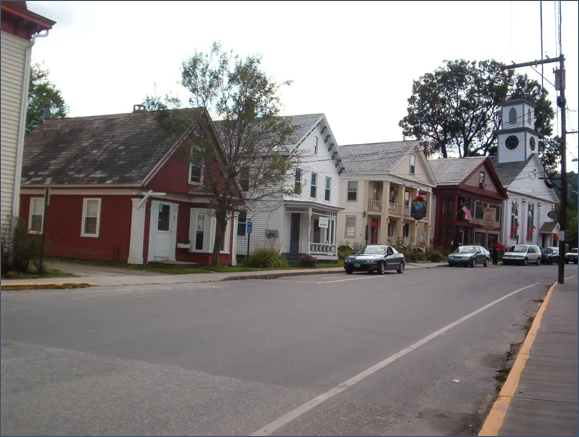
Figure 2: Wilmington VT, a mere 40-minute drive from Williams.

Figure 2: Wilmington VT, a mere 40-minute drive from Williams.

Let’s give this idea some real context. Imagine a small town in nearby southern Vermont – say, Wilmington. It’s late August, and a storm rips through, dropping 8 inches of rain in 24 hours, washing out roads and bridges, and knocking cell towers and internet infrastructure offline, leaving you without any connectivity for days. Local fire, rescue, and police services, town government, even your electric company, typically use websites, social media, and text messages to communicate critical information — but now, those methods don’t work. Where can you go for information regarding emergency food, shelter, medical care? Is the water safe to drink? When will power be restored? Where are the downed power lines and flooded roads? You’re both literally and figuratively in the dark.

No need to imagine: this actually happened in 2011, with Tropical Storm Irene. Superstorm Sandy in 2012 presented a similar case. And just this April, a single fiber optic cable damaged by a late-season snowstorm shut down Berkshire businesses for a day.

Truly local connections literally do not exist on the modern Internet. Are you on campus and want to view the williams.edu website? That data lives on a server in Toronto, and travels through 6 or 7 intermediary servers (including places like New Jersey and Ohio) before it lands in your cell phone’s browser (also producing 0.5g CO2 each visit). Under normal conditions, this globalized infrastructure is reliable, and has important benefits. But it’s useful to think about the edge cases. Climate change is bringing more unpredictable severe weather events. Rural areas like ours are often underserved by internet service providers (ISPs), which often have little financial incentive to invest in maintaining or expanding infrastructure.

This post offers a guide to creating your own DIY hyper-local webserver. If you can write a webpage (in plain HTML) and are open to my guidance in using a command line: follow along!

Required Equipment and Steps

Figure 3: Required hardware: Raspberry Pi 4 Model B, Power Supply, PiSwitch, and 32GB MicroSD card with Raspberry Pi OS installed.

Figure 3: Required hardware: Raspberry Pi 4 Model B, Power Supply, PiSwitch, and 32GB MicroSD card with Raspberry Pi OS installed.

I decided to build using a Raspberry Pi 4 Model B single-board computer. The Pi is about the size and weight of a deck of cards, and runs a version of Linux, an open-source operating system (OS).

There were two tweaks I determined were necessary to make the Pi ready to play the role I imagined. First: I needed to enable the Pi to act as a webserver, rather than a desktop. Second: I needed to adjust the Pi’s built-in WiFi connection to broadcast, rather than receive, a WiFi signal.

Tweak 1: Webserver Setup

Globally, 30% of all known websites use Apache, an open-source webserver software launched in 1995. I installed Apache on the Pi through the command line, using the command:

sudo apt install apache2

Now, any content I wanted to broadcast to other users I could simply place into the preexisting folder at /var/www/html/. I wrote a home page, an “about” page, and created 4 subfolders loaded with some open-licensed content (PDFs, audio and video files). You can check out my content (and adapt it if you like!) at github.com/gpetruzella/pibrary.

Tweak 2: Adjusting WiFi to Broadcast

I then used the following on the command line to tell the Pi to broadcast as a WiFi hotspot:

sudo nmcli device wifi hotspot ssid <my-chosen-hotspot-name> ifname wlan0

(The Pi’s built-in WiFi device is named “wlan0”; I chose to name my hotspot “pibrary”.)

Now, the Pi was broadcasting a WiFi hotspot, which other devices would be able to see and connect to. But… I wanted to make sure this happened automatically every time the Pi was switched on. To accomplish that, I needed to find the new hotspot’s UUID, then use that in one final configuration step. I found the hotspot’s UUID by running:

nmcli connection

This displayed a table with multiple rows: I found the “pibrary” row and copied its UUID. Then, I ran:

sudo nmcli connection modify <pibrary’s UUID> connection.autoconnect yes connection.autoconnect-priority 100

With this modification completed, simply switching on the Pi will automatically start broadcasting a WiFi signal (as a “hotspot” or source), with no extra steps.

Connecting from a Nearby Mobile Phone

screenshot of the homepage at pibrary.local.

Figure 4: Viewing the homepage at pibrary.local.

Now, the Pi was both “serving” webpages, and broadcasting a WiFi hotspot. Even without Internet — such as during power outages — any nearby user could find and connect to the WiFi hotspot on their phone… but what “web address” would they type in the browser to reach the content? The final piece of the puzzle requires knowing the Pi’s “hostname”. When I first set up my Pi, I gave it the hostname pibrary (just like the hotspot). The domain name

.local

is a special-use domain name reserved for local network connections. So, once a cell phone has connected to the “pibrary” WiFi hotspot, that user can type

pibrary.local

into the browser to reach the homepage I had set up in Tweak 1. Finding your own Pi’s hostname is as easy as entering the following on the command line:

hostname

Experiencing the Local Website

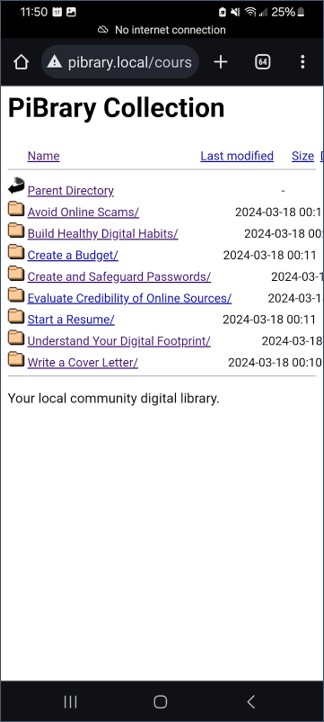
Below are a few screenshot examples of navigating the PiBrary resources from an Android phone.

screenshot of streaming an open-licensed video.

Figure 5: You can stream an open-licensed video.

screenshot: accessing directories of open-licensed learning resources.

Figure 6: You can access directories of open-licensed learning resources.

Figure 7: You can view PDFs.

Figure 7: You can view PDFs.

Challenges and Future Expansions

One limitation of this implementation is the range of consumer-grade WiFi: the maximum signal distance is roughly 90 meters under ideal conditions. The HaLow (802.11ah) standard offers up to 1km of range; but today’s consumer cell phones aren’t built to use that standard. One solution could use HaLow to send data from one Pi to another – say, one in town hall and another at a fire station (if each has an inexpensive HaLow module installed), with each one serving its own nearby neighborhood over standard WiFi. Alternatively, even off-the-shelf home mesh or WiFi “extender” hardware could improve the reach of this model without significant cost.

A second challenge: maintaining and editing content. My ideal use-case was for non-technical community members (e.g. in public safety or town government) to easily push information, announcements, etc. However, this demo succeeded because I knew how to edit and manage webpage content directly (i.e. by writing HTML). For a non-technical community member, using the bare Apache webserver this way could be a significant barrier to easy deployment or quick posting, especially in the environment of a public emergency. To address this, I would like to explore whether the YunoHost open-source server management application is compatible with the PiBrary project. YunoHost offers a very familiar and robust web editing interface, plus other possible additional services, such as email hosting.

In terms of sustainability, a lightweight Pi-hosted local site radically reduces the total carbon impact of each site visit, even taking into account the fact that Williams’ website is “hosted green”. A fascinating expansion of this project would be to use sustainable web design principles and standards as a standard part of the college’s digital presence.

Finally, privacy. Unlike ordinary internet browsing, which has many elements protecting and encrypting the flow of data, this demo creates a simple, direct, unencrypted WiFi network. (You may have noticed the “insecure alert” icon next to the address in some of the screenshots above.) In the absence of any technical trust guarantees, this setup is suitable only for very specific cases where the connection between server and client is based on human trust – like in a local community!

Thanks to David Keiser-Clark, Makerspace Program Manager, and to my colleagues on the Academic Technology Services team, for their support in developing this prototype.