Logged into the computer and/or account that is misbehaving:
gpresult /h <path>outputfile.html
(open the resulting html file with a browser …)
There are ways to do this remotely as well … Details at:
gpresult /h <path>outputfile.html
See the extensive list of Windows 10 group policies for privacy at:
https://4sysops.com/archives/windows-10-privacy-all-group-policy-settings/#prevent-the-usage-of-onedrive-for-file-storage
Yet another useful group policy at:
Computer Config – Policies – Administrative Template – Control Panel – Personalization
Force a specific default lock screen (See note below about creating file)
and
Prevent changing lock screen image
Note: Remember to create the image and save it to something like:
c:\windows\web\screen\williamslogin.jpg
Then when you enable the force policy you need to point to the file above.
This is specifically useful in the lab environment to give people information BEFORE they log in.
For details see:
http://www.grouppolicy.biz/2012/11/how-to-use-group-policy-to-change-the-default-lock-screen-image-in-windows-8/
It appears that we can turn off the default “All Apps” view in the new windows 10 start menu with the policy at:
User Config – Policies – Administrative Template – Start Menu and Task bar –
Remove All Programs list from the Start menu
It appears that you can “remove” the default list and keep only the specific items you pin there.
Specifically the helpful group policy wording is:
“This policy setting allows you to remove the All Programs list from the Start menu.
If you enable this policy setting, the “All Programs” item is removed from the simple Start menu. The Start Screen will show the All Apps view, but it will only contain items that are pinned to start.
If you disable or do not configure this policy setting, the “All Programs” item remains on the simple Start menu.”
I found this on the longer list of Windows 10 Start Menu policies at:
https://technet.microsoft.com/en-us/library/mt484191%28v=vs.85%29.aspx
A very useful list of group policies to control the new windows 10 start menu is at:
https://technet.microsoft.com/en-us/library/mt484191%28v=vs.85%29.aspx
Disabling OneDrive
Since Williams uses Google Apps for Education, OneDrive is not widely used here and would likely cause confusion with the individuals that need to use our lab computers. So, we disable OneDrive access with the group policy at:
Specifically, the group policy wording is:
Computer Config – Administrative Templates – Windows Components – OneDrive
This policy setting lets you prevent apps and features from working with files on OneDrive.
If you enable this policy setting:* Users can’t access OneDrive from the OneDrive app and file picker.
* Windows Store apps can’t access OneDrive using the WinRT API.
* OneDrive doesn’t appear in the navigation pane in File Explorer.
* OneDrive files aren’t kept in sync with the cloud.
* Users can’t automatically upload photos and videos from the camera roll folder.If you disable or do not configure this policy setting, apps and features can work with OneDrive file storage.
Additional details:
https://support.office.com/en-US/article/Turn-off-or-uninstall-OneDrive-f32a17ce-3336-40fe-9c38-6efb09f944b0
Screen shots —
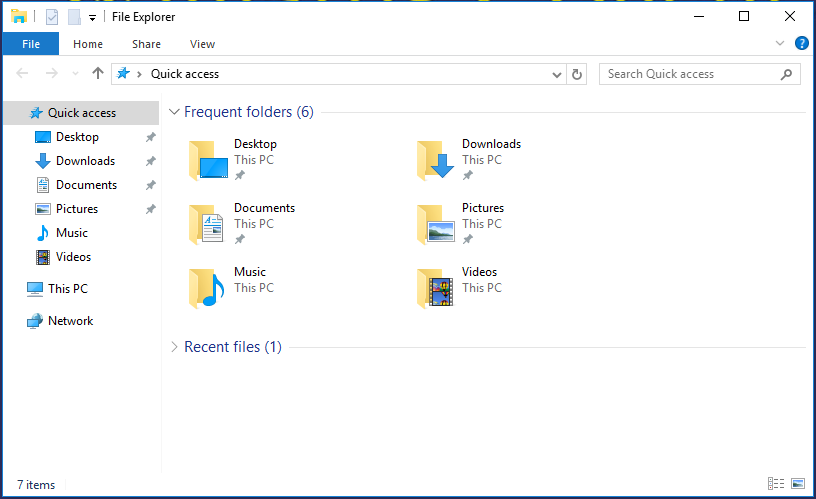
File window before OneDrive disable policy applied:

File windows after OneDrive disable policy applied:
Group Policy Changes for the Kiosks/Public computers:
Disable Switch User
Computer Config – Admin Templates – System – Logon – Hide entry points for Fast User Switching ….. Set to “Enabled”
Disable Lock Computer -(done in two policies)
User Config – Admin Templates – Control Panel – Personalization – Password Protect the screen saver … Set to “Dsiabled” (Lock button still appears but it doesn’t do anything)
User Config – Admin Templates – System – Ctrl+Alt+Del+ Options – Remove Lock Computer … Set to “Enabled”
Remove Logoff – (needs two policies as well)
User Config – Admin Templates – Start Menu and Taskbar – Remove Logoff on the Start Menu … Set to “Enabled”
User Config – Admin Templates – System – Ctrl+Alt+Del+ Options – Remove Logoff … Set to “Enabled”
Disallow Change Password –
User Config – Admin Templates – System – Ctrl+Alt+Del+ Options – Remove Change Password … Set to ‘Enabled”
Remove Task Manager —
User Config – Admin Templates – System – Ctrl+Alt+Del+ Options – Remove Task Manager … Set to “Enabled”
Firewall settings can be controlled from with group policy … (more on doing this for specific applications like LabStats in a bit … )
See:
http://www.grouppolicy.biz/2010/07/how-to-manage-windows-firewall-settings-using-group-policy/
Previously, printer mappings for multiple users on a single windows computer was a bit difficult. In order to make the print queues available to multiple users you would have to use some arcane “RUNDLL’ command lines.
Now a set of group policy settings can be employed to map printers based on a variety of factors. A great store of information about this can be found at:
http://www.grouppolicy.biz/tag/printer/
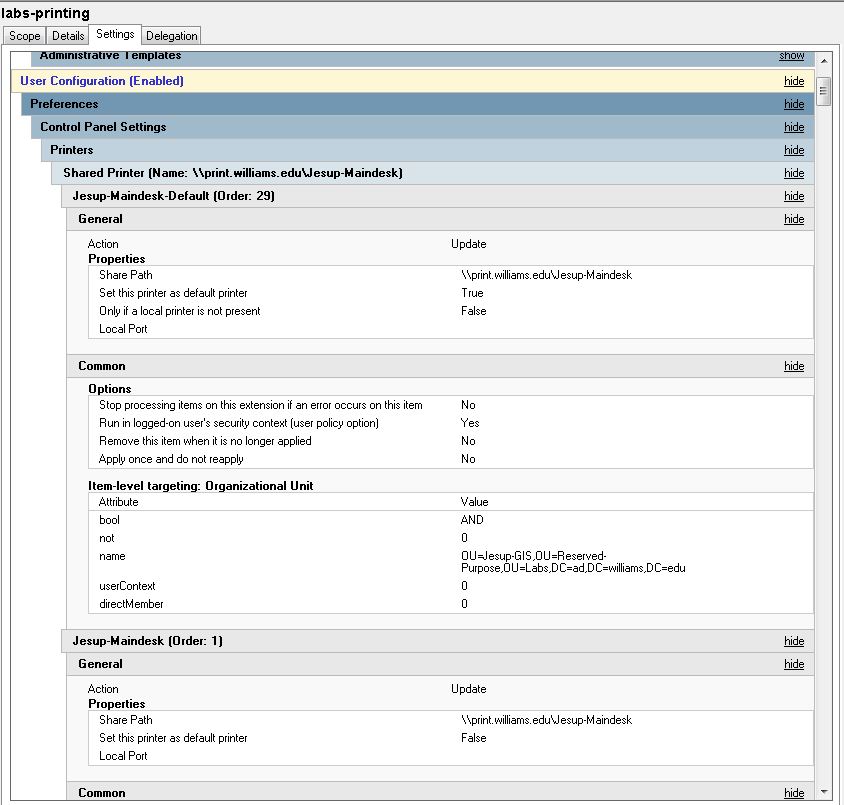
How I have set this up in our GPO looks like the following:
Policies ….

Preferences …
(There are quite a few more of these then what is shown here. You need at least one for each of print queues needed in the labs.)
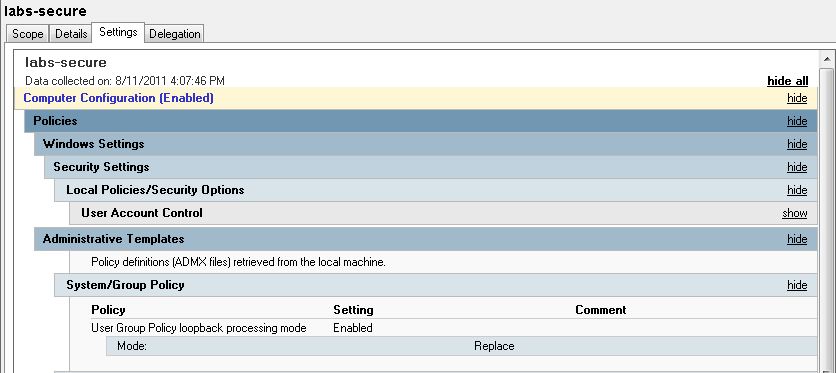
One last setting is crucial – “Loopback processing” must be enabled in:
Computer Configuration — Administrative Templates — System/Group Policy
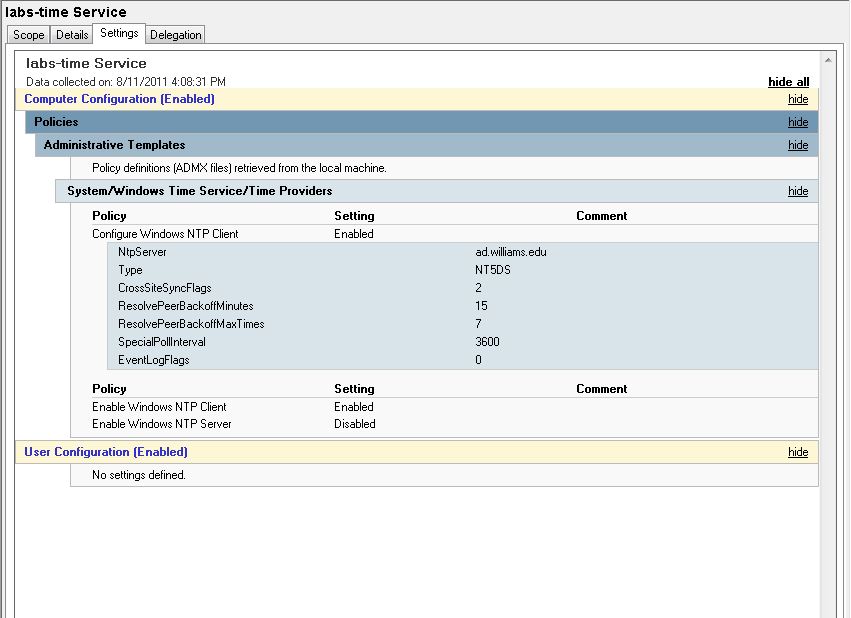
I like to set my computers to a known and near time server. Certain functions, like KeyServer access for software asset management, have been “temperamental” about time … here is the group policy setting I use to force the time on target computers ….