Tag Archives: Software

Adobe – Photoshop – crashes but not in remote login session

Found an issue where Photoshop would crash after loading but only when using the computer directly. If remoted into the computer Photoshop worked fine. That indicated a display driver issue. I tested at the local computer by putting the display adapter in basic VGA mode and photoshop worked.

The “Fix” — stolen from web forum below …

go to device manager again and put the graphics driver in VGA mode. You can do it by choosing “Browse my computer for driver software” and then select “let me choose option” select standard VGA from the list Then go to ” Control Panel\All Control Panel Items\Programs and Features” and uninstall AMD catalyst control centre. Once it is done, go to AMD website and choose auto detect feature to detect you GPU from “http://support.amd.com/us/gpudownload/windows/Pages/auto_detect.aspx”. Once you find the updated drivers install them and check whether the issue is fixed or not. You can also use this link to uninstall AMD catalyst “http://support.amd.com/us/gpudownload/windows/Pages/catalyst-uninstall-utility.aspx”.

Then restart ….

See details at:
https://forums.adobe.com/thread/1295044

Software – VectorWorks nethasp.ini network license file locations

For VectorWorks we use a “dongle” attached to a network license server.  To configure this on the clients use the “nethasp.ini” file pointed to our license server. That file needs to live in /etc on Macs and in the program directory on windows.  For more information see:

http://kbase.vectorworks.net/questions/469/NetHASP.ini+Configuration+Guide

Kace – Windows software installs from Network Share

I had been testing using KACE to do software installs from it’s “alternative” download feature but it seemed easier just to run the software installs from a network file server …

Here is a process that is working for me ….

1) Copy the install files to \\kstore\apps (Gabe needs to give your AD account write permission to that share.)

2) Write a batch file that mounts that network share and runs the installer … an example using Sophos 10 is below.

3) Distribute that batch file with Kace a file distributionto a known location on the target computer and then call that batch file with a Kace Script.  (One may be able to combine these two steps into one …)

@echo off
rem network file server sophos 10 install - Lynna Jackson, Williams College, 2012

rem mount network file share read-only 
rem using the IP numeric address seems faster, replace XXXX with real pword
net use s: \\137.165.4.80\apps /user:kstore\kuser XXXX

rem run sophos install in silent mode
s:\sophos10\sophos10\setup.exe -s -updp http://sophos.williams.edu/SophosUpdate/CIDs/S027/SAVSCFXP/

rem wait awhile so that sophos has a chance to update
ping 127.0.0.1 -n 360 >nul

rem dismount the network drive
net use s: /delete

Software – MatLab install “archives” folder structure


The MatLab distribution from MatWorks tries to save space on the disk and time for the download transfer.  For the products you are licensed for they send you a “common” file and also a CPU-specific file.  When installing MatLab on a particular CPU you need to format the “archives” folder carefully.

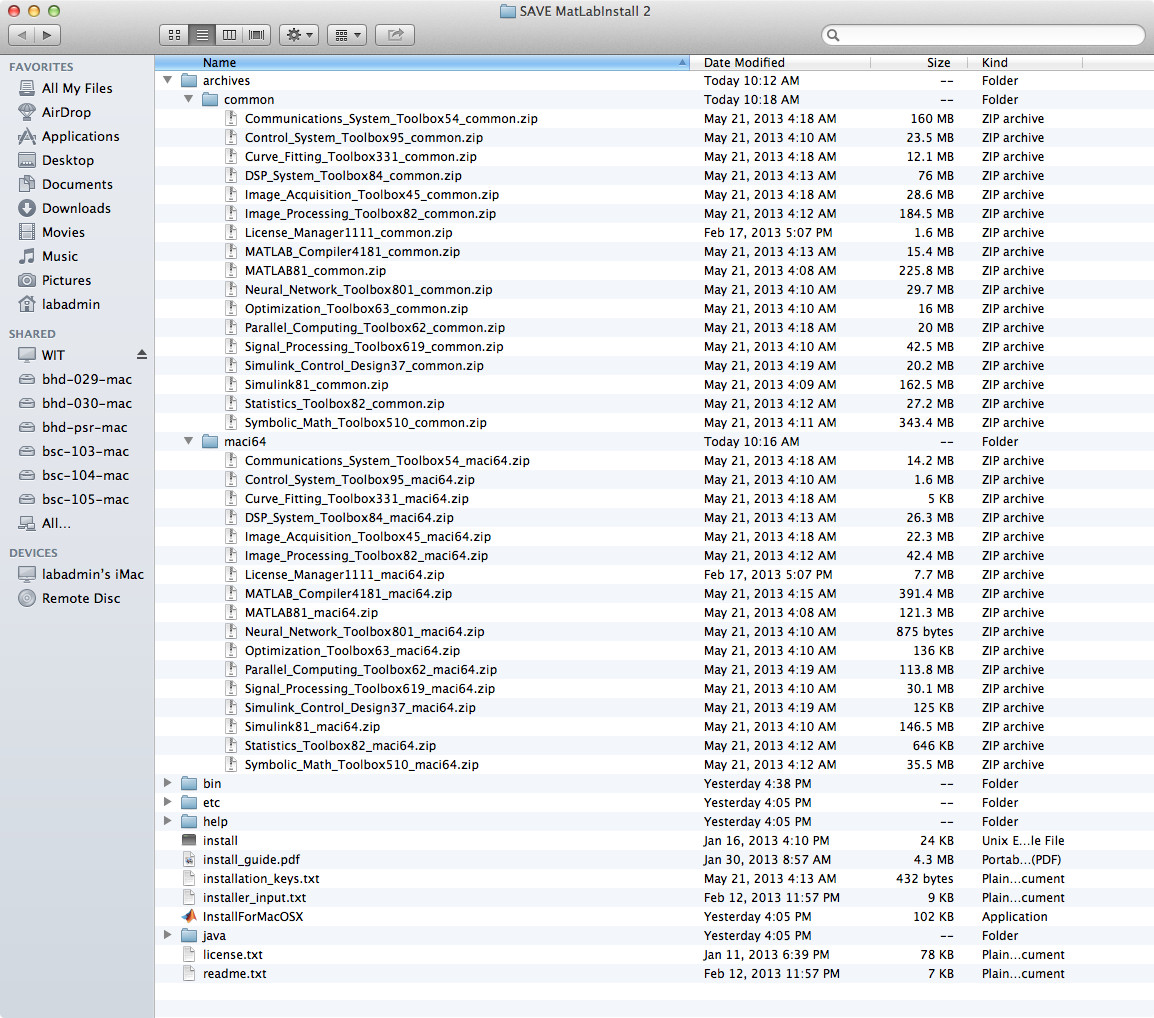
The archive folder should contain two other folders, “common” and, depending on your OS, one of “maci64″(Mac), “glnxa64” (linux), “win64” (windows).

For each product that needs to be installed there should be a zip file in the “common” folder and a corresponding  zip file in the OS-specific folder.  Leave these files in “zip” format.  If they have been unzipped auto-magically by your browser or other download tools you’ll need to re-download them forcing them to remain “zip” files.

Example for a Mac:

  • “Communications_System_Toolbox54_common.zip”  goes in the “common” folder
  • “Communications_System_Toolbox54_maci64.zip” goes in the “maci64” folder

Here is a screen capture of a install directory structure that works on a Mac:

Matlab_Install_Folder_Setup