Tag Archives: Matlab

Software – MatLab install “archives” folder structure


The MatLab distribution from MatWorks tries to save space on the disk and time for the download transfer.  For the products you are licensed for they send you a “common” file and also a CPU-specific file.  When installing MatLab on a particular CPU you need to format the “archives” folder carefully.

The archive folder should contain two other folders, “common” and, depending on your OS, one of “maci64″(Mac), “glnxa64” (linux), “win64” (windows).

For each product that needs to be installed there should be a zip file in the “common” folder and a corresponding  zip file in the OS-specific folder.  Leave these files in “zip” format.  If they have been unzipped auto-magically by your browser or other download tools you’ll need to re-download them forcing them to remain “zip” files.

Example for a Mac:

  • “Communications_System_Toolbox54_common.zip”  goes in the “common” folder
  • “Communications_System_Toolbox54_maci64.zip” goes in the “maci64” folder

Here is a screen capture of a install directory structure that works on a Mac:
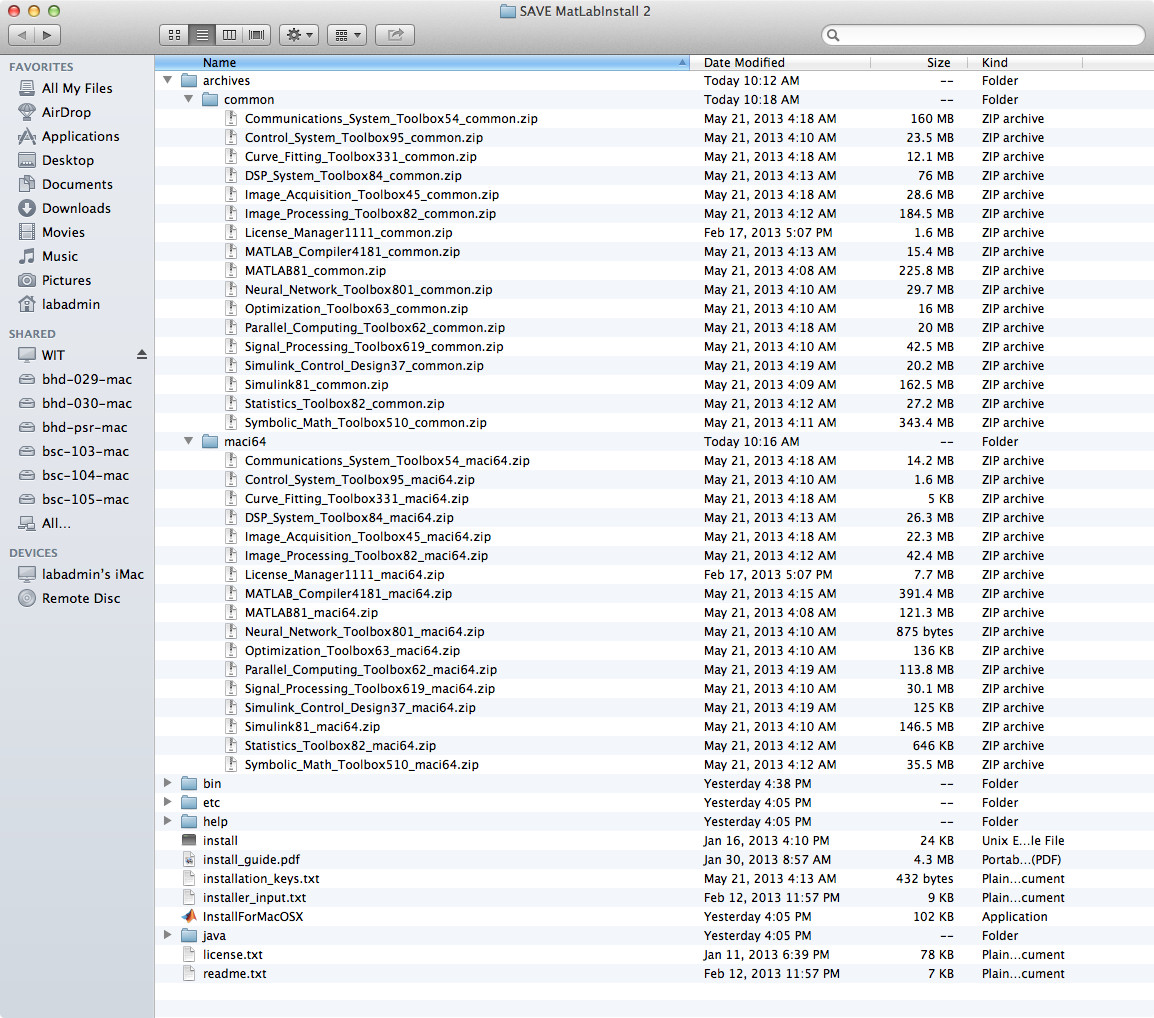
Matlab_Install_Folder_Setup

Software – Matlab 2011

Building a deployable and completely silent software installer for Matlab on windows is a bit of an adventure .  Clearly, each installation is different so I don’t think I can give a detailed step-by-step recipe here for every circumstance.  I can give you a few steps which took me a while to piece together from various sources and a considerable amount of trial and error …

  • Extract the installer from the vendor to a new, empty folder
  • Be sure to replace the generic “archives” folder which may initially contain only the license manager with the archives folder you have specific for the Matlab products you need to install
  • Create an installer input file with all the questions answered (a copy of ours is attached , remember to change the auth-code to your real auth code, ours is scrubbed out in this example)
    • For a completely silent install also change the “mode=automated” to “mode=silent” in this installer input file
  • If you run this in a non-FlexLM environment you also have to deal with the activation process (we run FlexLM here to simplify the process, so I can’t help you with that process …)
  • Make sure you have a copy of your network license file to copy into a known place for the installer to point at
  • Run the installer from a batch script with commands like:

    echo Copying network license file …
    xcopy /Q /Y “%install_dir%payload\matlab_network.dat” c:\windows\temp\

    echo Installing software and required conponents …
    “%install_dir%payload\bin\win64\setup.exe” -inputFile “%install_dir%payload\wc_installer_input.txt”

    Where %installdir% is set to the directory where you are running the installation. Also mind the line breaks shown here are not intended for the actual commands ….