On the lab/classroom image I need to disable the windows app store from allowing random individuals to install random apps. However, there may be a time when I need to install a windows app store app and, of course, there’s an answer for that …. it’s called “sideloading” …. Details can be found at: https://msdn.microsoft.com/en-us/library/windows/hardware/dn938326%28v=vs.85%29.aspx
Tag Archives: Windows 10
Windows 10 – Force a specific Lock screen
Yet another useful group policy at:
Computer Config – Policies – Administrative Template – Control Panel – Personalization
Force a specific default lock screen (See note below about creating file)
and
Prevent changing lock screen image
Note: Remember to create the image and save it to something like:
c:\windows\web\screen\williamslogin.jpg
Then when you enable the force policy you need to point to the file above.
This is specifically useful in the lab environment to give people information BEFORE they log in.
For details see:
http://www.grouppolicy.biz/2012/11/how-to-use-group-policy-to-change-the-default-lock-screen-image-in-windows-8/
Windows 10 – All Apps control
It appears that we can turn off the default “All Apps” view in the new windows 10 start menu with the policy at:
User Config – Policies – Administrative Template – Start Menu and Task bar –
Remove All Programs list from the Start menu
It appears that you can “remove” the default list and keep only the specific items you pin there.
Specifically the helpful group policy wording is:
“This policy setting allows you to remove the All Programs list from the Start menu.
If you enable this policy setting, the “All Programs” item is removed from the simple Start menu. The Start Screen will show the All Apps view, but it will only contain items that are pinned to start.
If you disable or do not configure this policy setting, the “All Programs” item remains on the simple Start menu.”
I found this on the longer list of Windows 10 Start Menu policies at:
https://technet.microsoft.com/en-us/library/mt484191%28v=vs.85%29.aspx
Windows 10 – Useful list of Start Menu related group policies
A very useful list of group policies to control the new windows 10 start menu is at:
https://technet.microsoft.com/en-us/library/mt484191%28v=vs.85%29.aspx
Windows 10 – Disable OneDrive access
Disabling OneDrive
Since Williams uses Google Apps for Education, OneDrive is not widely used here and would likely cause confusion with the individuals that need to use our lab computers. So, we disable OneDrive access with the group policy at:
Specifically, the group policy wording is:
Computer Config – Administrative Templates – Windows Components – OneDrive
This policy setting lets you prevent apps and features from working with files on OneDrive.
If you enable this policy setting:* Users can’t access OneDrive from the OneDrive app and file picker.
* Windows Store apps can’t access OneDrive using the WinRT API.
* OneDrive doesn’t appear in the navigation pane in File Explorer.
* OneDrive files aren’t kept in sync with the cloud.
* Users can’t automatically upload photos and videos from the camera roll folder.If you disable or do not configure this policy setting, apps and features can work with OneDrive file storage.
Additional details:
https://support.office.com/en-US/article/Turn-off-or-uninstall-OneDrive-f32a17ce-3336-40fe-9c38-6efb09f944b0
Screen shots —
File window before OneDrive disable policy applied:

File windows after OneDrive disable policy applied:
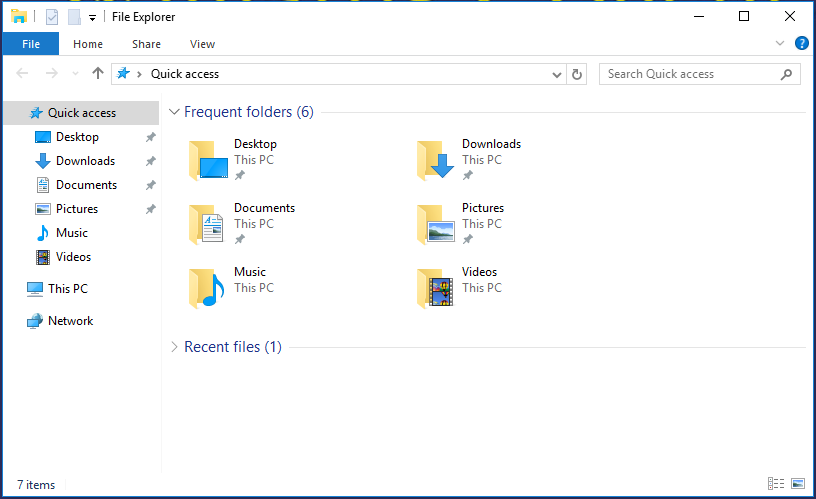
Windows 10 – Set login background
Windows 10 changes the login background a bit. What I did in windows 7 to change this no longer works. I set this with a Group Policy for “For a specific lock screen image” and set that to c:\windows\web\screen\williamslogin.jpg
See details:
https://community.spiceworks.com/topic/1262253-change-windows-10-lock-screen-background-image-gp
Windows 10 – Group Policy Admin Templates
These can be found at:
https://www.microsoft.com/en-us/download/details.aspx?id=48257
Windows 10 – Start Menu or Action Center or Search Bar not working
There appears to be an issue in Windows 10 with the Start Menu, Action Center, Search Bar not opening and/or working for some users on some computers. Other users on the same computer are fine …. People are claiming this is a user profile or system file corruption and are suggesting an image restore process which first became available in Windows 8.
Anyway – Here are the suggested solution(s):
Several links —
http://www.urtech.ca/2015/09/solved-fix-windows-10-start-button-does-nothing-in-10-minutes/
Windows 10 – Disable Automatic Updates
On certain classroom/lab computers, on certain “field laptops”, and on dual-boot mac/windows configurations we may want to prevent Windows updates from running.
With Group Policy, this can be done in:
Computer Configuration\Administrative Templates\Windows Components\Windows Update
You must “Enable” this policy to have it enforced on the clients.
For more information see:
http://www.howtogeek.com/224471/how-to-prevent-windows-10-from-automatically-downloading-updates/