In testing, we found that remote connections from windows clients to the built-in macOS VNC server were not encrypted in any way. To resolve this we decided to use RealVNC as the screen sharing server on Macs. Also, since we envision making these remote lab computers available to only a few individuals that have no other way to access critical academic software, I needed a way to restrict which users could authenticate to create the VNC screen sharing sessions.
The following steps are how I enabled this access on our AD joined lab macs where our users are NOT given administrative rights on the macs with the AD join: (This was tested on MacOS 10.14.5 Mojave.)
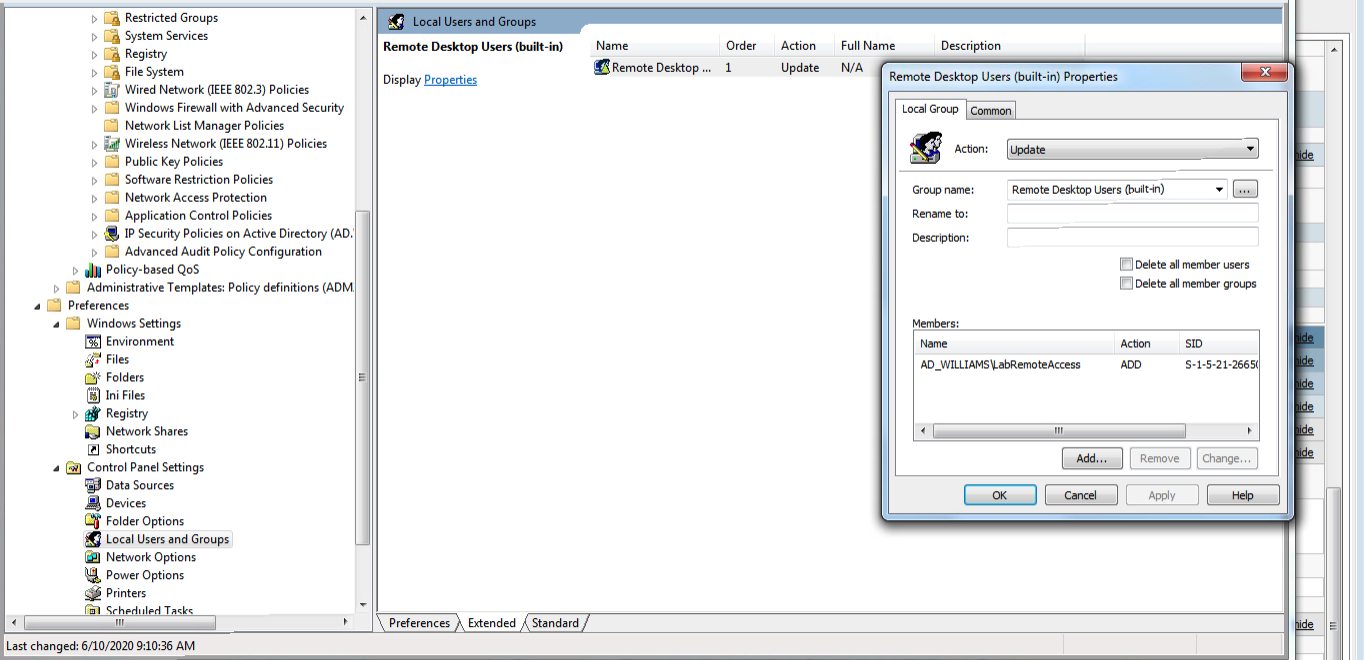
1) Create the group in your Active Domain using Users and Groups. If you do not have access to AD Users and Groups, talk to your AD domain administrator BEFORE continuing this! Someone needs to be able to add users to the AD group that is created. If that isn’t going to be you figure that out before proceeding! This AD group should be a “global” group. In the example below I have used “LabUsers” as the AD group name.
2) Log into the mac that will be the VNC server with an administrative account.
3) If on, disable the default MacOS screen sharing and remote login in System Preferences.
4) Install RealVNC Server.
5) Create the local mac group. In the example below the local mac group I created was “RemoteUsers”.
6) In the options for the RealVNC server for Users and Permissions, add the local mac group “RemoteUsers” as a group that is authorized to open a screen sharing session. Also, so that you know, in the Security tab of RealVNC server options I use”Mac Password” for the authentication method with encryption “Always on”.
6) Open a Terminal window on the mac and give the following command: (This should NOT be done as super user! I don’t know why but that doesn’t work)
dseditgroup -o edit -n /Local/Default -u localadminusername -p -a "AD_Domaim\LabUsers" -t group RemoteUsers
( In the above command /Local/Default refers to the local directly node for authentication information. Also, the ” ” are required around the AD_Domain\LabUsers so that the \ isn’t interpreted as an escape and with “-p” this will prompt you for the password for your localadminusername which is required )
Note that you may never be able to see this AD group listed as a member of the local mac group! All I ever got was the above command to run without any errors or feedback.
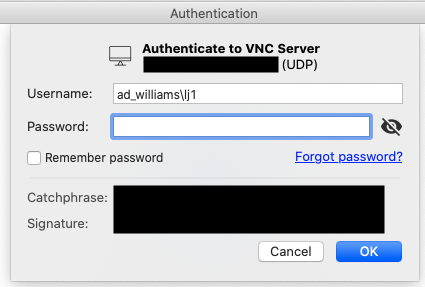
7) Once the command above completes without error, only those AD users that are listed in the AD group should be able to authenticate to the VNC server using the username format below. All other users of the mac that would generally be able to log into the mac but that are not in the AD group, will get an “Access Denied” message when attempting to open the screen sharing connection.
Other useful commands: (using “RemoteUsers” as the example local mac group name)
To list local mac group membership: (this will not list the AD group! If you know of another way, please let me know!)
dscl . read /Groups/RemoteUsers GroupMembership
To list local mac Group properties:
dscl . -read /Groups/RemoteUsers
When researching this I found this post particularly useful:
https://blog.travismclarke.com/post/osx-cli-group-management/