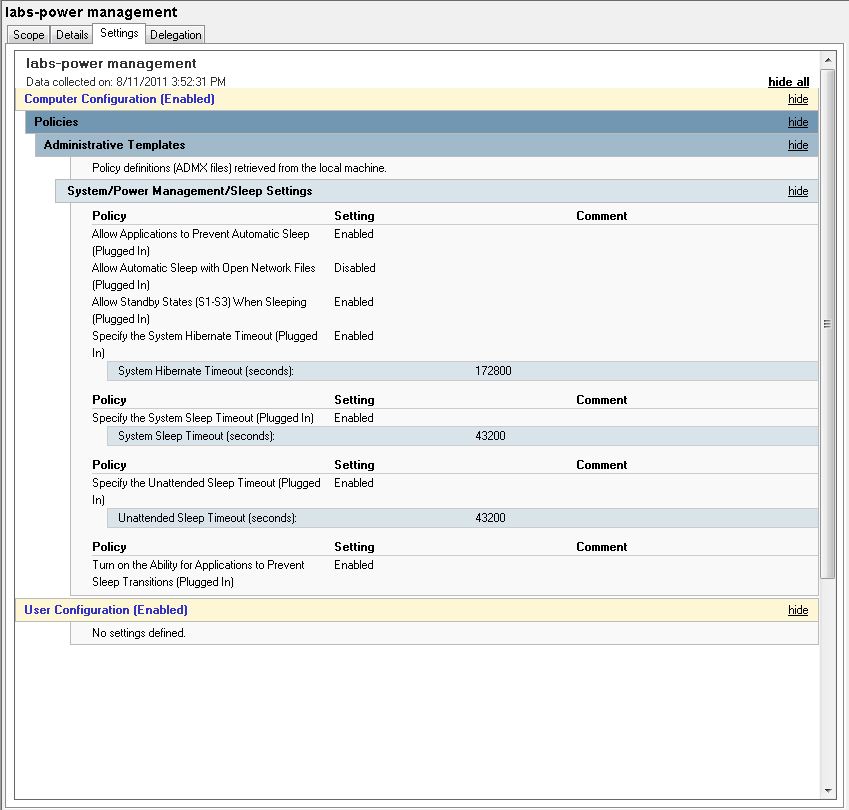
Using group policy settings I can manage when computers go to sleep, etc. I also have a KACE 1000 management server which allows me to shutdown computers on a particular schedule. Lastly, most of my computers are set to boot automatically at a certain time in the morning. So – with a combination of these tools – I can shutdown and turn on the computers in different places depending on needs. One set of computers may need to be on till 2:30 am while another set can be shut off at 4:30 pm, etc.
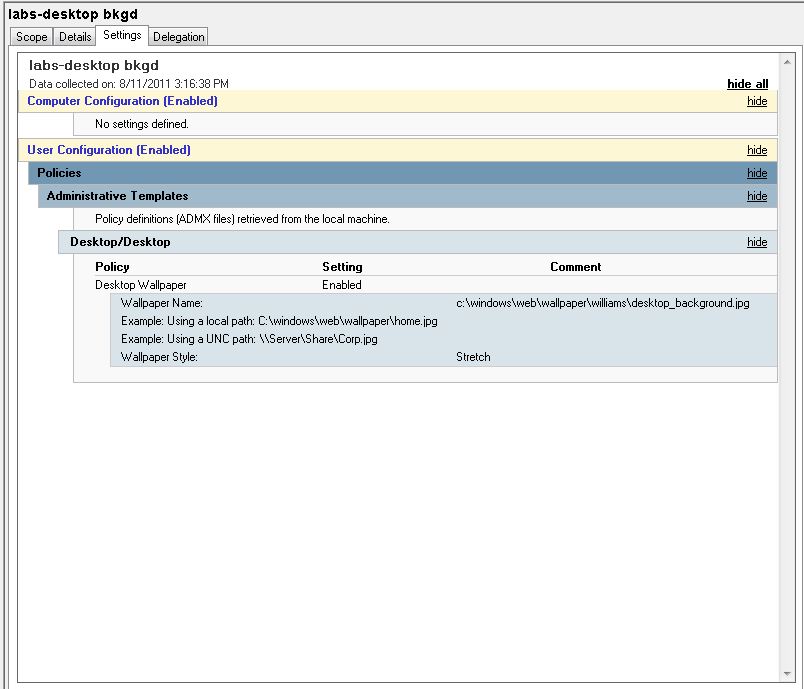
Windows 7 – GPO – Desktop Background
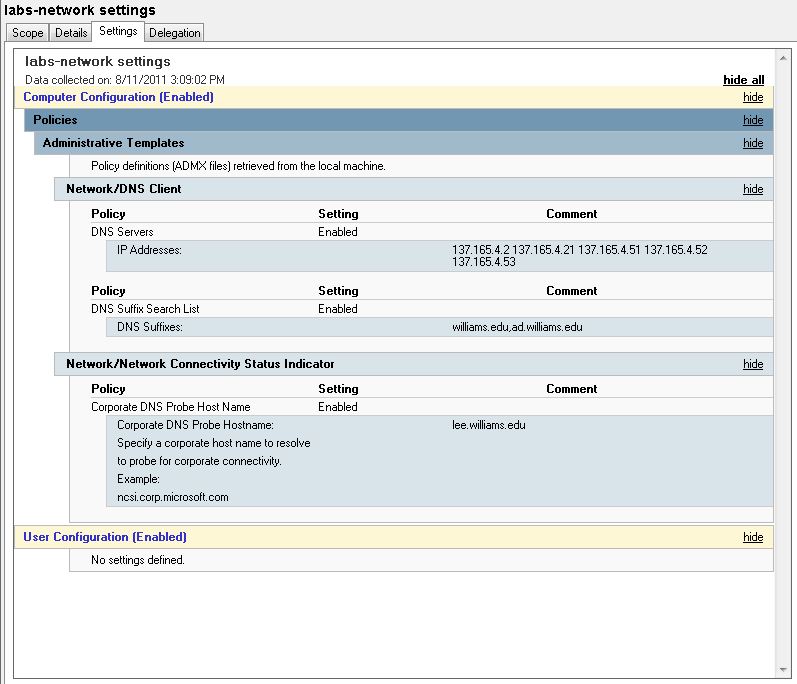
Windos 7 – GPO – DNS Settings
Theoretically, the DHCP servers should feed the correct information for DNS to windows 7 clients. Unfortunately, presently, I am experiencing an increased occurrence of DNS related troubles on my subnets. That is putting a “hitch in my giddy-up” as they say for imaging computers for the new semester …
To mitigate the trouble I am adding static information to DNS settings using a group policy setting … This doesn’t fix imaging but it will allow people to use the computers with more reliability once they are imaged …. To get the imaging done I can revert to using local hard drives if I have to …
Also, static entries are being added to the bottom of the “Hosts” file in: c:\windows\system32\drivers\etc
# Settings added to mitigate DNS drops – summer 2011 – Lynna
127.0.0.1 localhost
137.165.4.2 lee.williams.edu
137.165.4.21 lenox.williams.edu
Mac – User Profile
To change the default user profile on a Mac with 10.5 or 10.6 …
First create a user account and setup all the preferences you want. Set the Dock, change the desktop background, set up application preferences like the homepage for the browser, etc. Then log off that user account and log into an admin account with root privilege. Open Terminal and run the following commands in order: (The first one will ask for the root password , usually the same as the admin pword…)
sudo rm -R /System/Library/User\ Template/English.lproj
sudo ditto -rsrcFork /Users/labuser /System/Library/User\ Template/English.lproj
sudo rm -rf /System/Library/User\ Template/English.lproj/Library/Keychains
sudo chown -R root:wheel /System/Library/User\ Template/English.lproj
The first command deletes the current, default user profile. The second copies the profile from the “labuser” account (change this if you use a different user account name). The third command removes the keychain file so that the new users will get a new keychain when they log in. The last command sets the file permissions.
Windows 7 – All Users Desktop
The folder location for the all users desktop in windows 7 changed to a hidden file in c:\Users\Public\Desktop
Lion – Login Banner
Now with Lion you can set a login banner that is displayed to the user and the user has to “accept” before proceeding. I set this in group policy on my windows computers and will be setting this on Lion.
Batch File Command Reference
There are so many of these out there but one I particularly like is at:
http://academic.evergreen.edu/projects/biophysics/technotes/program/batch.htm
Windows 7 – Allow Remote Desktop
Remote desktop access is not allowed by default in Windows 7. I change this both in the image before deployment and I also set this in group policy. if I just do this in group policy, I will be prevented from connecting to a deployed computer that has had a problem with renaming and/or joining the domain …
To allow access into a windows 7 computer from a non-windows 7 computer be sure to set … “Select Allow Connections From Computers Running Any Version Of Remote Desktop to allow connections from any version of Windows.”
For details on allowing remote desktop access see:
http://technet.microsoft.com/en-us/magazine/ff404238.aspx
Windows 7 – Desktop Background Problems
Early in my testing I noted that the desktop background I wanted to display was not getting applied correctly via group policy. At first I thought the following Microsoft KB article would come to the rescue ….
http://support.microsoft.com/kb/977944
Unfortunately, however, this hotfix screwed up a bunch of other settings I had in the default user profile. So …
After uninstalling the hotfix, I migrated from bmp to jpg images smaller than 200 mb and stored them in the preferred windows wallpaper directory of:
C:\Windows\Web\Wallpaper
In this directory I actually created a sub-directory for all my Williams backgrounds. Now I point my group policy setting to one of these files as needed and all is fine …
I have also recently found this article about using “CopyProfile” and the desktop background …
I don’t actually use “CopyProfile” for reasons in:
http://sites.williams.edu/lj1/labs/windows-7-user-profile-copy/
but … perhaps the above links will help others …
Windows 7 – User Profile Copy
With windows XP it was straight forward to copy a template user profile to the system’s default user profile, however, with the advent of windows 7 that became more difficult.
For a very detailed discussion from the Microsoft Deployment team see:
http://blogs.technet.com/b/deploymentguys/archive/2009/10/29/configuring-default-user-settings-full-update-for-windows-7-and-windows-server-2008-r2.aspx
This post says that a direct copy of the user profile breaks certain things in the new, more complicated windows 7 environment. However, this article also states (and my testing proves) that the “official” method, that of using CopyProfile in sysprep, leaves several settings unmoved.
Specifically, any user customization to installed applications are not copied. For example, all our Firefox settings and bookmarks are not copied. As well as, our particular settings of Photoshop for our specialized teaching classrooms are also lost.
Microsoft’s answer to this complaint, at the present time, is to suggest using group policy to set these settings. For many applications that would be possible. But alas, it is simply not possible with most of the specialized settings for our educational software.
In my judgment, the things that get broken by the manual , unsupported copy are far less concerning to me in a classroom /lab setting. Therefore, I presently do manually copy the user profile over the Default profile following the original method described in:
http://www.irongeek.com/i.php?page=security/windows-7-copy-default-profile
I continue to hope that Microsoft hears the pleas of so many that have posted to their deployment blog to provide a complete “copy profile” option.