Category Archives: Software

Posts about software and software distribution at Williams College

Software – Finale Silent Install on windows

To install Finale silently use …
FinWinSetup.exe /S

Also – it appears that copying in a “keyed” (keyServer environment) executable also “authorizes” the application on Windows without having to enter the authorization code. Therefore, to deploy this I need a batch script which executes the installer silently and then copies in the keyed copy.

For a partial reference see:


http://makemusic.custhelp.com/app/answers/detail/a_id/945/

Software – Keyserver Client Silent Install

To build an installer for the Sassafras Software’s K2 – Keyserver Key Audit client use the client customization application they provide.  This is found in the
“client – misc”  folder of their computer installer archive that can be reached by logging into their Support and Downloads web page.

Their documentation…

http://www.sassafras.com/hrl/7.0/k2clientconfigW.html

I put the client installers and the k2clientconfig application in the same folder and the ran this command:

k2clientconfig.exe -s 3 -c no -b no -h keyserver.williams.edu k2Client-x64.exe

The output was:

Changing PROP_SILENCE
Changing PROP_HOSTNAME from ‘keyserver’ to ‘keyserver.williams.edu’
Changing PROP_KEYCHECKOUT from ‘2’ to ‘0’
Changing REBOOT from ‘Force’ to ‘Suppress’
Digital signature has been removed from k2Client-x64.exe


Windows – NTLM Authentication Level

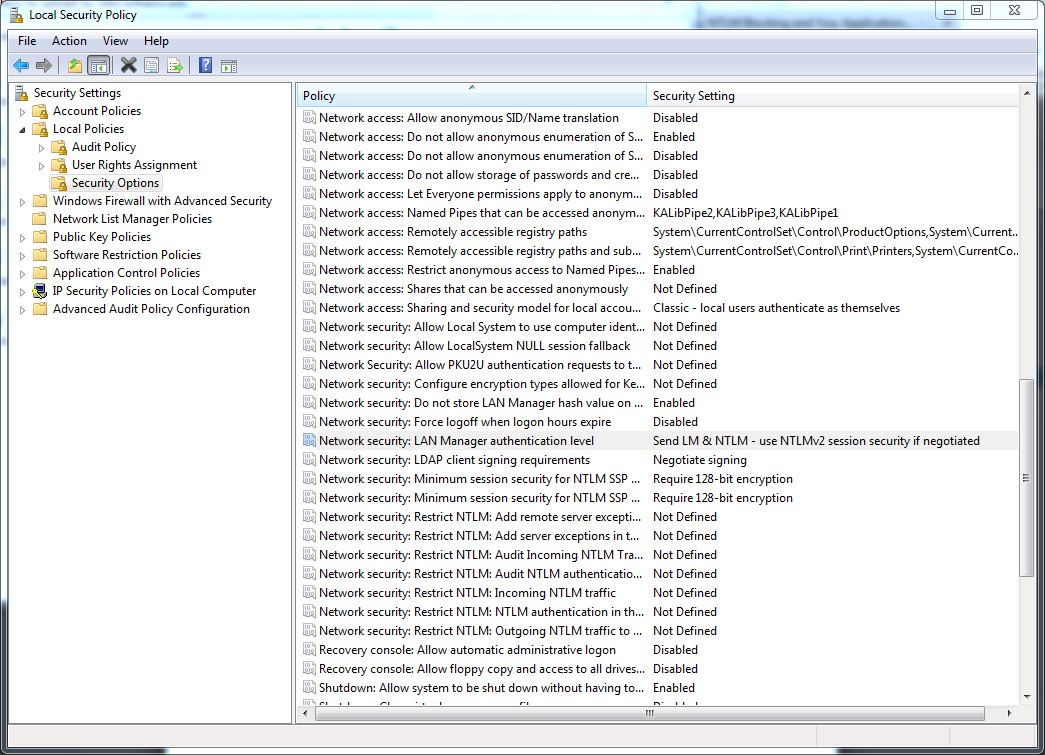
With the advent of Windows 7, Microsoft increased the default NTLM (a.ka. LAN Manager) authentication level required to connect to various network resources like file shares.  If you are running windows 7 and need to connect to older files shares you may need to lower the NTLM authentication on your computer to allow the connection.  If you are not able to log into the file shares from a windows 7 computer but are from other non-windows 7 computers,  try setting your LAN Manager  authentication level to …”Send LM & NTLM – use NTLMv2 session security if negotiated”

To do this  — In the Start menu search box type “Local Security Settings” (or look in the Administrative shortcuts) and then open the program …  this screen snip shows how to find this setting … no reboot is required …

Windows – Launch program each time you login

To start a program each time you log into a windows computer …

  1. Create a shortcut to the program on the desktop (find the program in the program files folders and “right-click” on it …)
  2. Click on the Windows Start icon then “right-click ” on Programs and select Open
  3. Double click on the “Programs” folder and then on the “Startup” folder
  4. Copy or move the shortcut you created in the first step to this “Startup” folder

Software – GIS Idrisi

To install Taiga Idrisi software correctly ….

  1. Install the software
  2. Run as Admin the License Manager and enter information for network client: \\lm2\taiga\taiga
  3. Run as Admin the Application once to have the license stick

Software – Matlab 2011

Building a deployable and completely silent software installer for Matlab on windows is a bit of an adventure .  Clearly, each installation is different so I don’t think I can give a detailed step-by-step recipe here for every circumstance.  I can give you a few steps which took me a while to piece together from various sources and a considerable amount of trial and error …

  • Extract the installer from the vendor to a new, empty folder
  • Be sure to replace the generic “archives” folder which may initially contain only the license manager with the archives folder you have specific for the Matlab products you need to install
  • Create an installer input file with all the questions answered (a copy of ours is attached , remember to change the auth-code to your real auth code, ours is scrubbed out in this example)
    • For a completely silent install also change the “mode=automated” to “mode=silent” in this installer input file
  • If you run this in a non-FlexLM environment you also have to deal with the activation process (we run FlexLM here to simplify the process, so I can’t help you with that process …)
  • Make sure you have a copy of your network license file to copy into a known place for the installer to point at
  • Run the installer from a batch script with commands like:

    echo Copying network license file …
    xcopy /Q /Y “%install_dir%payload\matlab_network.dat” c:\windows\temp\

    echo Installing software and required conponents …
    “%install_dir%payload\bin\win64\setup.exe” -inputFile “%install_dir%payload\wc_installer_input.txt”

    Where %installdir% is set to the directory where you are running the installation. Also mind the line breaks shown here are not intended for the actual commands ….

Software – Mathematica 8

Basic instructions for building a silent installer for Mathematica 8 can be found at:
http://reference.wolfram.com/mathematica/tutorial/InstallingMathematica.html

We use a network wide license server to license this application. To create the license file “mathpass” on windows – install the application and then copy the license file from c:\programdata\mathematic\licensing\mathpass
This file seems to also be valid in c:\progam files (x86)\\Wolfram Research\Mathematica\8.0\Configuration\Licensing

So I have created a script that installs mathematica silently and then copies this “mathpass” file into place …

@echo off

break=off

set install_dir=%~dp0

rem Tell the user what you are doing
echo ———–
echo This program installs a copy of the Williams College licensed
echo Mathematica 8.
echo ———–
echo Currently installing from %install_dir% …
echo ———–

REM Detect correct Program Files folder. Note this batch file may run in 32-bit env (SysWOW64/cmd.exe)
REM So %ProgramFiles% might be Program Files (x86), but we always want to check the regular Program Files.
set K64=no
if “%ProgramFiles(x86)%” == “” goto on32Bit
set K64=yes
echo Detected 64-bit OS …
echo ———–

:on32Bit
REM Set inprogramfiles to either 32-bit or 64-bit stucture

SET inProgramFiles=%ProgramFiles(x86)%
IF NOT EXIST “%inProgramFiles%” SET inProgramFiles=%ProgramFiles%
echo Program files directory set to: %inProgramFiles%
echo ———–

rem run the silent installer
echo Installing application …
echo ———–
“%install_dir%payload\Mathematica_8.0.1_WIN.EXE” /silent /norestart

rem copy in the license file
echo ———–
xcopy /Y /Q /R “%install_dir%payload\mathpass” “%inProgramFiles%\Wolfram Research\Mathematica\8.0\Configuration\Licensing”
If %errorlevel%==0 goto no_error

:error
rem do something if there was an error
echo ———–
echo The Williams College licensed version of this software did not install correctly.
echo Please be sure you ran this installer as an administrator. On Vista and Windows 7
echo you need to right-click on the installer and select “Run as Administrator”.
echo Please contact OIT for additonal help with this install.
echo ———–
pause
exit

rem there was no error in the install AND the filter copy and there was no break
:no_error
echo ———–
echo The installation is complete.
echo ———–

:end
pause
rd /S /Q “%install_dir%payload”
del /Q “%install_dir%instal*”
exit