Instructions for running the silent install on a mac are at:
Category Archives: Labs
Image Build – Mac – AFP location files for each graduating class
Students have network file space on our Achilles server based on their graduating year. I presently provide links to these locations in a common area on the Mac image.
in /Library/Application Support/Williams/Network File Space/Achilles are a series of .afloc files based on student graduating year. Each year when the image is created I have to add a file for the next class of students.
One way to do that is:
- sudo -s
- cd /Library/Application\ Support/Williams/Netowk\ File\ Space/Achilles
- cp “2015 Students.afploc” “2016 Students.afploc”
- vi (or some other way edit) “2016 Students.afploc” to replace “15Students” with “16Students”
It is tempting to remove the older files but sometimes students start as in one class but then have to extend their stay so remove these with care.
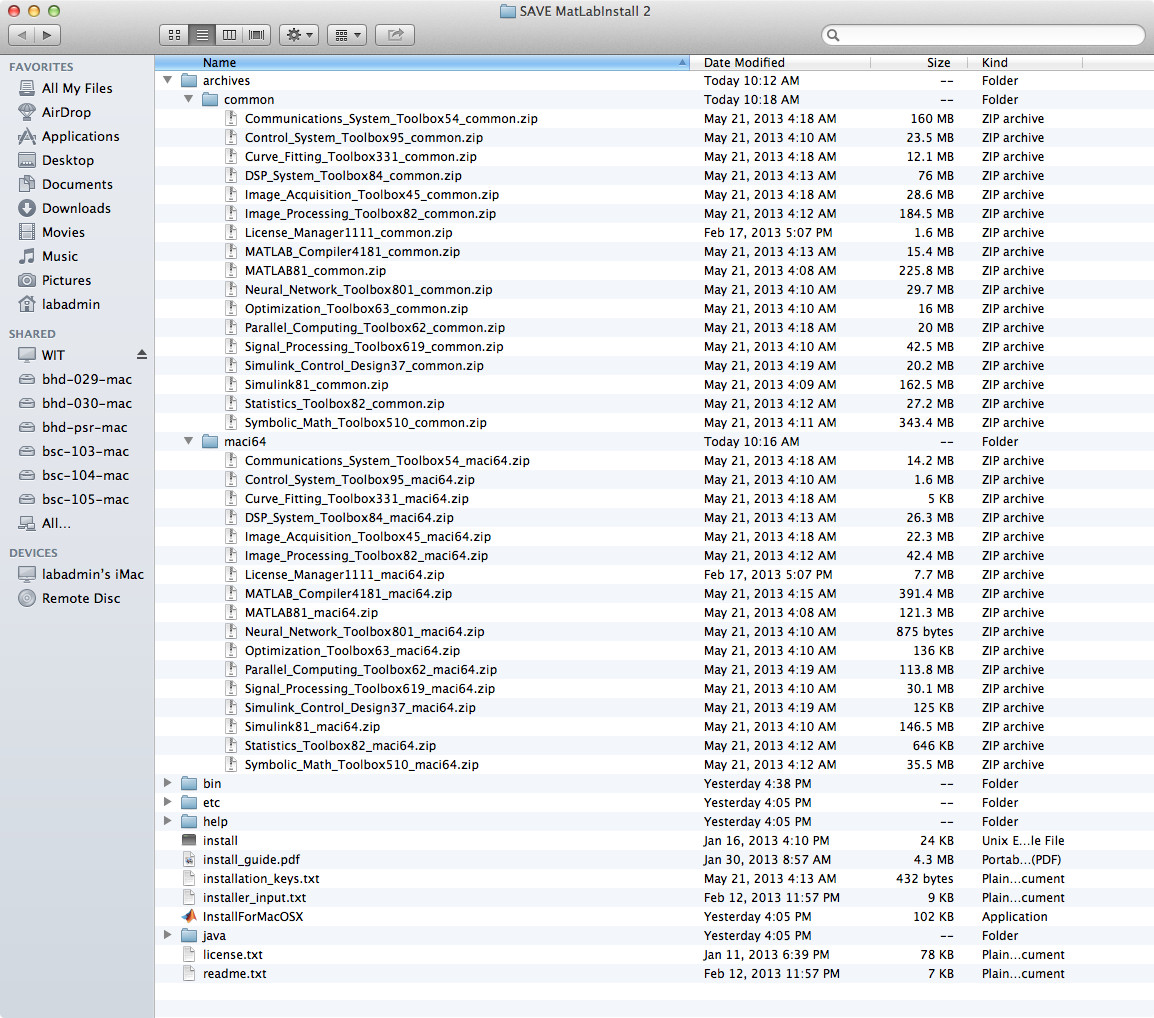
Software – MatLab install “archives” folder structure
The MatLab distribution from MatWorks tries to save space on the disk and time for the download transfer. For the products you are licensed for they send you a “common” file and also a CPU-specific file. When installing MatLab on a particular CPU you need to format the “archives” folder carefully.
The archive folder should contain two other folders, “common” and, depending on your OS, one of “maci64″(Mac), “glnxa64” (linux), “win64” (windows).
For each product that needs to be installed there should be a zip file in the “common” folder and a corresponding zip file in the OS-specific folder. Leave these files in “zip” format. If they have been unzipped auto-magically by your browser or other download tools you’ll need to re-download them forcing them to remain “zip” files.
Example for a Mac:
- “Communications_System_Toolbox54_common.zip” goes in the “common” folder
- “Communications_System_Toolbox54_maci64.zip” goes in the “maci64” folder
Here is a screen capture of a install directory structure that works on a Mac:
Software – Google Chrome for All Users
To install Google Chrome on an image for All users see the post at:
Web – Podio – work-related solcial media site
Using this with the Language Lab in 2013 – 2014 while Sourena is away …
https://alefba.podio.com/lab-computers/
Mac – Apple dropped support for X11 in Mt Lion
Apple move X11 development to the “crowd”. See the post at:
http://support.apple.com/kb/HT5293
To get X11 on Mt Lion (10.8.x), See the link at:
http://xquartz.macosforge.org/landing/
Mac – 10.7 – Hidden User Library Folder
For some reason Apple decided to hide the user’s Library folder. This is where quite a few user preferences and other settings are stored.
To allow this folder to be visible, open a Terminal window and give the command:
chflags nohidden ~/Library
For a reference see:
http://hints.macworld.com/article.php?story=20110704093233123
Windows 8 – Deleting windows.old and temp install files
When doing an upgrade to windows 8 the installer can leave behind a large amount of data in a few locations. To remove these use Disk Cleanup with the option to clean-up system files. I have gained back more than 30 GB with this process.
Go to the Desktop and open Windows Explorer, then right-click on the system drive (usually C: or D:) and select Properties. Then click on Disk Clean-up. In that window click on “Clean Up System Files”. This will add to the list of files that can be deleted. In the new, expanded list be sure to select windows.old and the windows install files. Then let the disk cleanup happen.
For another reference see:
Mac – XCode 4 on Mt Lion
Apparently, Apple no longer installs the command line tools for XCode automatically. Once you install XCode you need to go to the Preferences, then Downloads to install these as an extra step …
http://stackoverflow.com/questions/11705912/upgrading-to-mountain-lion-and-xcode-4-broke-my-make
Mac – What makes a volume bootable
To quote from the link below:
Bootability comes down to a few simple rules:
- The hard drive enclosure must support booting a Macintosh (applies to external hard drives only)
- The computer must support booting from the interface used to attach the hard drive (e.g. USB, Firewire, eSATA)
- The computer must support booting from the hard drive’s partition format (e.g. APM vs GPT vs MBR)
- The cloned filesystem must have all the required components of Mac OS X
- The cloned operating system must be properly “blessed”
See the complete info at:
http://www.bombich.com/software/docs/CCC/en.lproj/troubleshooting/what-makes-a-volume-bootable.html