See the information at:
https://jamfnation.jamfsoftware.com/discussion.html?id=13837
Category Archives: Articles
Windows – Slow login Debugging
See: http://social.technet.microsoft.com/wiki/contents/articles/10128.tools-for-troubleshooting-slow-boots-and-slow-logons-sbsl.aspx
Mac – Yosemite – Disable Notification Center
I really dislike a computer that tells me what I need to do so …
After sudo’ing
cd /System/Library/LaunchAgents

mv com.apple.notificationcenterui.plist com.apple.notificationcenterui_DISABLED.plist
Let’s see it tell me what I need to do now!!!!
Mac – Skip MS Office First Run
A web page that might offer a solution:
http://apple.stackexchange.com/questions/82025/disable-office-for-mac-2011-first-use-registration
Lab/Classroom Computer Work Schedule
Link to a schedule of work in OIT manages Labs and Classrooms …
You can add this calendar to your calendar list by clicking on the Google Calendar button on the bottom-right of the window that looks like:
Or you can publishs the calendar in an iFrame:
Mac – Using Install command line to install packages
Some software can not be installed on the master image computer because it needs to be uniquely installed on each clone. So rather then have to copy packages to each clone after imaging, why not put the packages in a known location and then call the installer remotely using the command like:
installer -pkg /Users/labadmin/Desktop/post/Sophos_10.mpkg -target /
See the complete man page at:
Mac – Mt Lion – Disable Notification Center
With Mt Lion, Apple introduced a unified notification center application that alerts you to a number of things like email, etc. Unfortunately, it also alerts you to recommended system updates. All of this is unwanted on lab/classroom computers.
I have found that the best way to stop the notification center is to hide the application were it lives. To hide things on Mac OS X, just like in unix, rename them to something that starts with a “.” Therefore, in /System/Library/CoreServices rename NotificationCenter.app to .NotificationCenter.app
This command may do the trick ….
sudo mv /System/Library/CoreServices/NotificationCenter.app /System/Library/CoreServices/.NotificationCenter.app
Kace – Windows software installs from Network Share
I had been testing using KACE to do software installs from it’s “alternative” download feature but it seemed easier just to run the software installs from a network file server …
Here is a process that is working for me ….
1) Copy the install files to \\kstore\apps (Gabe needs to give your AD account write permission to that share.)
2) Write a batch file that mounts that network share and runs the installer … an example using Sophos 10 is below.
3) Distribute that batch file with Kace a file distributionto a known location on the target computer and then call that batch file with a Kace Script. (One may be able to combine these two steps into one …)
@echo off
rem network file server sophos 10 install - Lynna Jackson, Williams College, 2012

rem mount network file share read-only
rem using the IP numeric address seems faster, replace XXXX with real pword
net use s: \\137.165.4.80\apps /user:kstore\kuser XXXX

rem run sophos install in silent mode
s:\sophos10\sophos10\setup.exe -s -updp http://sophos.williams.edu/SophosUpdate/CIDs/S027/SAVSCFXP/

rem wait awhile so that sophos has a chance to update
ping 127.0.0.1 -n 360 >nul

rem dismount the network drive
net use s: /delete
Mac – Startup – GUI to create and edit plist startup files for launchdeamons
Using Lingo version 2.1.1 I am able to use a GUI to create a plist file to allow something to run at a specified time on a Mac. I tested this on Mac OS 10.8.4 to great a plist file to run at startup to set the screen resolution with cscreen. It worked great. You do have to lower the security preferences to allow applications from anywhere to allow Lingo to run. There is a newer version of this available from the app store which my be worth the money …
With FileEventer I can watch where the plist file gets saved. In my case test, setting screen resolution with the application cscreen at boot time, the plist file was saved to:
/Library/LaunchDeamons
I was then able to copy the saved plist file to other macs.
See the longish blog posting on this at:
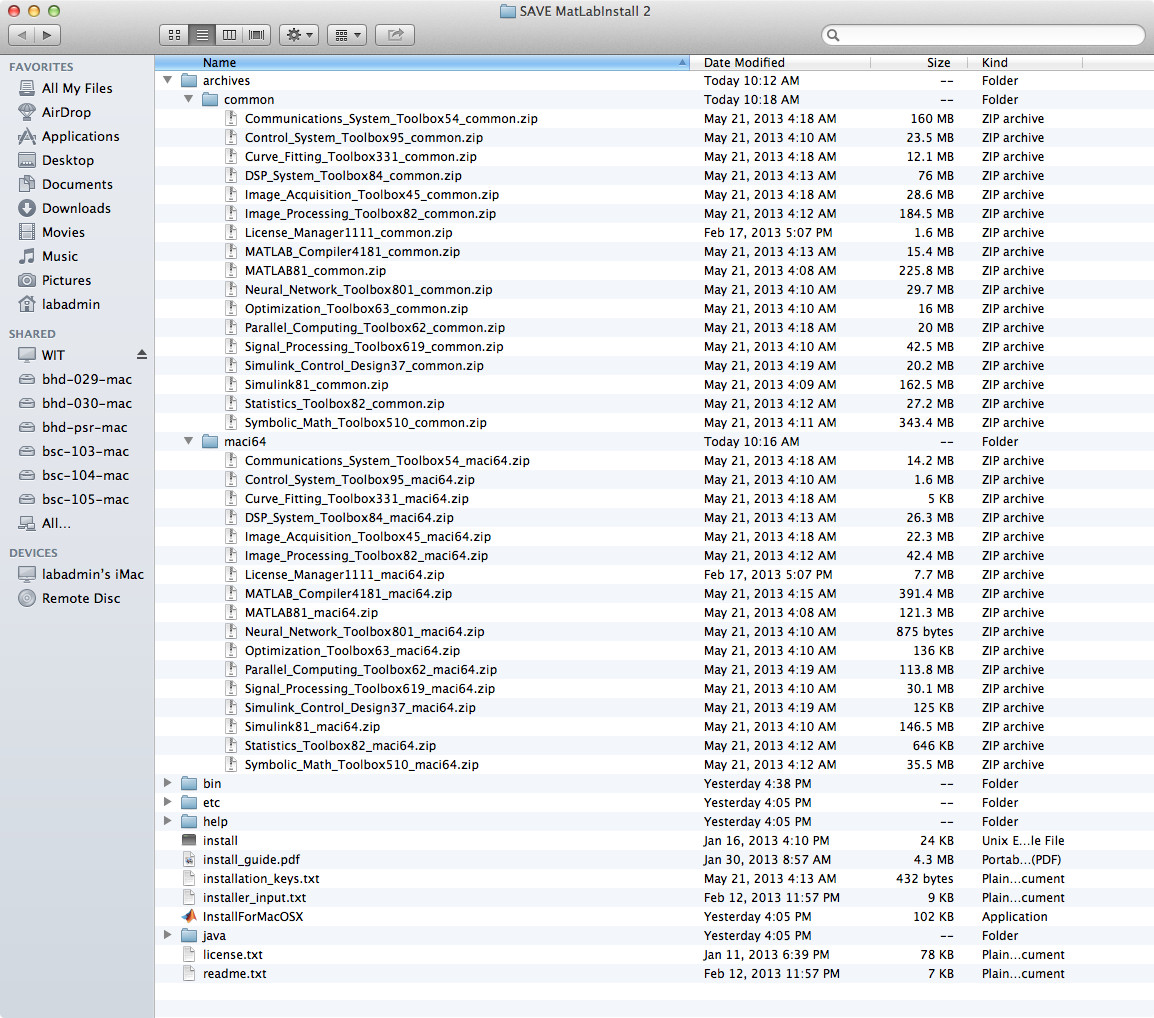
Software – MatLab install “archives” folder structure
The MatLab distribution from MatWorks tries to save space on the disk and time for the download transfer. For the products you are licensed for they send you a “common” file and also a CPU-specific file. When installing MatLab on a particular CPU you need to format the “archives” folder carefully.
The archive folder should contain two other folders, “common” and, depending on your OS, one of “maci64″(Mac), “glnxa64” (linux), “win64” (windows).
For each product that needs to be installed there should be a zip file in the “common” folder and a corresponding zip file in the OS-specific folder. Leave these files in “zip” format. If they have been unzipped auto-magically by your browser or other download tools you’ll need to re-download them forcing them to remain “zip” files.
Example for a Mac:
- “Communications_System_Toolbox54_common.zip” goes in the “common” folder
- “Communications_System_Toolbox54_maci64.zip” goes in the “maci64” folder
Here is a screen capture of a install directory structure that works on a Mac: