Category Archives: Labs

Posts about computer labs and classrooms at Williams College

Mac – Disable/Enable Gatekeeper from command line

GateKeeper is the application on Mac OS 10.8 and above that prevents running applications from unknown sources. On the “Lab” image this can not be enabled since many of the older academic software programs would not be able to run.

Get current status of this setting: sudo spctl --status
Disable GatetKeeper to allow all apps to run: spctl --master-disable
Enable GateKeeper to prevent unknwon apps from running: spctl --master-enable

To see more see:
http://osxdaily.com/2015/05/04/disable-gatekeeper-command-line-mac-osx/
Mac – Mavericks — AFP shares need to become SMB shares

With Mavericks, Apple is moving farther away from AFP support. It’s time to change our AFP points in our Network Shares to smb pointers.

Two commands come in very handy to find and replace the needed text in the files …

perl -pi -w -e 's/afp/smb/g;' *afploc
perl -pi -w -e 's/ACHILLES.//g;' *afploc
perl -pi -w -e 's/HECTOR.//g;' *afploc
perl -pi -w -e 's/ATHENA.//g;' *afploc
perl -pi -w -e 's/HELEN.//g;' *afploc
perl -pi -w -e 's/JASPER.//g;' *afploc

Mac – Setting “default” printer

Setting a “default” printer on Mac –

Printers are listed to the mac user on the drop down menu in alphabetic order so you need to add “A” to the beginning of the name of the default printer if the default printer isn’t already first in alpha order.

If printers are already installed you can change the name in the System Preferences – Printers – then “options” for that printer.

Or, if the printers aren’t installed yet, for Williams printer installer packages you can change the name in the packaged installer before you run the installer. To do that:
1) Right-click (or option-click) on the printer installer package and “Show Package Contents”
2) Open Contents
3) Open Resources
4) Open “postflight” with AquaMacs and edit the lpadmin line to add “A” to the default printer name

Example:
`lpadmin -p Spencer-216-Color -L '' -E -v http://print-mac.williams.edu:631/printers/Spencer-216-Color -P /etc/cups/ppd/Spencer-216-Color.ppd`;;

Becomes:

`lpadmin -p ASpencer-216-Color -L '' -E -v http://print-mac.williams.edu:631/printers/Spencer-216-Color -P /etc/cups/ppd/Spencer-216-Color.ppd`;;

k2000 – Update Drivers

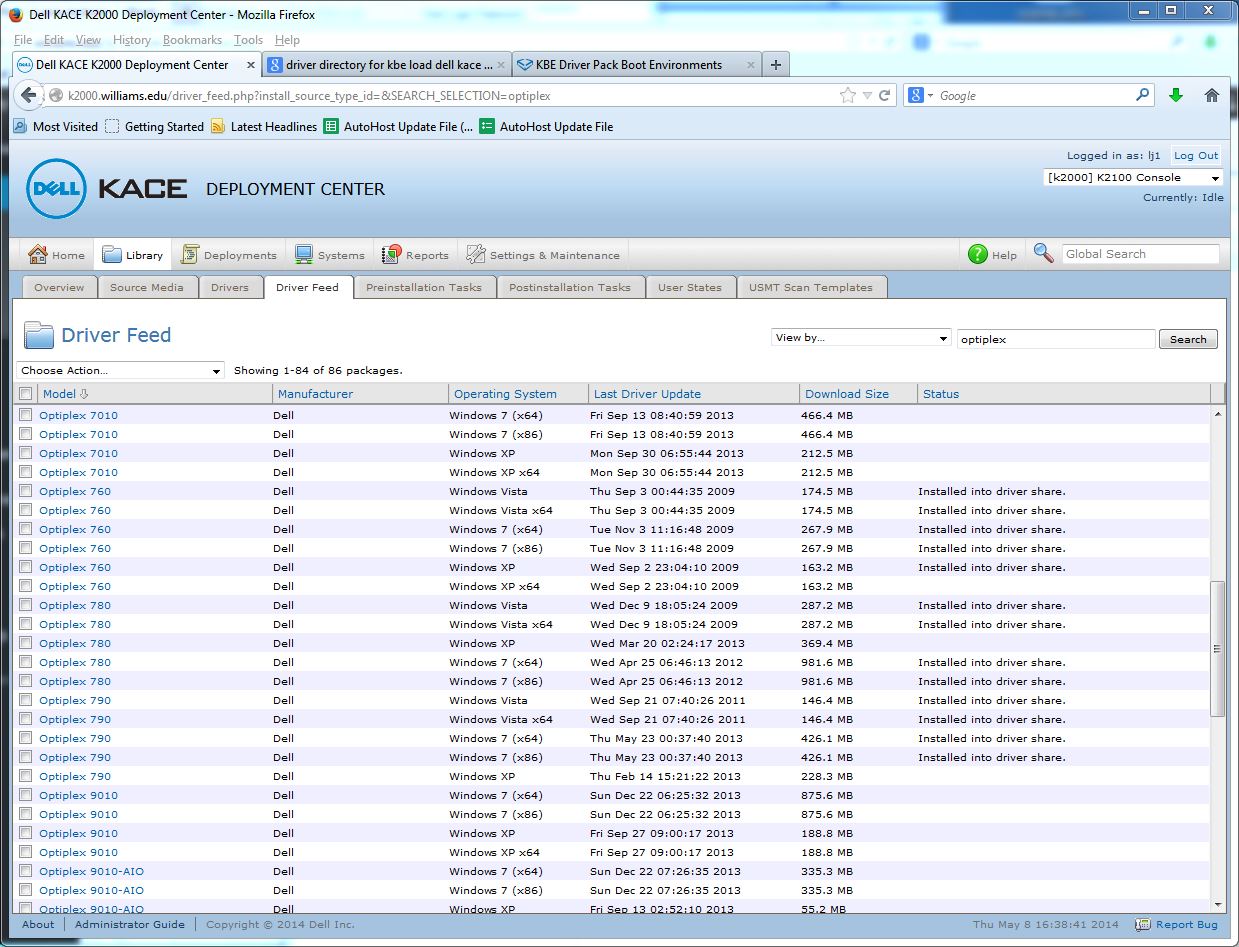
There are several places where you can “update” drivers in the Windows K2000 deployment server.  In “Library’ — “Driver Feed”  –  search for then click on a model and there is a drivers ‘download and install’ function which may be all you need …

driverk2000

If you need to add drivers that aren’t available through the driver feed mechanism you can add them to folders on the K2000 server …  My location is at:

\\k2000\drivers\kbe_windows_x64\lynna

Just connecting to \\k2000

giving the username  k2000\admin and the password that is set on the server for

“Settings – Maintenance” — “General Settings” —  “Driver/Restore Share password”


Mac – Set NTP time server from command line

Active Directory login, Keyserver access, SafeConnect, etc all require the connecting client to have a time setting that is within 5 minutes or so of the server’s time setting.  It is therefore useful to use a “network time protocol” server to set your local computer’s time to the “correct” time.

Macs typically use “time.apple.com” to set their time from the network.  This is fine most of the time. 😉

In the rare times you want to set a different time server on a Mac, use Terminal and enter the command:

sudo systemsetup -setnetworktimeserver <timeserver>
(replace <timeserver> with the address of the time server 
you want to use as in 137.165.4.21 for Williams College)

Since this is a command run with “sudo”, you’ll be asked to enter the account password and that account needs to be authorized as a “Super User” or “root” user.

By the way – the GUI interface in the “Date & Time” System preference only allows you to choose time servers hosted by Apple.

For more details see the web page at:

http://hints.macworld.com/comment.php?mode=view&cid=98039