Can You Use a Laser Cutter to Create Silk Screen Templates?

Ever wanted to reuse your old silkscreen without first having to clean off the old paint or emulsion? This innovative process explores reusing a stainless-steel screen by applying new acrylic paint to the screen to create a solid resist, and then, after the paint dries, removing sections of the resist with a laser engraver. This method has the potential to be a more efficient way of creating intricate and customizable screen printing designs, with substantially less prep work. 

Inspired by Carleton College’s Makerpedia, this method turns traditional screen printing on its head.

The result of using a laser cutter to burn acrylic paint off of a painted steel mesh screen. Instant "silk screen". Or is it?

The result of using a laser cutter to burn acrylic paint off of a painted steel mesh screen. Instant “silk screen”. Or is it?

Here’s Why this Rocks

  • Reuse it like a pro: Say goodbye to one-and-done screens. 
  • Freedom to create: Change designs as easily as switching out the acrylic paint resist. 
  • Laser precision: Get ultra-detailed results with modern tech. 
  • Perfect for small batches: Quick, easy, and ideal for mini-projects.

How to Make It? (The Fun Part)

I consulted with David Keiser-Clark, Makerspace Program Manager, and Jason Mativi, Senior Science Center Shop Engineer.

Step 1: Make The Frame

To make the project successful, I had to make a frame for the steel mesh. I learned how to use a metal chop saw in the Science Shop to cut the aluminum extrusions to the desired lengths. Before cutting the aluminum, I made sure to wear safety goggles and to clamp the stock down. I then carefully measured and cut a total of four pieces of aluminum.

I used the corner bracket cube to serve as a connector between the aluminum frame pieces, and screwed each side tight to prevent any wobble. 

Step 2: Attach the Screen

I then modified and customized Carleton College’s 3D screen lock. I added more thickness in the base of the screen lock and included holes on each end for the screws to pass through. Each hole has a diameter of 0.27 in.

I cut enough screen mesh to wrap over both ends of the frame. I then had to make two holes on each side of the screen and attached it as tight as possible to the extruded part of the frame. I added the screen lock, pressed, and secured it in place with a screw.

Step 3: Painting the Screen

I painted the mesh of the screen with a solid coat of acrylic paint. I found that painting one side of the screen is sufficient.

Step 4: Printing Process

Stephen Sabio '28 examining the first attempt to use the laser engraver to do a reusable skill stencil.

Stephen Sabio ’28 examining the first attempt to use the laser engraver to do a reusable skill stencil.

I placed the screen on top of white drawing paper, with the screen facing the paper. Then, I made sure that it was secured so that it would not move as I applied fresh paint. I used around 10 ml of paint and painted it over the screen nice and slow to make sure that it didn’t bleed. I used the silicone squeegee to apply the paint evenly on the screen. Lastly, I slowly separated the screen from the paper. It was a little sticky, so I had to be careful not to smudge the paint. Sticky? Yes. Smudgy? No.

I may not have successfully created the perfect silkscreen. I think what I learned here is patience. Everyday I learn something new. It is not always about the goal. I was initially so focused about creating the perfect mesh screen, but I think the best part here was the process of figuring out how to make this work the way I wanted it to work. I learned that the beauty of creating something isn’t the result. It is every step you take, every turn of the screw, every laser that passes through, every stroke of the paint. It is those little pieces of an art that makes it a whole.

How Many Times Did I Fail? (A Love Letter to Iteration)

Spoiler alert

It wasn’t perfect the first time.
Or the second.
Or… well, you’ll see.

Unfortunately, we broke the auto-focus plunger (which we don’t use) on the laser engraver, because we set the height for the recessed screen and failed to account for the taller aluminum frame. Collision! (Sorry Mativi!!!) On the positive side, when the new part arrived, we learned how to repair the laser engraver.

Iteration #1: The first attempt of using the laser engraver to burn a precise design in the mesh screen, I set the power to 26% and the speed to 100%. I repeated this process three times to try and burn through the acrylic paint on the mesh. It didn’t work. The screen was still covered with acrylic paint on the other side of the screen. Epic fail. Paint didn’t budge.

Here’s what I learned: there’s no need to paint both sides of the mesh screen, as that only makes it more difficult to burn the paint off with the laser engraver.

The laser engraver’s first run, etching precision into motion. #Laser engraver in action!

The laser engraver’s first run, etching precision into motion. #Laser engraver in action!

Round two of testing: despite multiple burns, the acrylic paint refused to give in.

Round two of testing: despite multiple burns, the acrylic paint refused to give in.


Iteration #2: I next set the power to 100% and the speed to 100%. I again repeated this burn three times. It didn’t work. The screen was still covered with acrylic paint on the other side.

Bright side? The laser survived!

Iteration #3: Third time’s a charm, they say. I set power to 100% and the speed to 100%. It was basically the same as the second iteration, but this time instead of passing the laser engraver thrice, I passed it five times. The screen was still covered with acrylic paint on the other side but this time the acrylic was brittle and I was able to remove it using a razor blade and a steel brush. I gently took off all the brittle dried acrylic from the screen. The design survived. It worked! Oops! A new problem: applying fresh paint to the mesh screen results in paint bleeding out around the design borders. The print quality is terrible. There is still something missing. What’s next? I don’t know! Guess we will keep trying. 

A test for new solutions: Jason Mativi and Stephen Sabio experimenting with alternative methods after multiple laser engraving challenges.

A test for new solutions: Jason Mativi and Stephen Sabio experimenting with alternative methods after multiple laser engraving challenges.

Iteration #4: A recurring problem that I have identified is that the acrylic paint is challenging to burn away using the laser engraver. It’s time to try an alternative method. Mativi recommended that we try using the water jet to burn away the acrylic paint. So, I went to the Science Shop. And voilà, the water jet cut through both the acrylic paint and the mesh screen. The 30,000 psi water pressure and garnet dust was too strong for the screen material. We initially thought that might occur, but hey, at least we tried! 

Iteration #5: Back to the laser engraver. We tried experimenting around the speed and power of the laser engraver. There was no optimal speed and power to completely get rid of the acrylic. However, 100% power and 30% speed almost achieved our desired result. I still had to scrape a little bit of the acrylic off the screen. It was still worth the try!

Finally, it did work on iteration 5! Now, the big question: How many times did I fail? To be honest, I don’t know. I lost track along the way. The important thing is, I, we did it

When the backup fails ( water jet), it is time to go back to the original plan of the laser engraver and try again

When the backup fails ( water jet), it is time to go back to the original plan of the laser engraver and try again

After multiple attempts, there was success! Next came printing - an extremely careful process of separating the screen paper with little to no smudges.

After multiple attempts, there was success! Next came printing – an extremely careful process of separating the screen paper with little to no smudges.


Result? Fabulous

But more than just a crisp print, what I really took away from this process was growth. Every failed iteration, every broken tool, every “oops” moment pushed me to adapt, experiment, and stay curious. I didn’t just build a reusable mesh silkscreen—I built patience, problem-solving skills, and a deeper appreciation for the messy magic of making.

The learning process gave me hands-on experience with precision measurement, power tools, and mechanical assembly. I learned how to safely operate cutting equipment, interpret dimensions with accuracy, and ensure structural stability by aligning components tightly. It also sharpened my understanding of engineering tolerances; one loose screw, and the whole frame can wobble!

Beyond just assembly, this part of the process also introduced me to the practical side of design thinking, understanding how each material interacts under tension, and how even minor tweaks to the build can affect the outcome of the print. Turns out, there’s a bit of an art to building things that don’t fall apart under pressure. Literally.

Materials List

  • Stainless Steel Mesh
  • Aluminum Extrusion
  • Silicone Squeegee
  • Acrylic Paint
  • Screen Printing Ink
  • Corner Bracket Cube (20x20x20mm)
  • Dimensions; 8.625 in x 8.625 in

Darkroom Meets MakerSpace: How 3D Printing Transformed a Photography Class

What happens when a darkroom tool goes extinct, but twenty students still need it? The class had everything: a large-format camera, a darkroom, and eager students. It lacked only one thing: a negative holder that no longer existed. A negative holder is a device that keeps a piece of photo flat and steady during printing or scanning, and it is crucial because it ensures the image stays sharp, properly aligned, and free from distortion or damage.

The solution? Make One.

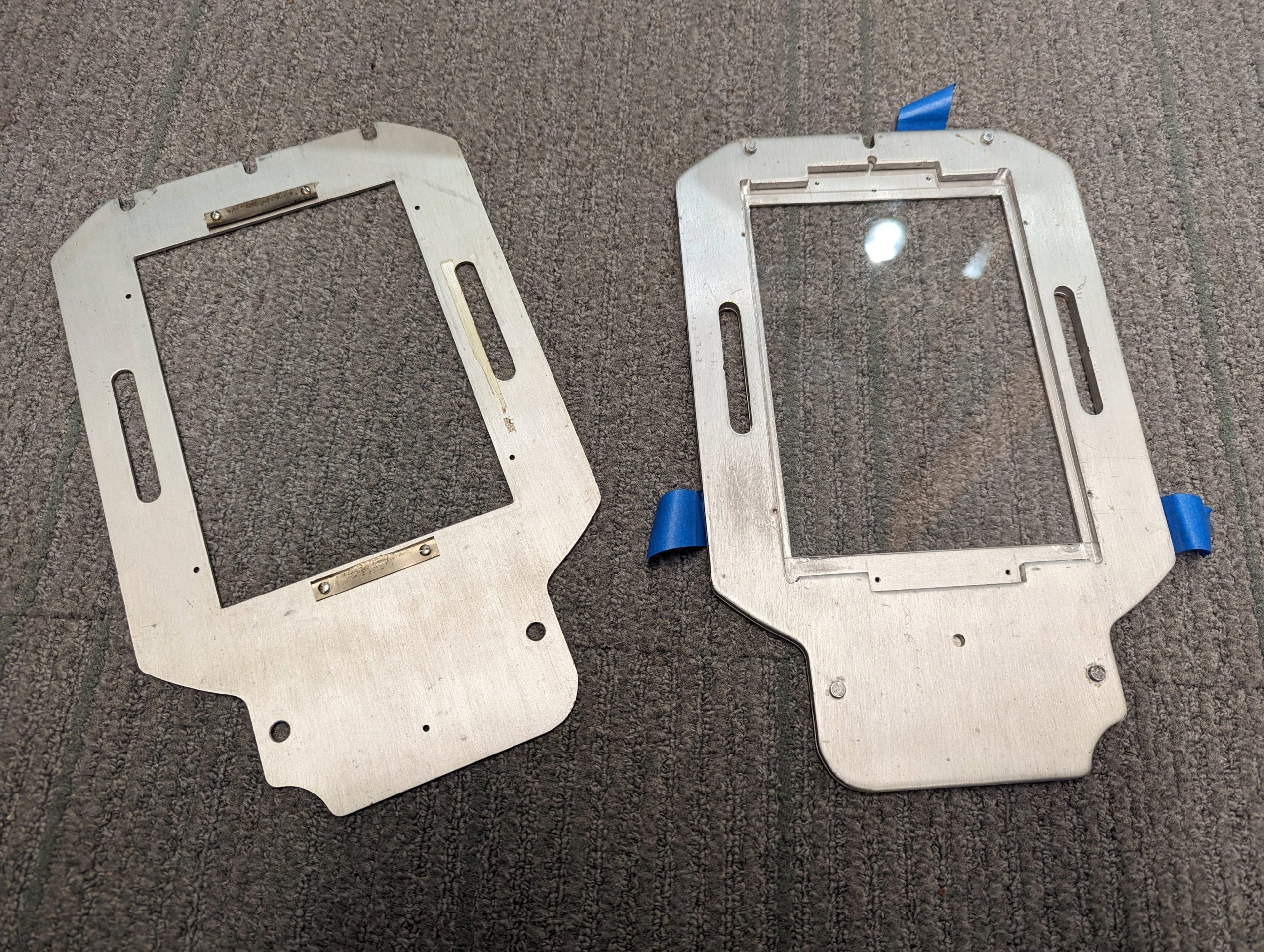
The original, nearly impossible to find, negative holders

The original, nearly impossible to find, negative holders

Last Winter Study, Daniel Goudrouffe, the Photo Technician for the Spencer Art Building, taught a winter study class called “Creative Portrait in the Darkroom,”  where students experimented with black-and-white film and created photomontages. The class utilizes a large-format view camera that produces 4×5-inch negatives, perfect for cutting, collaging, and combining with digital negatives to create layered portraits. However, there was one obstacle: the darkroom’s negative holders, which were essential for fitting these large negatives into the enlarger, were impossible to find online. The school’s enlarger was a rare, older, and slightly larger 5×7-inch model.

How We Solved the Problem

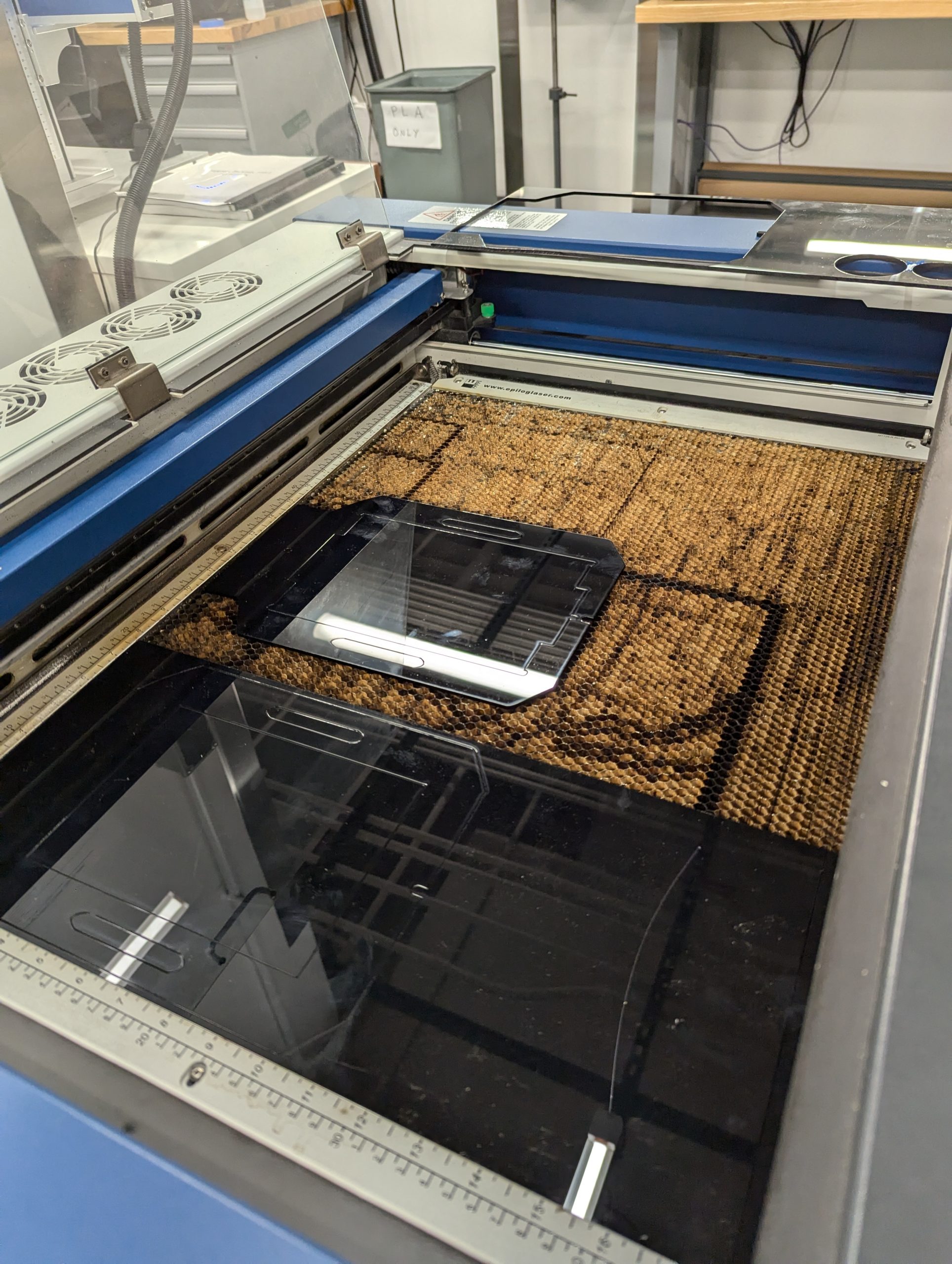
Using the Epilog to laser cut the negative holders.

Using the Epilog to laser cut the negative holders.

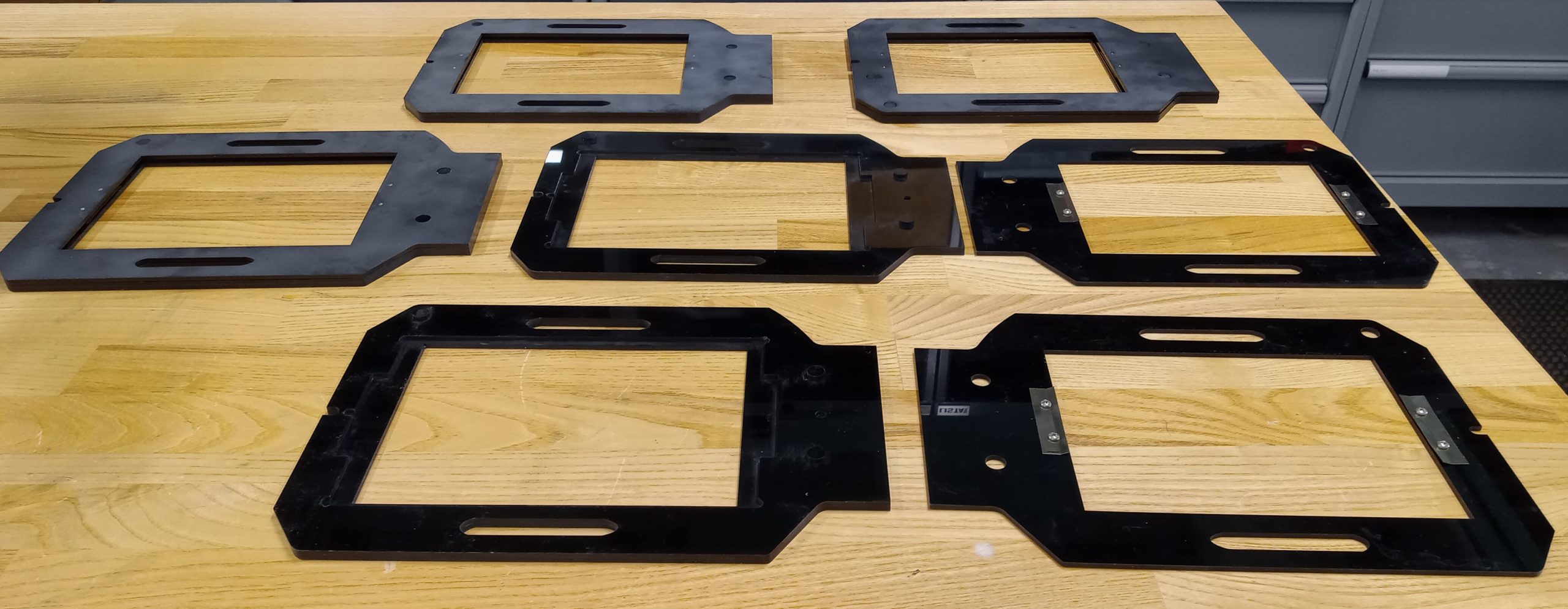
Daniel collaborated with Harris Longfield ‘27, a fellow makerspace worker, and Jason Mativi, Senior Science Center Shop Engineer, to design new holders from scratch. First, using Fusion 360, Harris and I carefully traced the original holder’s dimensions, while Mativi laser-cut and 3D-printed prototypes. After testing the first model and correcting a few asymmetries, the final versions worked flawlessly. The extra holders made a huge difference: instead of waiting in line for a single holder, ten students could now pair up and share five holders.

With the new equipment, students took their projects to the next level, pushing them further than ever. Instead of cutting paper prints, a traditional photomontage method, they cut and layered actual negatives, both film and digitally produced, to craft a one-of-a-kind composition. The larger 5×7 enlarger provided extra space around the 4×5 negatives, allowing them to add new visual elements and more information. This combination of old-school technique and modern tools opened a world of possibilities for image-making.

The five laser cut negative holders

The five laser cut negative holders

Perhaps the most striking result was how effortlessly the 3D-printed holders fit into the darkroom workflow, showing no loss of quality compared to the originals. By blending engineering with art, the project not only solved a practical challenge but also expanded the creative possibilities of analog photography, which shows how new technology can enhance and support classic film practices.

Surprises!

What surprised me most about this project was how naturally problem-solving morphed into a creative discovery. Initially, I viewed the missing negative holder as a straightforward hardware issue that required a technical solution, but I ultimately learned more: how to sketch and model a design, how to test and refine it, and the importance of teamwork in an environment where ideas are constantly evolving.

More importantly, I realized technology and art aren’t two separate worlds–they can actually amplify each other. By designing the new 3D-printed negative holders, we didn’t just replace a piece of equipment; we opened up new possibilities for creative image-making and expanded the possibilities of what a darkroom class could be. For me, that was a powerful reminder that creativity doesn’t exist in isolation: it grows when collaboration, technical skill, and art intersect. I’ll carry that forward into future projects, whether it’s prototyping or approaching any problem with both imagination and practical thinking.

Next Steps

Looking ahead, I can imagine this project leading to a shared toolkit for photographers everywhere. With tools like 3D printers and open-source design platforms, we can expand the idea by posting our files and guides online, making it possible for other darkrooms to thrive despite having vintage tools. I’d love to see this small innovation grow into a network that preserves classic practices and continually improves them through modern engineering. 


Printing History: Bringing The Beaver Mill Back to Life

Inspiration to Creation

Photo of the Beaver Mill geographical area from the Big Art Show. The material used is eucalyptus matt board, an environmentally friendly product as compared to traditional acrylic or MDF, and it was laser cut in the Science Shop on an Epilog Laser Helix machine.

Photo of the Beaver Mill geographical area from the Big Art Show. The material used is eucalyptus matt board, an environmentally friendly product as compared to traditional acrylic or MDF, and it was laser cut in the Science Shop on an Epilog Laser Helix machine.

The first time the digital blueprint of the Beaver Mill appeared on my computer screen, I could hardly imagine it becoming real. This historic site, standing quietly in North Adams, was about to transform from a mere collection of pixels into a tangible piece of art. As part of Grace Espinosa’s ’26 ARTS 222 – Critical Practice of Architecture course, our mission was bold yet simple: craft a detailed 3D printed model for the Williams College Big Art Show. Beyond being an academic project, our process and production turned out to be a dynamic intersection of art, technology, architecture, and history.

Grace, the stakeholder and driving artistic force behind this project, shared her vision clearly: “We were inspired to create a 3D printed model of the Beaver Mill to introduce in the architecture section of the Big Art Show.” She wanted viewers to vividly experience the historical site students had been exploring all semester, bringing their classroom discussions to life in a practical, memorable way.

ARTS 222, taught by Assistant Professor of Architecture and Environmental Studies Giuseppina Forte, challenges students to transform architectural spaces through innovative design interventions. Throughout the semester, students develop skills in architectural drawing, graphic design, and digital and physical 3D modeling. They also engage deeply with design strategies such as spatial hijacking and détournement, learning to rethink conventional ideas of space and time. This Beaver Mill project has become a practical demonstration of these powerful ideas.

Navigating Challenges with Creativity

This is a 3D rendering of a split-section of the Beaver Mill that we printed so as to be able to test the internal structural integrity.

This is a 3D rendering of a split-section of the Beaver Mill that we printed so as to be able to test the internal structural integrity.

Our biggest challenge? The size limitations of the Makerspace’s 3D printers. The solution was as simple as it was elegant: we used the Prusa Slicer to split the model into three parts. While this meant a careful, precise assembly with glue afterward, it allowed us to maximize scale and achieve a stunning 24-inch model. Grace noted, with satisfaction, that splitting the model “didn’t impact the final presentation much,” making this strategic decision effective in the end.

Collaboration: Art Meets Technology

This is one of three printed parts of the Beaver Mill. We printed it with "organic tree supports" that are designed to support overhanging structures (like the roof overhangs). We later removed these supports and the result was a cleanly printed section of the building.

This is one of three printed parts of the Beaver Mill. We printed it with “organic tree supports” that are designed to support overhanging structures (like the roof overhangs). We later removed these supports and the result was a cleanly printed section of the building.

Grace had never attempted 3D printing before, making the Makerspace’s role in the project essential. She described this collaboration as transformative: “Working with the Makerspace made the project possible… your facilities and technical knowledge brought the model to a much higher level.”

David Keiser-Clark, Makerspace Program Manager, explains how the Beaver Mill project perfectly embodies the Makerspace’s mission of providing practical, hands-on experience with digital fabrication. “This project directly supported the architectural course goals by giving students real-world experience in modeling and computer-aided design software,” David stated.

David firmly believes in interdisciplinary learning, emphasizing that projects like the Beaver Mill offer students invaluable skills. “Interdisciplinary collaboration encourages critical thinking and practical problem-solving skills students carry forward into their careers and lives beyond Williams,” he explained. This project perfectly encapsulated the blending of creative artistry and technical proficiency.

The Spirit of the Beaver Mill

Grace envisioned visitors observing and actively engaging with the model, appreciating the Beaver Mill’s distinctive texture and structure. The carefully chosen scale and attention to detail turned the model into an interactive experience, inspiring curiosity and exploration about the site’s potential as an artistic hub.

This is the left-most section of the Beaver Mill building with most of the external tree supports removed.

This is the left-most section of the Beaver Mill building with most of the external tree supports removed.

This is the final 3D printed object with all three sections glued together, using cyanoacrylate (CA) glue!

This is the final 3D printed object with all three sections glued together, using cyanoacrylate (CA) glue!


The Magic Moment

This is the finished Beaver Mill model, as it appeared in the Big Art Show. This model shows the post-processing acrylic painting that Grace Espinosa '26 applied!

This is the finished Beaver Mill model, as it appeared in the Big Art Show. This model shows the post-processing acrylic painting that Grace Espinosa ’26 applied!

For Grace, the project’s highlight was unmistakable: “Seeing the model printed for the first time was incredibly rewarding.” After countless hours of refining the digital design, watching the Beaver Mill physically materialize felt almost magical. This moment embodies the Makerspace spirit: turning ambitious ideas into real, tangible outcomes through creativity, technology, and collaboration.

Projects like the Beaver Mill not only captivate participants and viewers but also shape the Makerspace’s future. David highlighted that “each new project fosters deeper connections and opens doors to innovative ideas across the campus.” Events like the Big Art Show and reflecting on these stories inspire future ambitious projects, encouraging faculty and students alike to imagine what’s possible.

Reflecting on the Beaver Mill project, it’s clear that the Makerspace is more than a lab—it’s a space where creativity and technology meet, where collaboration flourishes, and where students like Grace (and myself!) can transform dreams into realities!

Who knows what we’ll create next?


Resurrecting the Ancient: A 3D-Printed Chinese Oracle Bone Finds a New Home at Williams

When students in ASIA 325 / ARTH 325: The Arts of the Book in Asia walk into class, they are greeted by an object that feels both ancient and cutting-edge: a 3D-printed replica of a 3,000-year-old Chinese oracle bone. What they may not realize is the complex and fascinating journey that brought this piece into their classroom, a story of international collaboration, digital preservation, and creative craftsmanship.

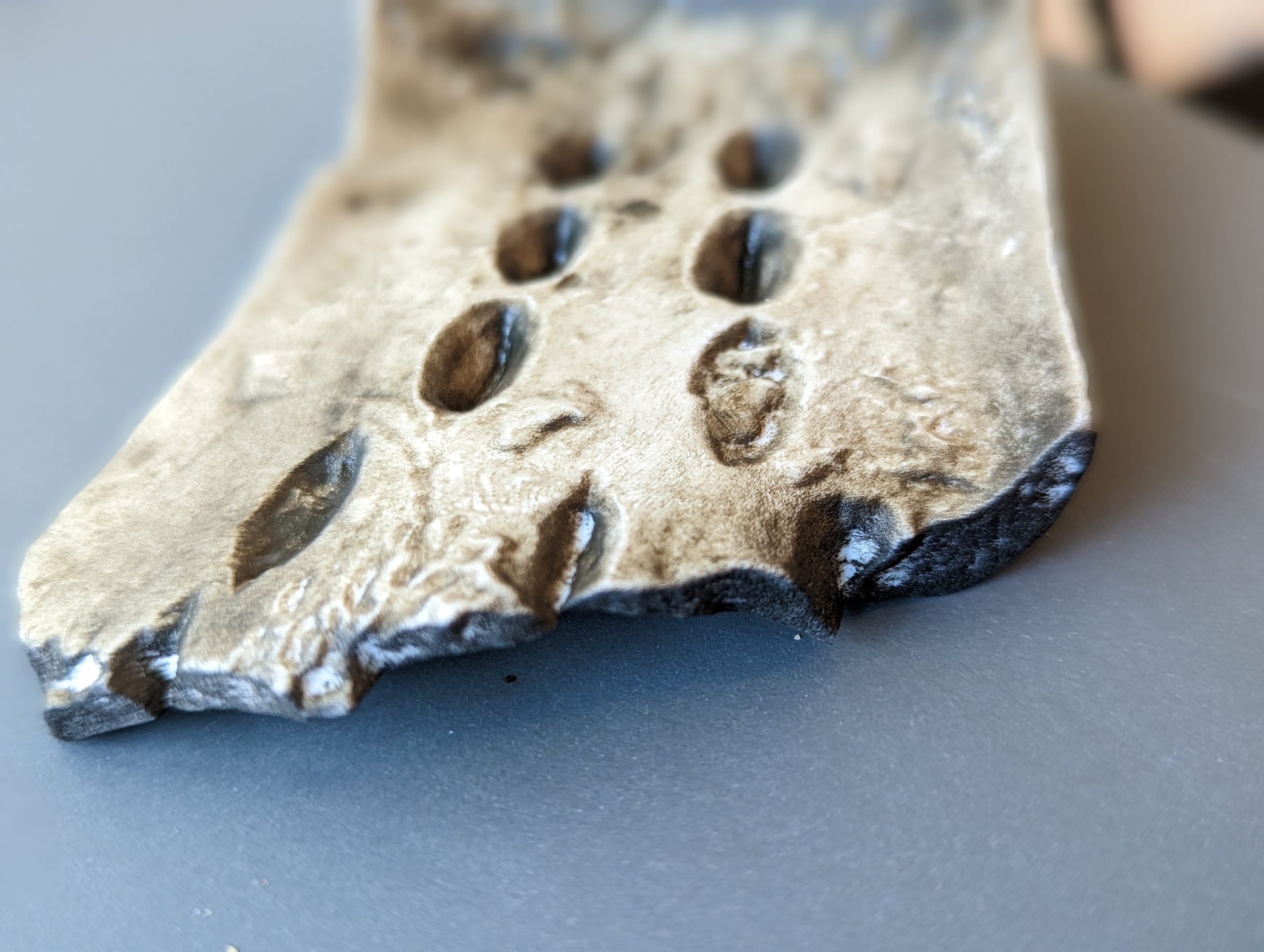
The 3D-printed replica

The 3D-printed replica.

From Oracle to Object

Using open-access scans from the Cambridge University Library, and with permission from Professor Dominic Powlesland, who co-holds copyright with Cambridge, the team downloaded and processed a high-resolution 3D model of Oracle Bone CUL.52.

“We don’t have any oracle bones on campus, and it wouldn’t be ethical to acquire one. But thanks to digital tools and Cambridge’s generosity, we can still bring one into students’ hands,” said Anne Peale.

3D print ready for resin.

3D print ready for resin.

The etchings after resin.

The etchings after resin.

From Data to Artifact

The project’s journey from digital file to physical artifact unfolded in several stages:

  • January 30, 2023: STL files arrived from Cambridge.
  • February 1: The first prototype was printed using FDM (fused deposition modeling).
  • February 7: A final resin print was scheduled, scaled to preserve the original details.
  • March 16: Print studio technician Javier Robelo applied etching ink, transforming the object’s surface from shiny resin to an aged, textured finish.

“To my eyes, the etching ink transformed the resin print into something that feels older and more authentic,” said David Keiser-Clark.

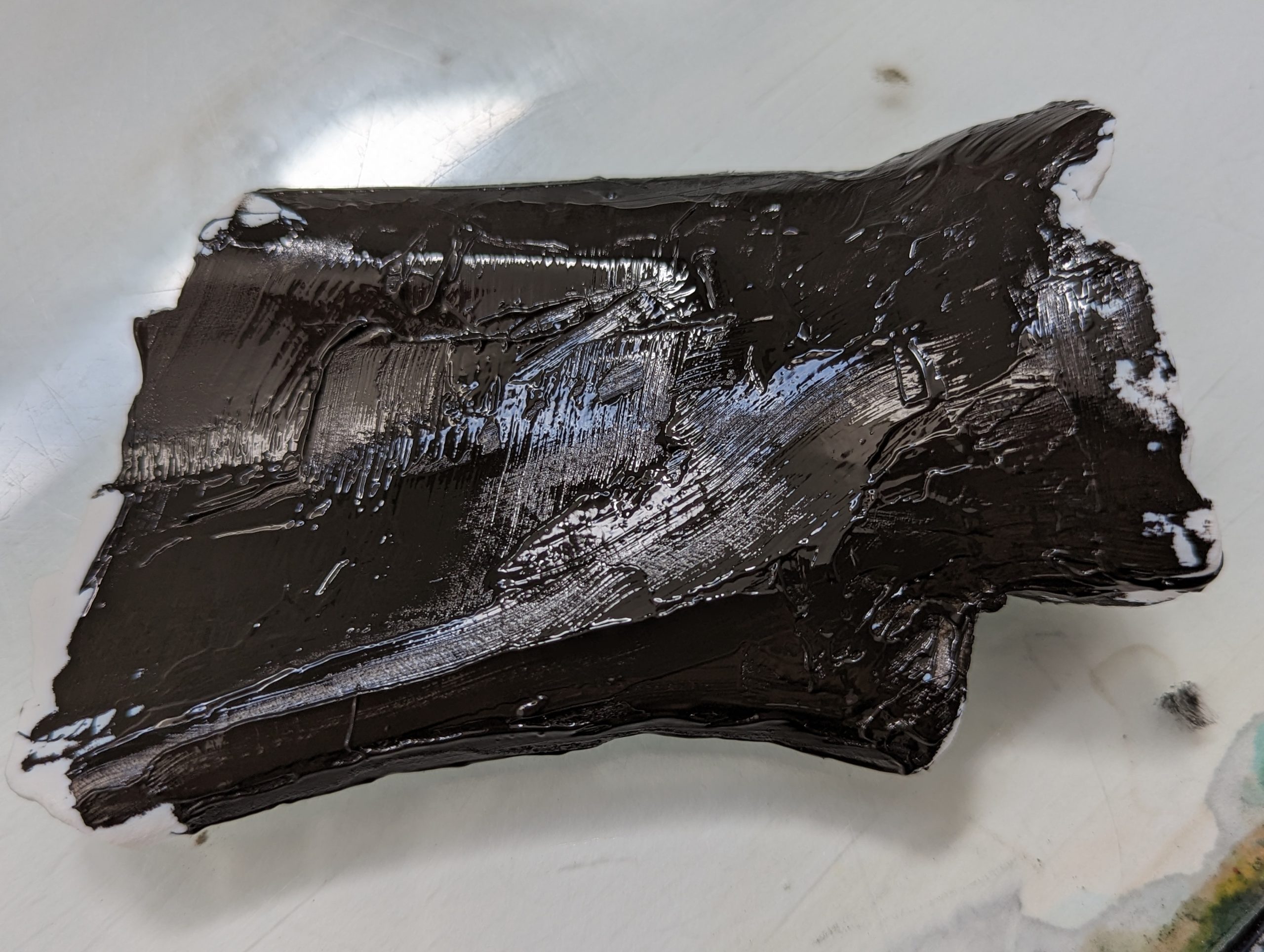
Ink covered 3D print.

Ink covered 3D print.

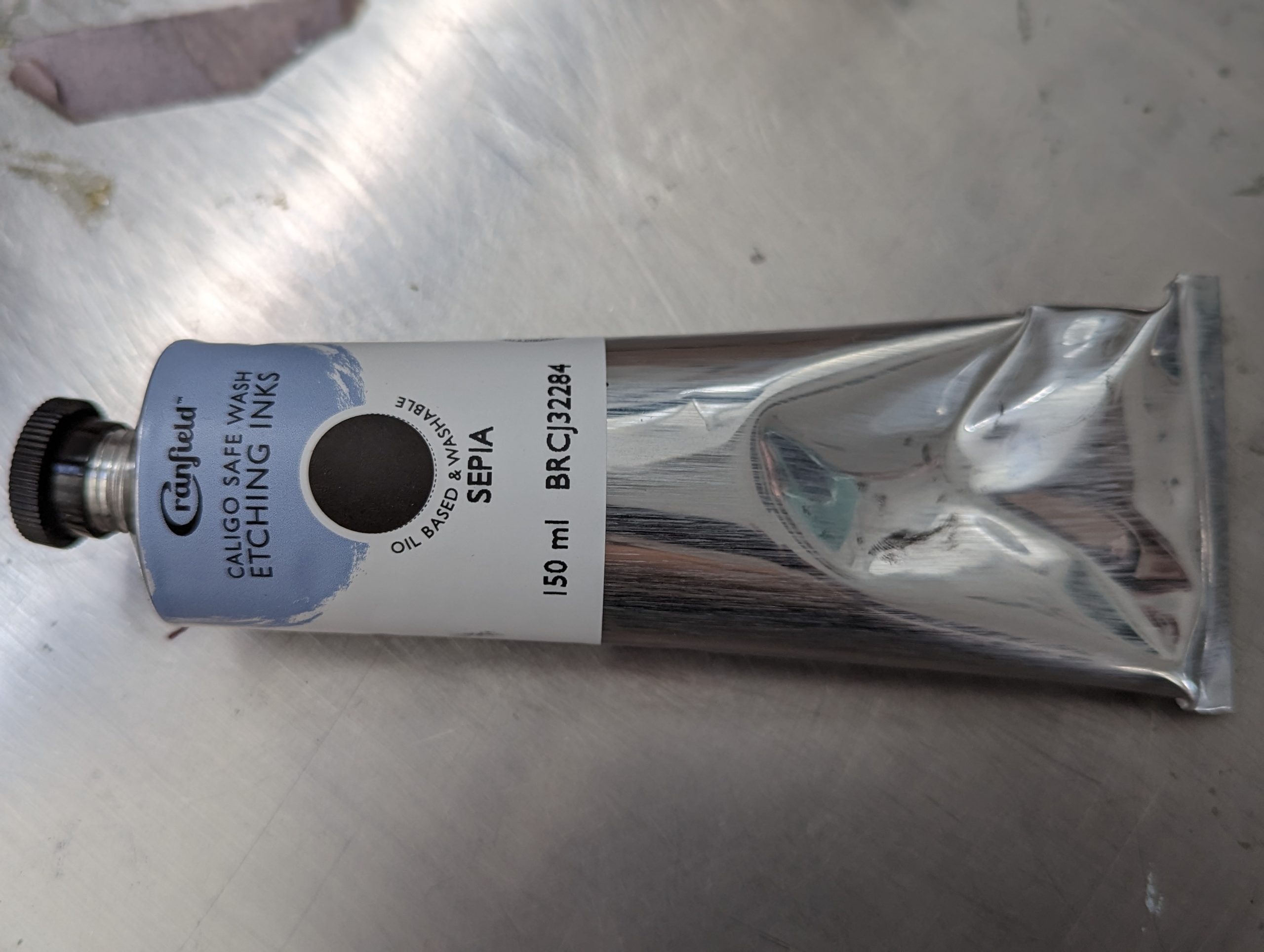
Ink resin used to age the 3D print.

Ink resin used to age the 3D print.

A Teaching Tool with Character

Javier Robelo (Print Studio Technician) added water soluble etching ink to the resin print, then wiped it off using tarlatan wiping fabric. This process allows only the ink within the crevices to remain and that greatly the enhances visible contrast of the 3,000 year old markings.

Javier Robelo (Print Studio Technician) added water soluble etching ink to the resin print, then wiped it off using tarlatan wiping fabric. This process allows only the ink within the crevices to remain and that greatly the enhances visible contrast of the 3,000 year old markings.

By late March, the project reached completion. Both Peale and Mumtaz were impressed by how the replica captured the visual depth and tactile quality of the original oracle bones.

“WOW, what a transformation! I can’t believe how much more visible the characters have become. May I share this with Dominic at Oxford?” wrote Peale in response to the final version.

“It is really looking like the real deal now! We would be delighted to teach with this,” added Mumtaz.

Acknowledging the Origins

This project would not have been possible without the digital preservation work of Cambridge University Library and Professor Dominic Powlesland. All future educational materials will include the following acknowledgment:

Oracle Bone, CUL.52. With thanks to Cambridge University Library and Professor Dominic Powlesland for making these scans available for research and teaching.

What’s Next

A second resin print, featuring the same inked detailing, will be produced as a gift for Professor Powlesland. The team is also exploring new materials and inking techniques to enhance texture and durability. The replica will continue to be a highlight of ARTH 325: The Arts of the Book in Asia, giving students a tangible connection to early Chinese history and script. Through this collaboration, ancient writing and modern technology meet in a way that deepens understanding and preserves cultural heritage.

Whittle by Whittle: Envi Center Garden Signs 

When I was a prospective student, I recall my host bringing me near the Class of 1966 Environmental Center (“Envi Center”) to meet some of their friends. While passing through, I noticed a group of students picking apples from a tree and pulling weeds in the garden beds. As I took an apple from their bin and had a bite, I was incredibly overjoyed to see a garden after just having started one at my high school. Now, as a student and summer intern, I had the opportunity to see the hard work that goes into the maintenance to make the gardens a community space for all. This is why, when Christine Seibert, the Sustainability Coordinator at the Zilkha Center, reached out to the Makerspace for a project to make signage for the Envi Center gardens, I jumped at the opportunity to support this project!

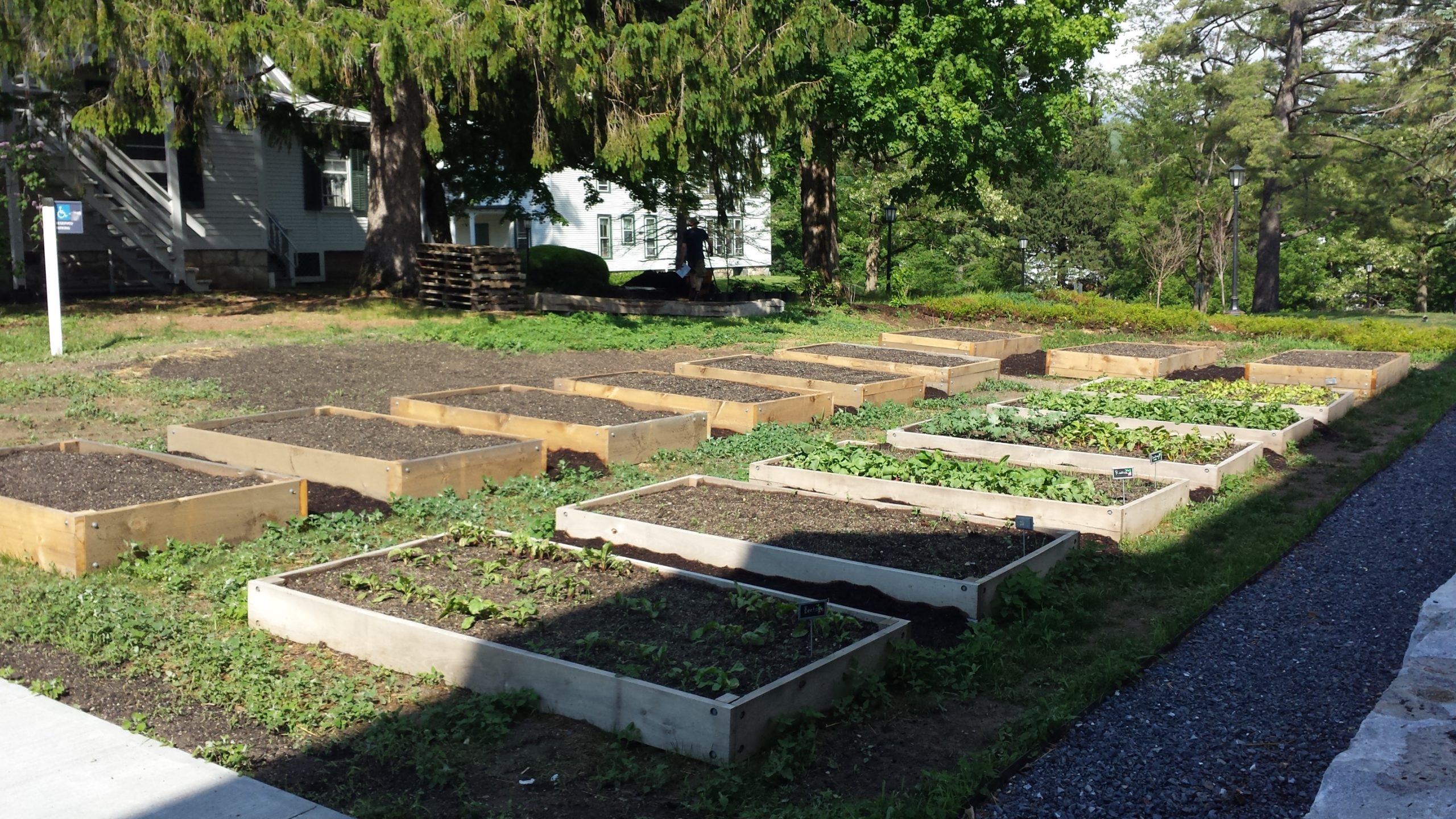
Garden Beds behind the 1966 Environmental Center

Pre-project photo of the Garden Beds (without signage) behind the 1966 Environmental Center

The garden beds are an integral part of the Envi Center. Under the Living Building Challenge certification, the building is required to operate as a net-zero energy and water space, with 35% of the surrounding land area in food production. The beds are supported by the Center for Environmental Studies (CES) and the Zilkha Center (ZC), and maintained by ZC interns and Williams Sustainable Growers (WSG). Additionally, Landscape Ecology Coordinator Felicity Purzycki advises overall orchard maintenance.

These gardens provide opportunities for community building, food production, and help teach students new skills. With these goals also come challenges. While talking to Christine about the signage project, she mentioned how garden interns already have a lot to do maintaining the gardens. This has made it difficult to find bandwidth to create signage about what is being grown and share meta information about the gardens. In addition, the current wood cookies used for signage are beginning to fade. For more than four years, the Zilkha Center has wanted a more permanent and prominent solution to identify and distinguish plants grown; this will also help ZC interns and other people to know what is ready—or not—to pick. The new signage will cover three areas: identifying the perennial and annual plants, teaching people how to use the gardens through the honorable harvest, and when certain items are ready to be picked. 

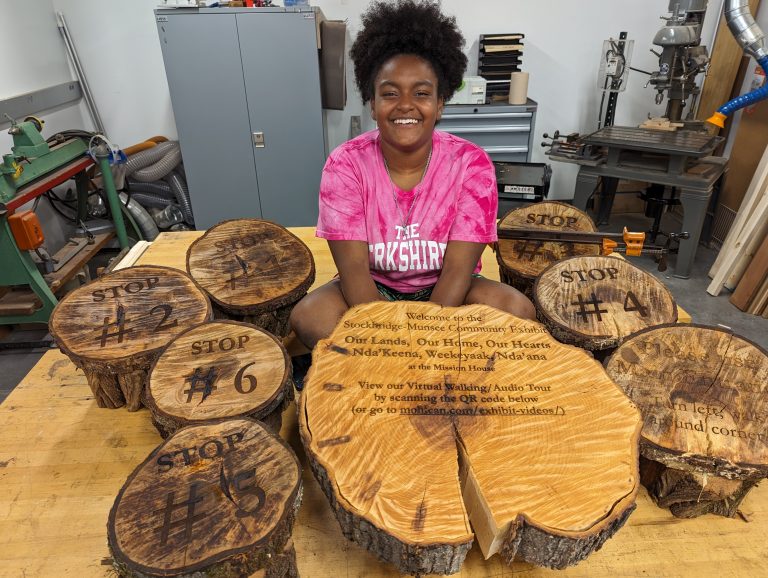
Yoheidy sits with her series of laser engraved wood slabs. She later added a laser engraved metal QR code label that directs users to the hosted video tour.

Yoheidy sits with her series of laser engraved wood slabs. She later added a laser engraved metal QR code label that directs users to the hosted video tour.

Inspiration was taken from a project recently completed by Yoheidy (Yoyo) Feliz ‘26, who engraved wood slabs to make signs for visitors going through the virtual exhibit tour at the Stockbridge-Munsee Tribe’s exhibit in Stockbridge. Those wood slabs were sourced from Hopkins Memorial Forest which is also where our project’s journey began!

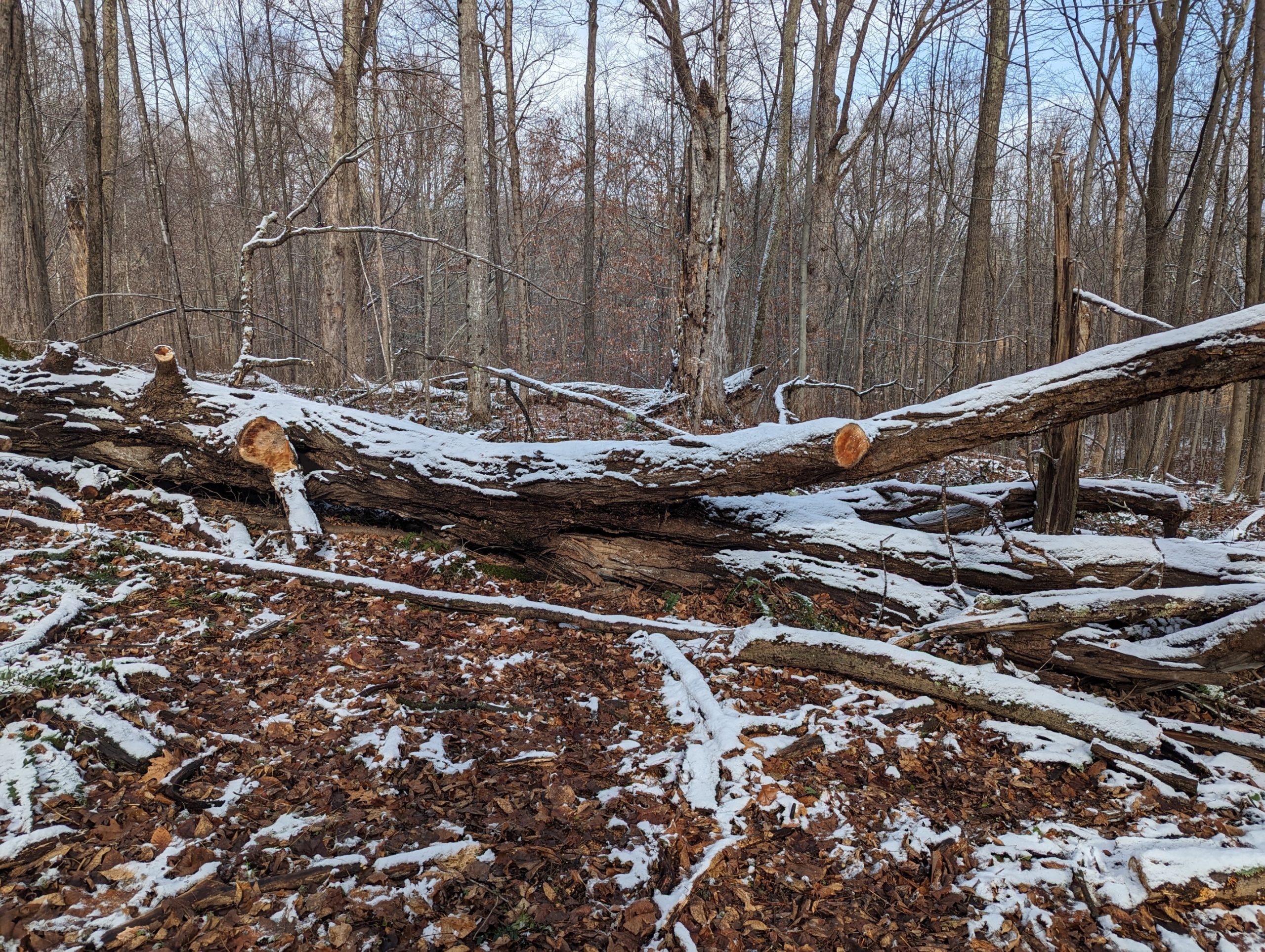
The sugar maple that provided logs for the signage

The sugar maple that provided logs for the signage

We received Sugar Maple logs claimed from the old grove across from the sugar shack with the support of Josh Sandler, Interim Hopkins Forest Manager. This tree fell two years ago, and had not yet been repurposed; the tree was part of the maple sugar grove that has a long history of being used for maple sugaring in Hopkins Memorial Forest. The logs were harvested with the help of a chainsaw by caretaker Javi Jenkins-Sorensen ‘25 who has a lot of experience in forestry.   

Logs into Lumber 

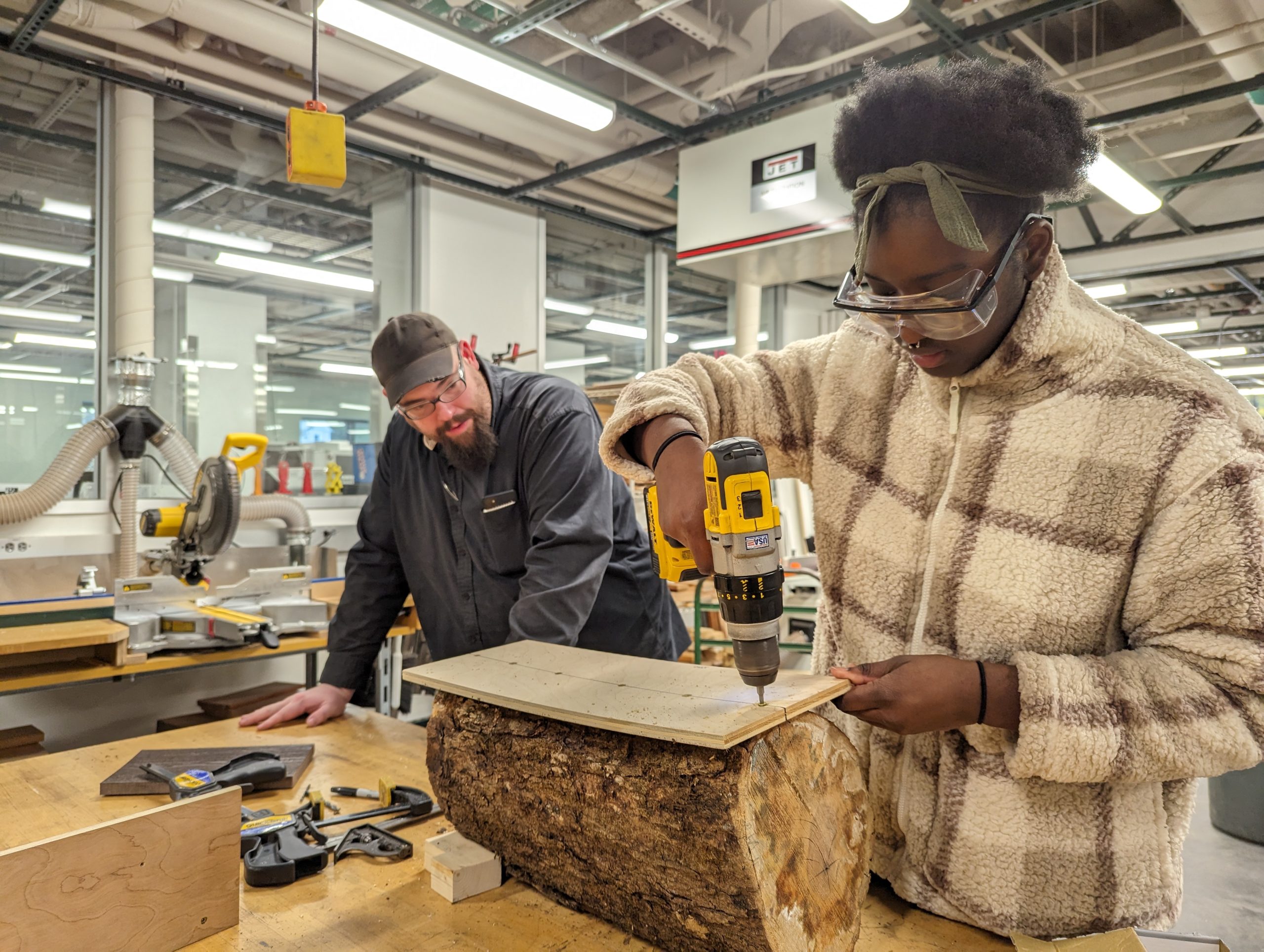
Sam Samuel '26 creating a temporary sled guide to saw logs into planks with bandsaw

Sam Samuel ’26 creating a temporary sled guide to saw logs into planks with bandsaw

Once we received the logs, we had a series of sessions in the Williams Hopper Science Shop with Makerspace Program Manager David Keiser-Clark and Instrumentation Engineer Jason Mativi. Our goal was to mill the logs into 35 planks measuring 4″x20″ with approximately a 1″ thickness. We purchased cedar posts—that had formerly been telephone polls—locally from the Eagle Lumber sawmill in Stamford, VT. In the end, we were able to create exactly 37 planks, leaving us with precious little room for error.                

Given the unevenness of the natural logs received, the first step was to build a sled (a platform) that would stabilize each log as we sliced them into planks with the bandsaw. We affixed each log to the sled with a couple screws (carefully avoiding the path of the bandsaw blade), sliced to create a flat side, then rotated the log 90 degrees and sliced again. After making two contiguous flat sides, we were able to slice the log more conveniently by using the bandsaw fence and tabletop. 

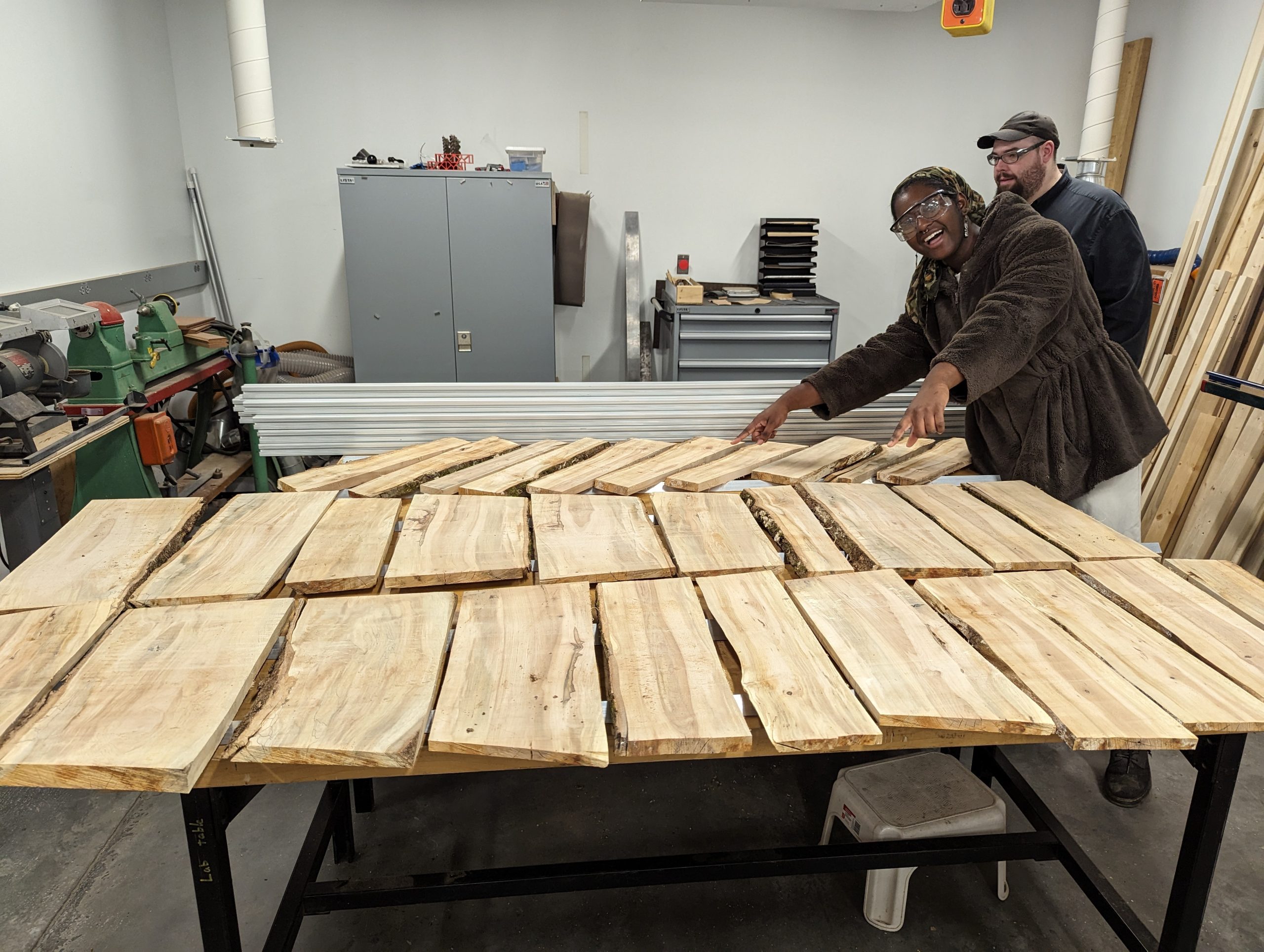
Completed lumber that was then left to dry for a week.

Completed lumber that was then left to dry for a week.

After cutting each plank, we let them dry for a week; this allowed them to shrink and to cup or curl (warp) a week. Before drying, the maple measured between 8 to 20% moisture content. Typically when letting wood dry, you want to stack your lumber with spacers to allow air flow to all sides, and allow it to dry for six months or more. Because we were short on time, we used spacers and placed weights on top of the stacks, hoping to aid them in drying flat. After a week of drying, we were able to visually see shrinkage and some warping. 

We then used the wood jointer to create one flat edge; this process created a nearly perfectly flat and square edge that was perpendicular to the wider section of the board. We then placed that flat edge against the fence of the table saw to create a second clean edge parallel to the jointed edge. We used the jointer again to create a nearly perfectly flat surface on the wide side of the board. Next we used the thickness planer to flatten the top face of the plank and be parallel with the bottom face. This work resulted in creating beautiful rectangular sugar maple planks that were both parallel and square. We repeated this process for each board.

Engraving

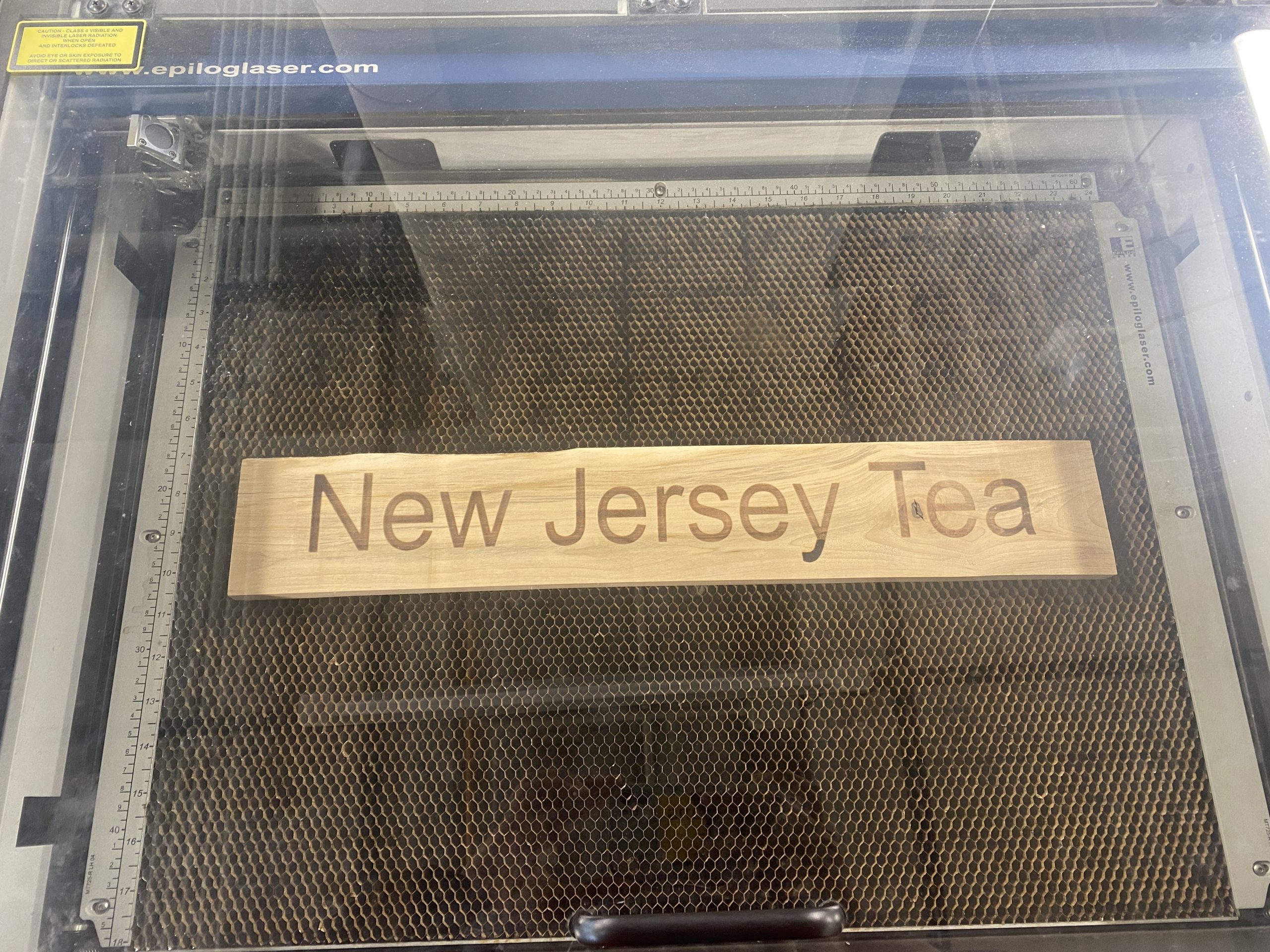
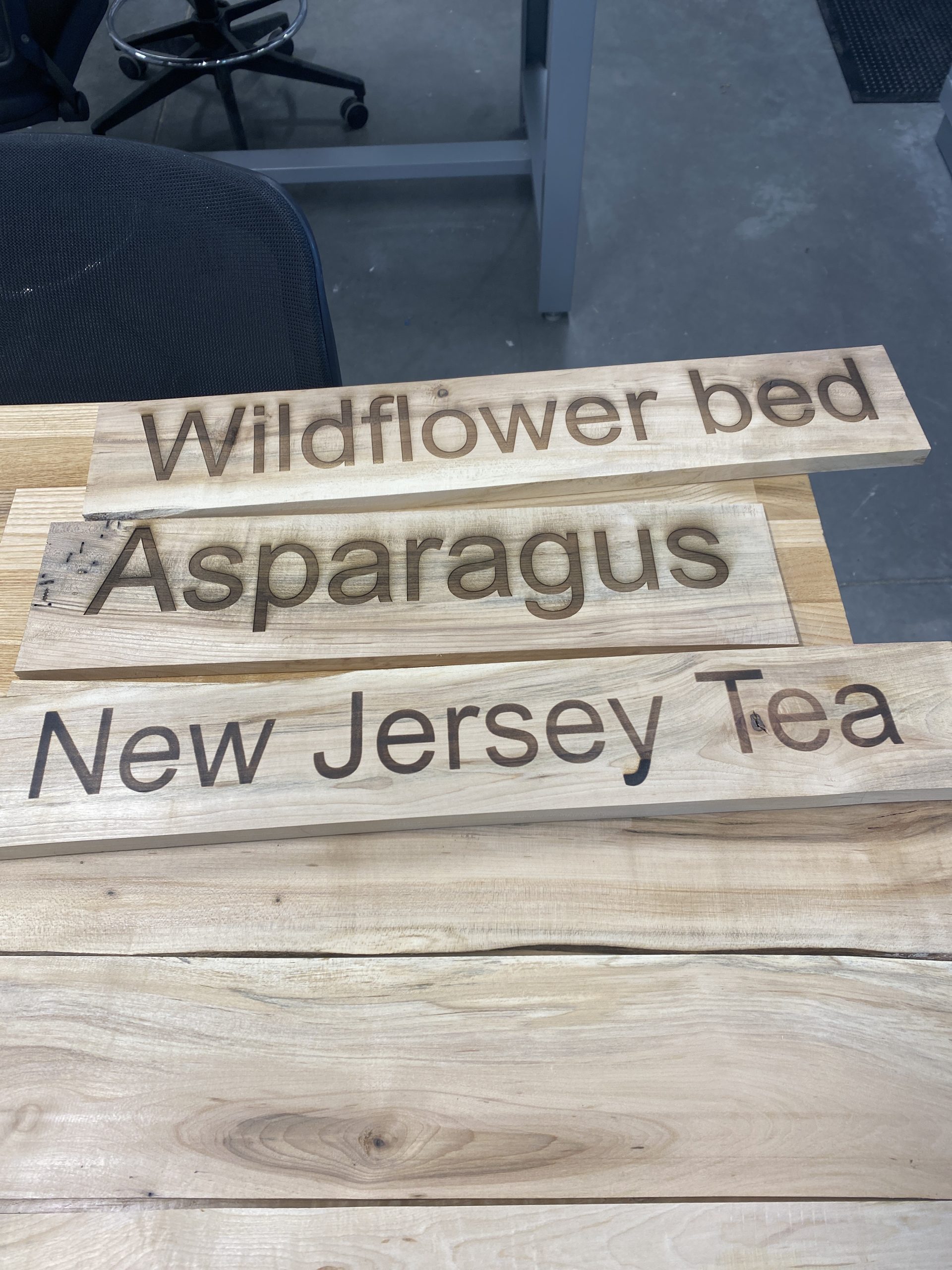
After we had jointed, sliced, and planed the maple logs into boards, Mativi and David taught me how to use the Epilog Laser Helix engraver to make a Welcome sign, informational signs for the Rain Garden, Solar Meadow, and Picking Sign, and also 31 plant identification signs. It was my first time using a laser engraver and I had to be conscious about placement, size, as well as laser power and speed. Using CorelDraw (software), I centered each sign’s text to the middle of the engraver platform, which ended up being 12 inches on the x-axis and 9 inches on the y-axis. I worried endlessly about placement and sizing so I first experimented on matboard. Despite my experimentation, I still had some underlying issues given varying thickness and placements that are evident in my very first attempts at engraving. Each laser engraving requires 15 to 20 minutes, and I often repeated that process two or three times to burn a deeper image into the wood.

Plank inside of Epilog Laser Helix after one round of engraving

Plank inside of Epilog Laser Helix after one round of engraving

First batch of completed planks for plants

First batch of completed planks for plants


Next Steps

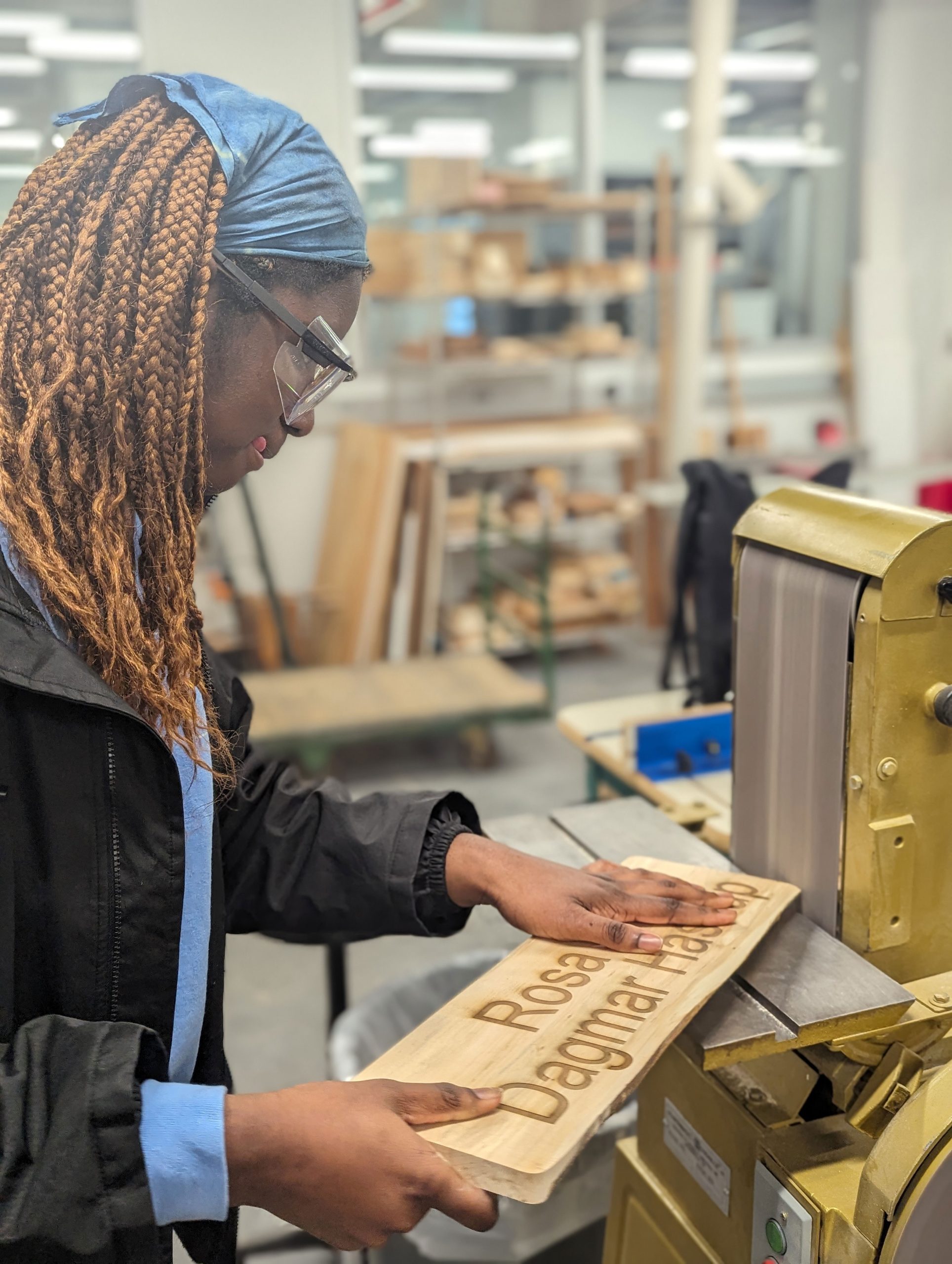
Sam Samuel '26 rounding corners with belt sander

Sam Samuel ’26 rounding corners with belt sander

I expect to complete laser engraving all of the signs within the next two weeks. The next step will be to affix the signs onto cedar posts; Jason Mativi has already cut those into 48” lengths including a spiked tip to make it easier to drive them into the ground. The final steps will include sanding the sharp corners and adding a 100% natural Walrus tung oil preservative to better show the grain and improve longevity. Because our wood is dry, we will increase the ratio of tung oil and Citra solvent from the standard 1:1 to instead be a 2:1 ratio (2 parts tung oil, 1 part citra solv) and then warm that mixture and add in beeswax (4:1 ratio of tung/citra to beeswax) for additional protection. It will be exciting to see the signs all over the Envi Center gardens! 

Postscript (May 2, 2024)

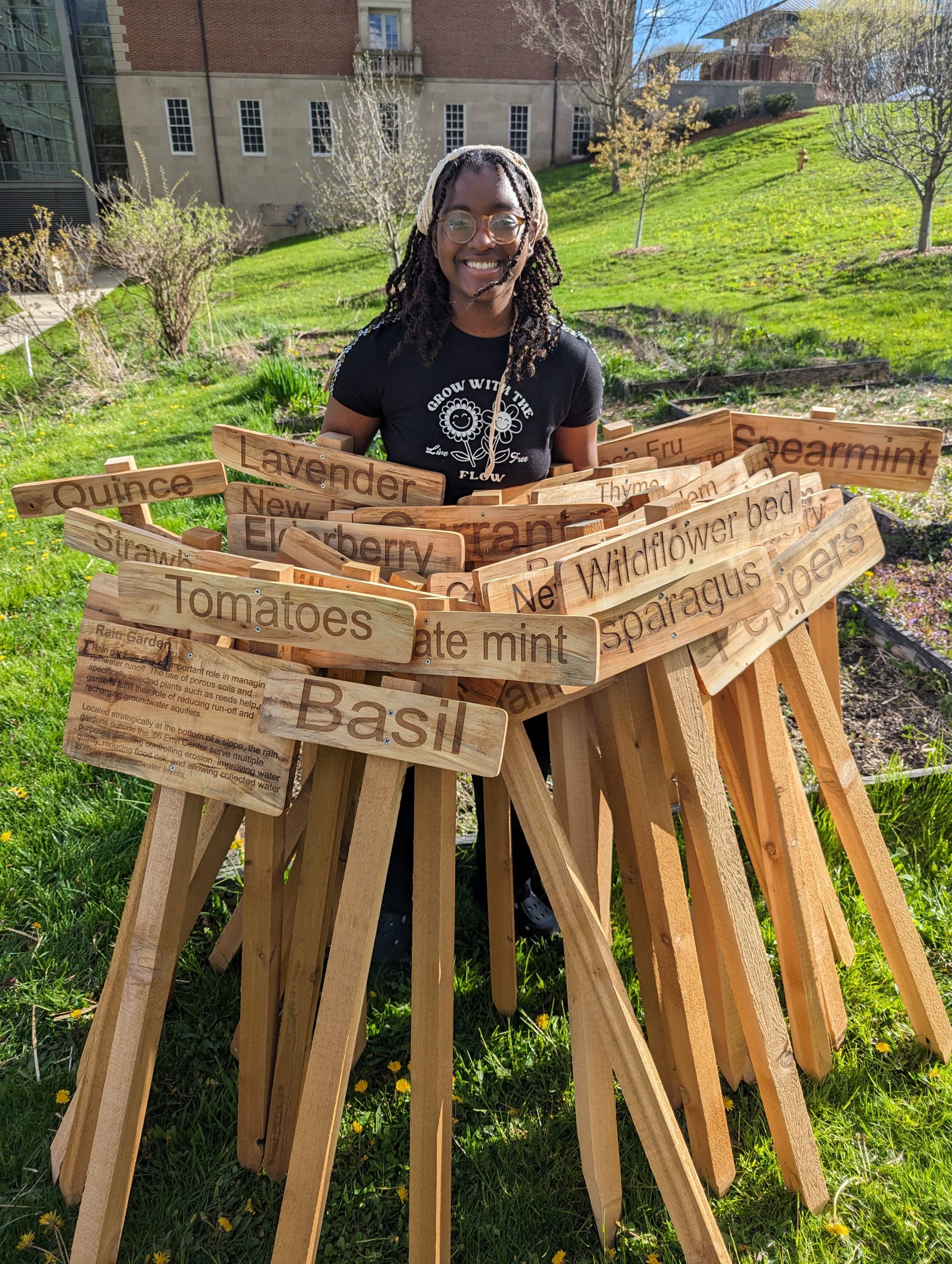
Sam Samuel ’26 with 37 laser-engraved signs made for the Envi Center community gardens.

Sam Samuel ’26 with 37 laser-engraved signs made for the Envi Center community gardens. This project used locally sourced sugar maple logs from an already fallen tree in the Hopkins Memorial Forest. Hopkins student caretaker, Javi Jenkins-Sorensen ‘25, used a chainsaw to cut the tree into logs. Sam then used a bandsaw, jointer, planer, various sanders, a laser engraver, and hand tools to create these magnificent signs.

Sam Samuel ’26 with 37 laser-engraved signs made for the Envi Center community gardens. This project used locally sourced sugar maple logs from an already fallen tree in the Hopkins Memorial Forest. Hopkins student caretaker, Javi Jenkins-Sorensen ‘25, used a chainsaw to cut the tree into logs. Sam then used a bandsaw, jointer, planer, various sanders, a laser engraver, and hand tools to create these magnificent signs.

Postscript (June 21, 2024)

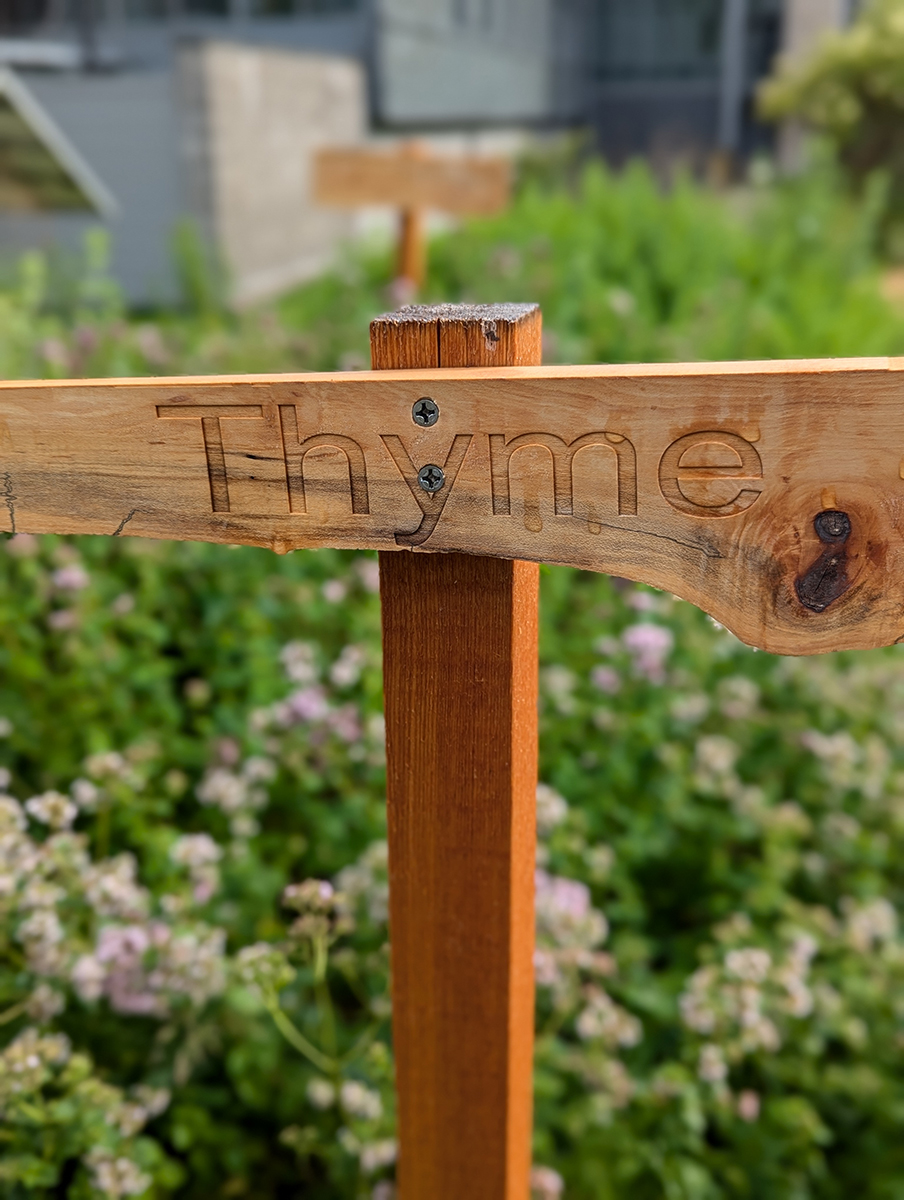
We learned that weather removes the (pretty) charring that results from laser engraving.

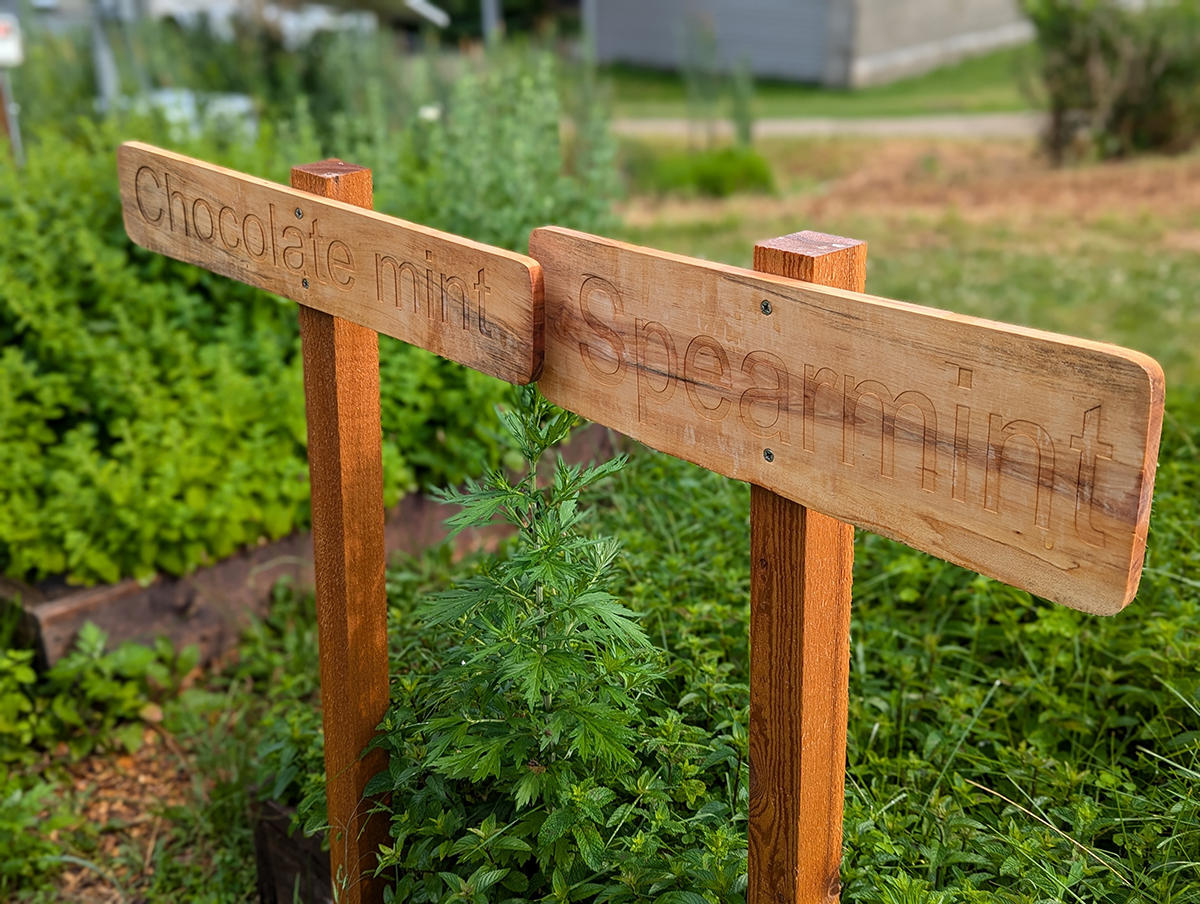
Laser-engraved signs installed in the Envi Center gardens

Laser-engraved signs installed in the Envi Center gardens

Laser-engraved signs installed in the Envi Center gardens

Laser-engraved signs installed in the Envi Center gardens

Postscript (April 25, 2025)

Much needed maintenance has been completed on the signs!

Newly painted signs: We learned that weather removes the (pretty) charring that results from laser engraving. Carefully painting the engraved letters restored the much needed contrast between the wood and the descriptive word(s).

Newly painted signs: We learned that weather removes the (pretty) charring that results from laser engraving. Carefully painting the engraved letters restored the much needed contrast between the wood and the descriptive word(s).

Newly painted signs: We learned that weather removes the (pretty) charring that results from laser engraving. Carefully painting the engraved letters restored the much needed contrast between the wood and the descriptive word(s).

Newly painted signs: We learned that weather removes the (pretty) charring that results from laser engraving. Carefully painting the engraved letters restored the much needed contrast between the wood and the descriptive word(s).

Irenee Niyibaho and Isabella Penna-Ward preparing to paint the laser engraved words in the signs

Irenee Niyibaho and Isabella Penna-Ward preparing to paint the laser engraved words in the signs